Passing Attachment Directories to BI Publisher
Passing external attachments to BI Publisher for converting to PDF and merging with the main report must be done prior to calling the BIP ProcessReport method.
To pass external attachments and files to BI Publisher, use the following PeopleCode:
&oRptDefn.setPDFConversionFiles(&inputFiles)In this PeopleCode, oRptDefn is a
report object already instantiated and &inputFiles is a string array representing paths to the external documents to
include in the report as PDF files.
&inputFiles Array
For bursted and non-bursted reports provide an array where each array member specifies an absolute path to the single file or an absolute path to the directory that contains files to be converted.
By default, BI Publisher places the main report as the first document in the PDF report output, followed by the external attachments. The external attachments appear in the generated report in the order in which you define them in the array.
In all cases, the name of the merged output file (main report and external attachments) is the name of the BI Publisher report.
There are three variables that you can use in the &inputFiles array:
| Field or Control | Description |
|---|---|
|
%REPORTFILE% |
Use this variable to specify where the main report is positioned in the output. This variable can be positioned only as the first or the last member of the &inputFiles array. If this rule is not followed the report file will be used as the first member of the array If this placeholder is missing from the array it is added as the first array member during the processing. |
|
%ALLFILES% |
Use this variable to include all files in the directory. (This variable resolves to *.*) It processes only files in the specified directory, child directories are ignored. Converted files appear in alphabetical order. This variable is valid for bursted and non-bursted reports. |
|
%BTV% |
This variable denotes a burst value. This variable is valid only for bursted reports. If used for a non-bursted report, the array member is ignored. |
Example: String Array of Fully-Qualified Paths
This example represents a string array of fully-qualified paths to the external documents to merge with the main report. In this example, the documents in the report output will appear in the order of the array members.
&inputFiles.Push("D:\ExternalFiles\sdk\samplefiles\microsoft-word.doc");
&inputFiles.Push("D:\Temp\Rownumber.htm");
&inputFiles.Push("D:\ExternalFiles\sdk\samplefiles\jpeg-bitmap.jpg");
&inputFiles.Push("D:\ExternalFiles\sdk\samplefiles\microsoft-excel.xls");
&inputFiles.Push("%REPORTFILE%");
/* in this example the main BI Publisher report is presented as the last */
/* document in the PDF output */
Example: String Array of Single Directories
This example represents an array of a single directory. All files contained in the directory will be converted to PDF documents and merged with the main report.
In this example the attachments in the report output will appear in alphabetical order. To achieve a specific order, rename the documents in the folder accordingly.
/* the main BIP report is presented as the first document in */
/* the PDF output */
&inputFiles.Push("%REPORTFILE%");
&inputFiles.Push("D:\Temp\ExternalFiles\%ALLFILES%");
/* Placeholder %ALLFILES% tells BI Publisher to use all documents contained */
/* in the folder D:\Temp\ExternalFiles */
Example: String Array of Multiple Directories (Bursted Reports)
This example shows an array of multiple directories named in accordance with the bursted value.
&inputFiles.Push("D:\Temp\ExternalFiles\%BTV%\%ALLFILES%"); In this case BI Publisher expects that directory D:\Temp\ExternalFiles has a set of sub-directories named as burst values. Each of the directories contains the documents for a specific bursted value.
For each bursted report, the documents in the BI Publisher output will appear in alphabetical order. Note that the main report will appear first in the output report if there is no %REPORTFILE% placeholder in the &inputFiles array.
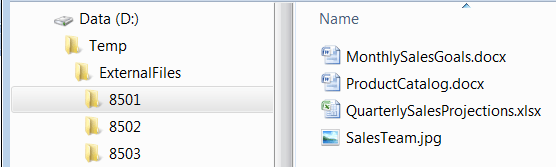
The following example shows the Microsoft Windows directory structure where a BI Publisher report is bursted by SALES_ID 8501. In the example, the directory for SALES_ID is D:\Temp\ExternalFiles\8501.
This example illustrates a directory structure for a bursted report. All of the documents in the
Example: String Array of Multiple Directories and Multiple Static Files (Bursted Reports)
This example shows a string array that contains multiple directories named in accordance with the bursted value as well multiple static files to add to the bursted report.
This example also illustrates having a header page that separates a report from the converted PDF-formated attachments with a common text for each bursted report.
&inputFiles.Push("D:\Temp\ExteralFiles\attachment_header.rtf");
&inputFiles.Push("D:\Temp\ExternalFiles\%BTV%\%ALLFILES%");
To attach multiple static files to each bursted instance use the following syntax:
&inputFiles.Push("D:\Temp\ExternalFiles\COMMON_FILES\%ALLFILES%");
&inputFiles.Push("D:\Temp\ExternalFiles\%BTV%\%ALLFILES%");
In the previous example, the directory D:\Temp\ ExternalFiles\COMMON_FILES is a container for commonly used files for each bursted report instance.
Unicode Support for External Document Paths and Filenames
Unicode characters are supported in the external document paths and filenames.
This includes fully-qualified paths as well as directory paths containing files with Unicode characters in their names.
The following example shows Unicode characters in a full-qualified path:
&inputFiles.Push("D:\ExternalFiles\sdk\VEŘEJNÉ\microsoft-中word.doc");The following example shows a directory path to a filename that contains Unicode characters:
&inputFiles.Push("D:\Temp\ExternalFiles\%ALLFILES%");where D:\Temp\ExternalFiles contains a file such as русский_язык_test.txt.
Application servers and Process Scheduler servers running on Unix or Linux platforms require the character set portion of the shell locale to be one that supports Unicode, such as UTF-8.