Registering Data Sources
Access the Data Source page (Select .)
This example illustrates the fields and controls on the Data Source page. You can find definitions for the fields and controls later on this page.
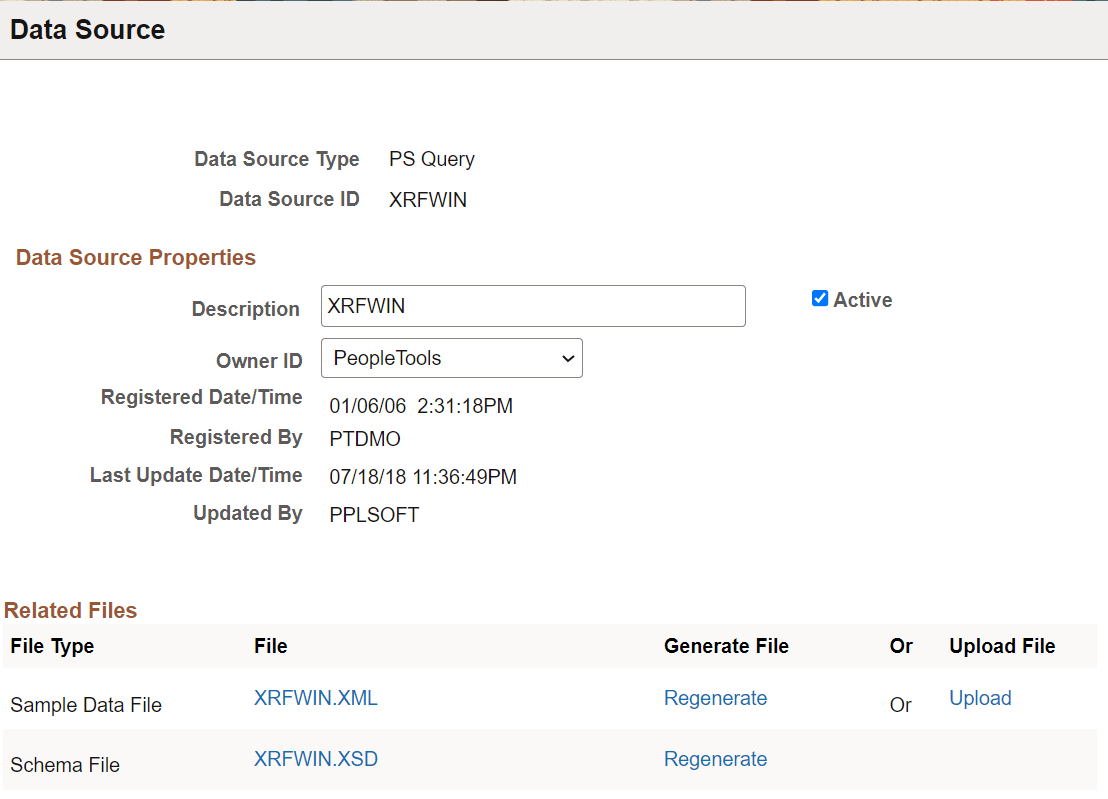
| Field or Control | Description |
|---|---|
|
Data Source Type |
Select PS Query, Connected Query, or XML File, or Composite Query. |
|
Data Source ID |
Select or enter the data source ID. When adding a new data source of type PS Query, Connected Query, or Composite Query, the Data Source ID will always be the name of the PS Query, Connected Query, or Composite Query definition that you select. For other data source types, this field accepts free-form text entry. Enter an ID that indicates what the data is, because you want to easily identify your data sources when defining reports. |
|
Description |
(Optional) Enter descriptive text that provides more detail about the data source. The description is automatically supplied by default to the data source ID. |
|
Owner ID |
(Optional) Indicate which product, feature, or application owns this data source. This field is used to extract and package production data source and report registrations and their supporting files. |
|
Registered Date/Time |
This is a read-only field maintained by the system that indicates the date that the initial data source registration was made. |
|
Last Update Date/Time |
This is a read-only field maintained by the system that indicates the date that the last update to the data source was made. |
|
Active |
Select to indicate that this is an active data source. Only active data sources can be chosen when creating a new report definition. Only reports with active data sources can be processed. |
|
Registered By |
This is a read-only field maintained by the system that indicates the user ID of the operator who initially registered the data source. |
|
Updated By |
This is a read-only field maintained by the system that indicates the user ID of the operator who last updated the data source. |
Related Files
The sample data file is an XML file with sample data that is used for data mapping, template preview, and determining burst fields. Preview action is available within a desktop template designer or from within the report definition page. For PS Query, Connected Query, and Composite Query data source types the sample data file can be system-generated or uploaded. For XML file data source type, the sample data file must be uploaded.
Note:
Prior to PeopleTools 8.50, the sample data field was only used for data mapping and preview and the schema file was used required for bursting. In PeopleTools 8.50, the sample data file is used for bursting, as well as data mapping and preview.
| Field or Control | Description |
|---|---|
|
File |
(Optional) Click the file name links to view the XML and XSD files after you have generated, regenerated, or uploaded them. |
|
Last Update Date/Time |
(Optional) This is a read-only field maintained by the system that indicates the date that the last update to the related file was made. |
|
Generate/Regenerate |
(Optional) Click the Generate link for PS Query, Connected Query, or Composite Query data sources to generate the related sample data . When the related files have been initially generated for PS Query, Connected Query, or Composite Query data sources, click the Regenerate link to regenerate them in case the underlying query has changed. |
|
Upload |
(Optional) Click the Upload link for XML file data sources to bring the related sample data and schema files into the database. You can also upload a sample data file for PS Query, Connected Query, or Composite Query if you would prefer to use a sample data file with more realistic data. Note: A validation is run against the schema XSD file that is uploaded to a data source, alerting the developer if problems occurred while the system was using their schema. |