Using Drilling URL in RTF Template
Drilling URLs are supported in BI Publisher reports with a data source of PS Query or Connected Query.
Note:
Drilling URLs are supported only in RTF templates.
To use a drilling URL in a BI Publisher report:
-
Create the query with the drilling URL defined as a field.
-
Create an RTF template.
-
In the RTF template map one or more fields to the fields that contain drilling URL.
-
Highlight the field where you want to place the drilling URL.
-
Select Insert (from the Word menu), Hyperlink or use Ctrl+K.
-
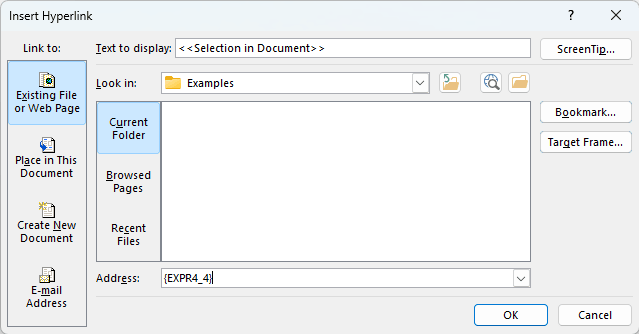
In the Insert Hyperlink dialog box, enter the URL link in Address field.
Each URL link should be defined as {URL_FIELD}, where URL_FIELD is the unique field name for the expression that contains a specific drilling URL.
This example illustrates the fields and controls on the Insert Hyperlink dialog box.
-
Use the Target Frame push button to select how this URL link will be opened, either in the same window or in the new window
Note:
The URL value does not need to be added to the report, as long as the unique field name (data file that contains the URL) is mapped to a field in the report.
-
-
If the BI Publisher report is run in Process Scheduler using an application engine program, you will need to add additional code to identify the process instance for the application engine program before processing the report. The process instance can be retrieved from the state record PSXPQRYRPT_AET. This call is needed to set a drilling URL during Query or Connected Query execution.
&ProcessInstance=PSXPQRYRPT_AET.PROCESS_INSTANCE; &oRptDefn.ProcessInstance = &ProcessInstance; &oRptDefn.ProcessReport("", "", %Date, ""); -
When you click the drilling URL in the report depending on the drilling URL type, one of the following occurs:
-
For Query URL, the Query results are displayed.
-
For Component URL, the appropriate PeopleSoft page is opened.
-
For External URL, the external page is opened.
-
See Fusion Middleware Report Designer's Guide for Oracle Business Intelligence Publisher.