Creating a File Reference Definition
If you have individual files that need to be packaged with the project, you can create file reference definitions to identify them. Create one file reference definition for each file. You create a file reference definition in the same manner as all other PeopleTools definitions in Application Designer, by selecting from the menu.
| Field or Control | Description |
|---|---|
|
File Name and Path |
Enter the path and file name for the file you want to reference. Use the browse button to search the proper path. This is the source location and file from which Change Packager selects the definition for packaging. This field supports the use of environment variables. If you want to create a file reference with a variable path, prepend %FILEREFPATH% to the filename. |
|
Change Assistant Template Text |
Enter the text you want to display in the Change Assistant template for this change package. This field has a 20 character limit. |
|
Binary |
Check if the file is a binary file. This information is necessary to properly transfer the file to the target platform. |
|
Database Platform |
Select the database platform for the target database. |
|
Operating System |
Select the operating system for the target database. |
|
PeopleSoft Server |
Select the applicable server for your system. |
|
Unix Target Directory Security |
Specify the file permissions the file should have once it is copied if operating on a UNIX system. |
For each of the drop-down list boxes in this dialog box, you may select multiple entries by using the Shift/Ctrl keystroke combinations.
The file reference properties contain only the General tab where you can enter any comments about the file reference as well as select the Owner ID. This tab also tells you when the definition was last updated and by whom.
When you save the file reference definition, the definition name defaults to the file name you entered in the File Name and Path field. The Save As dialog box prompts you for the File Type Code, which is a requirement for every file reference definition.
Variable File Reference Path
You can use a variable path as a file reference. To do this, in addition to the steps for creating an absolute path:
-
In the File Name and Path edit box, enter the name of the file and prepend the filename with %FILEREFPATH%.
For example: %FILEREFPATH%\ExcelToCI.xls
-
Add this file reference to a change project.
This example illustrates the fields and controls on the Example of Variable Path File Reference. You can find definitions for the fields and controls later on this page.
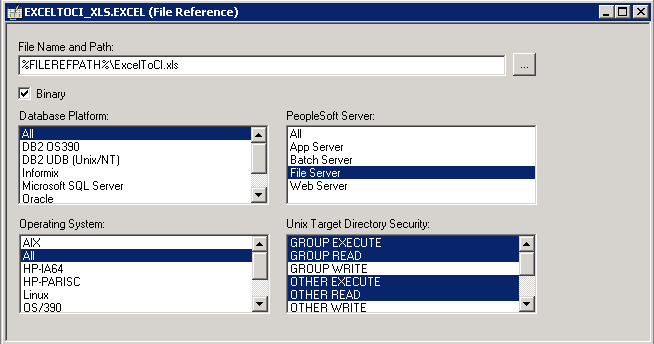
Using variables in the file reference definition eases the repackaging of a change package. When you create a change package with a variable file reference, the File Reference Path edit box in Create Change Package dialog expands the %FILEREFPATH% variable in the file reference definition. However, the file reference definition itself is not updated in the process.
This enables you to repackage change packages without having to modify the file reference definitions. The value in the File Reference Path field is stored in the registry and displays the last value.
When the change package is recreated, the update ID automatically expands the file reference paths according to the following construct:
file reference path + upd + update ID + \ +upd + update ID +_batch\filereferences\ + file type code + filename
For example:
c:\temp\upd999999\ upd999999_batch\filereferences\XLS\ExcelToCI.xls
c:\temp\upd999999\ upd999999_batch\filereferences\SQR\xrfwin.sqr
If the file does not exist in the directory, the system searches for the file reference path. If the file isn’t found in this directory, then an error will be displayed and the Change Packager fails to create a change package.