Setting Step Properties
PeopleSoft delivers update templates with default settings and steps to perform updates. If needed, you can modify the steps, or create new steps, based on the conditions that apply when you run the update process.
To modify the step properties, highlight the step for which you want to modify the step properties, then double-click on the step or select . After making any changes to step properties, click OK, and save your template.
Note:
Depending on what mode you are in, some of the fields may be disabled.
Note:
Under normal circumstances, it is recommended that you do not modify or edit the step properties in your delivered template.
This section describes fields and options on the Step Properties dialog box. You can modify step properties for a step when adding or editing steps in the template.
This example illustrates the fields and controls on the Step Properties dialog box. You can find definitions for the fields and controls later on this page.
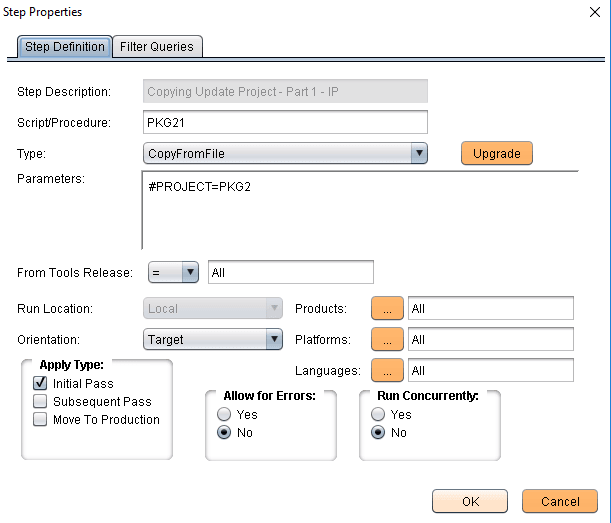
| Term | Definition |
|---|---|
|
Step Description |
This field displays the current step. |
|
Script/Procedure |
Enter the name of the script, procedure, project, or program name to which you want to assign the properties of the step. For example, enter SYSAUDIT. This field is required for all step types except manual stop. |
|
Type |
Select a step type. This selection defines the type of action to be performed by the step. For example, if you are running the SYSAUDIT SQR report, select SQRReport. Detailed information related to each step type appears elsewhere in this PeopleBook. See Step Types |
|
Parameters |
Enter additional parameters that you may need to run the step. For example, for SQL commands, you enter the actual SQL command in this field. In other cases, you use this edit box to override various environment settings or other parameters so that the step completes successfully. Detailed information related to the parameter options for each step type appears elsewhere in this PeopleBook. See Step Parameters |
|
From Tools Release |
Specify the PeopleTools releases to which a step applies. Use the associated operator from the drop-down list box to indicate ranges of releases. The default values are All with the = operator. The operator drop-down list box enables you to express greater than, less than, equal to, and 'in' relationships. The in operator enables you to specify more specific ranges, such as 'in' 8.48 and 8.49, as opposed to 'greater than' 8.48. When adding multiple release numbers, separate the values with a comma (,). For example: 8.48,8.49 Note: If you enter more than one From Tools Release value, the system assumes the 'in' operator. Change Assistant uses these values to filter the steps when creating the upgrade job so that only the steps necessary for a particular environment remain. |
|
Run Location |
For Application updates and PeopleTools-only upgrades, steps run locally. |
|
Orientation |
Specify which database the step needs to be run against. Options will vary based on the action selected, but may include:
Step type and type of upgrade determine valid orientation settings. |
|
Products |
Click the Products icon. Change Assistant displays the Select Products dialog box, which enables you to select the product line, the industry, and the products to which your step should be run against (for example, FIN/SCM, Commercial, Asset Management). Note: You must select at least one product. |
|
Apply Type |
Specify the type of upgrade to which this step applies:
Note: When the job is created, the system filters the template steps to be executed by the apply type specified. For example, if Move to Production is specified as the apply type, only steps in the template specified as Move to Production will be included in the job. |
|
Allow for Errors |
Indicates how the system should react to any errors that may arise during a step run. If set to Yes, if the step encounters errors the system does not perform any error handling and continues on to the next step. Default is set to No. |
|
Run Concurrently |
Enables you to set multiple steps (programs, processes, and so on) to run simultaneously. If you select this option for two or more consecutive steps, Change Assistant starts those processes concurrently, until the job reaches:
By setting Run Concurrently to Yes, you are indicating to Change Assistant that this step can run concurrently with the following step. The total number of processes that can run concurrently is determined by the Maximum Concurrent Processes setting on the Change Assistant Options dialog box. Some examples are shown here, these examples use 3 AE steps and CA concurrency set to 2:
Running steps concurrently is a strategy reserved for application upgrades to save time when running the following step types on Process Scheduler:
Concurrent processing is not enabled in any circumstances for these step types:
Note: If a step is dependent on a previous step, it is not recommended to set it to run concurrently with that step. Note: Steps set to run concurrently can span across multiple consecutive tasks or chapters, and can be of different step types. Note: In an application upgrade, do not run the "Update PeopleTools System Tables" step concurrently, and, unless specifically instructed to do so, do not run any of the steps in the "Apply PeopleTools Changes" chapter concurrently. See the upgrade documentation for your specific upgrade for recommendations on specific steps within that upgrade that can be run concurrently. |