Uploading Tests to PUM Source
Navigation:
To upload tests to the PUM source:
-
In Change Assistant, select Tools, Options.
-
Select the PUM Source tab.
-
Select the Manage button for the Test Repository
This example illustrates the fields and controls on the Manage Test Repository page. You can find definitions for the fields and controls later on this page.
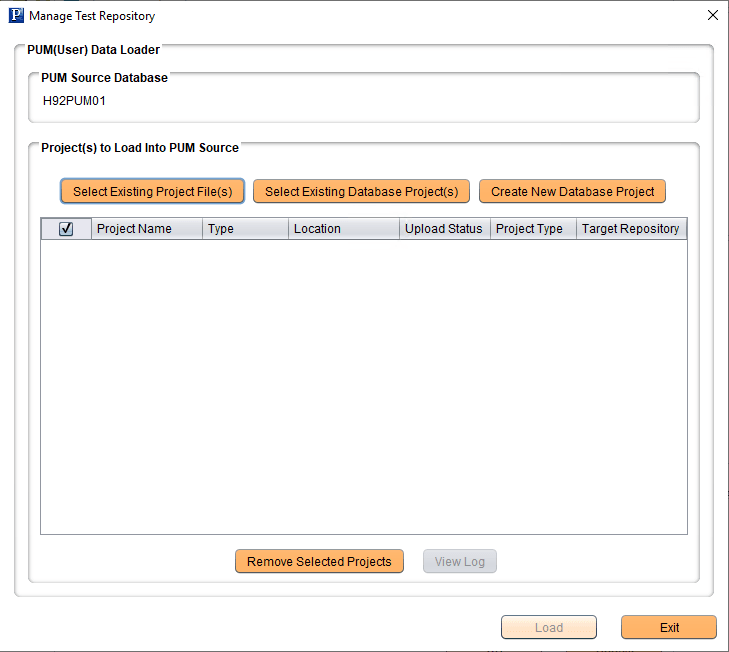
There are 3 options for uploading test data:
-
Select Existing Project File(s)
-
Select Existing Database Project(s)
-
Create New Database Project
After selecting the projects, click the Load button to upload the tests to the PUM source Test Repository.
Select Existing Project File(s)
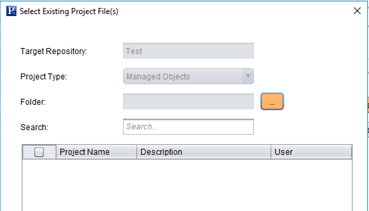
This example illustrates the fields and controls on the Select Existing Project File(s) page. You can find definitions for the fields and controls later on this page.
| Field or Control | Description |
|---|---|
|
Target Repository |
Test is selected and read only. |
|
Project Type |
Tests are always managed object, the field will be grayed. |
|
Folder |
Select the folder where the project file is stored. |
|
Search |
Enter value to search for and press the Enter key. All projects matching the entered value will be returned. |
|
Project Grid |
Select the projects that you want to upload from the project grid. |
|
Add Selected |
Click the Add Select to return to the Upload Customer Data to Image page. |
Select Existing Database Project(s)
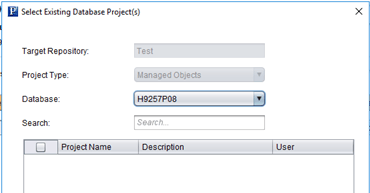
This example illustrates the fields and controls on the Select Existing Database Project(s) page. You can find definitions for the fields and controls later on this page.
| Field or Control | Description |
|---|---|
|
Target Repository |
Test is selected and read only. |
|
Project Type |
Tests are always managed object, the field will be grayed. |
|
Database |
Select the target database where the project file is stored. |
|
Search |
Enter value to search for and press the Enter key. All projects matching the entered value will be returned. |
|
Project Grid |
Select the projects that you want to upload from the project grid. |
|
Add Selected |
Click the Add Select to return to the Upload Customer Data to Image page. |
Create New Database Project
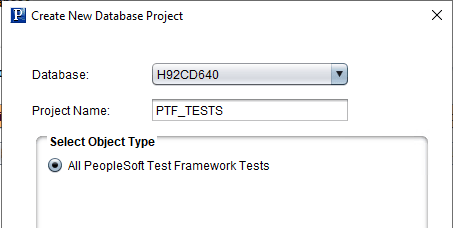
This example illustrates the fields and controls on the Create New Database Project page for the Test Repository. You can find definitions for the fields and controls later on this page.
| Field or Control | Description |
|---|---|
|
Database |
Select the database that contains the PTF tests. |
|
Project Name |
Enter the Project Name. |
|
All PeopleSoft Test Framework Tests |
This feature will insert all PTF tests in the database. |