Creating New Component Interfaces
This section discusses how to create a new component interface.
This example shows a new component interface with no properties yet defined.
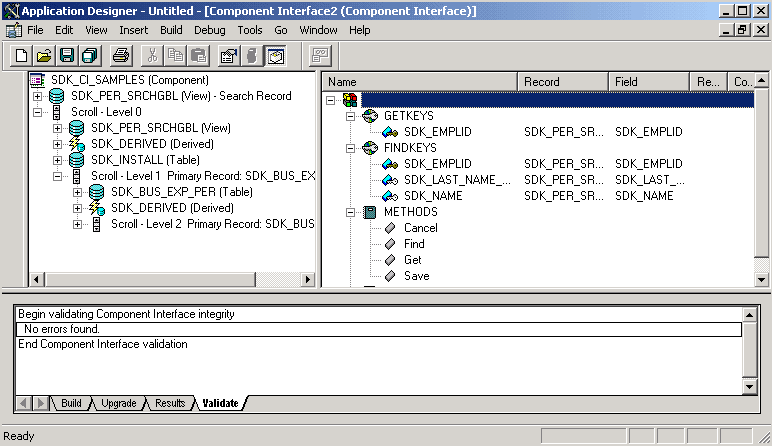
To create a new component interface:
-
Select from the PeopleSoft Application Designer menu.
-
Select Component Interface from the New dialog box.
-
Select the component on which to base this component interface.
After you select the appropriate component, you see a message asking whether you want the fields that are exposed in the selected component to become the default properties of the component interface.
Note:
Not all fields on the component interface can have automatic defaults created for them.
-
Click Yes to confirm the default property definitions or No if you don’t want any properties initially created.
If you elect to have the property definitions automatically provided by the system by default, then all properties that appear on the pages of the underlying component are added to the component interface. Even though the system adds the default properties, you may need to move other properties into the component view for the component to work.
An untitled component interface appears, showing the Get keys and Find keys. Create keys are produced only if the underlying component can run in Add mode (the example preceding this procedure does not have Create keys, because the search record of the underlying component cannot run in Add mode). PeopleSoft Application Designer generates the keys for you as you drag definitions.
The standard methods Cancel, Find, Get, and Save are automatically created. The Create method is not automatically created unless the component supports the Add mode.
Note:
You can begin adding properties to a new component interface at any point. However, you cannot add any user-defined methods to the component interface until you have saved the component interface.
-
Save the component interface.
After you have saved the component interface, you can further define user-defined methods.