Entering Data into the Template
When determining which properties to include as input cells and which properties to include for submission, remember that the component interface uses the same business logic and executes the same PeopleCode as if the record were entered online using the page in your PeopleSoft application. To provide the minimal data necessary, these fields must be provided either with default (hard-coded) values or values that you provide using the data input sheet.
Note:
You should unit test the template that you created with a few sample entries, and then verify your results before using the interface for mass input. For example, if you forgot to select a property, you will need to build a new data input sheet. If the results of the submission are satisfactory, continue entering data.
Adding a New Child Record
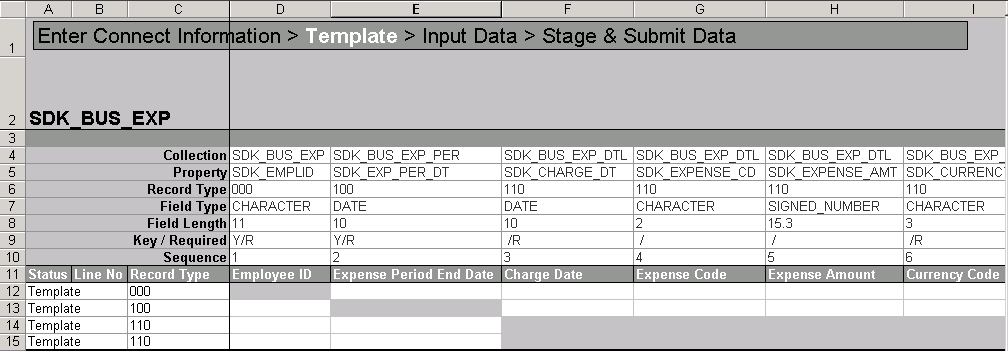
By default, each collection is represented once on the template. To insert copies of a given collection, select that collection and click the Insert New Child button to create a copy of the selected row. The collection that you selected is copied so that you can have two rows under the same parent.
This example illustrates the Template tab in the Excel to Component Interface utility when a child row is added.
Note:
On the data input sheet (when the hierarchy is flattened) you will see duplicate columns where multiple children exist.
Adding Default Values
Some fields have default values associated with them, either in the record definition or at runtime when the record is created on the database. Additionally, many components trigger PeopleCode, which supplies default values, as well. To accept the database default, include the property for submission and the system default will be used.
Some fields may exist for which you want to create your own default. For example, if you want to set the value of a field named Status as of Effective Date to A for every row that you submit, enter that value for the field in the template. Then include the cell for submission on the template. The field will not appear on the data input page, but the value will appear in the field on the Submit to Database page. This is useful for effective dates, status fields, set IDs for simple imports, and so on.
When providing values for translate fields or prompt tables, provide the field value rather than the short or long description for the translate value. If you are unsure of the field values, check in the record or field definition in PeopleSoft Application Designer.