Viewing the Staged Data
Access the Staging and Submission tab:
This example illustrates the Staging and Submission tab of the Excel to Component Interface utility.
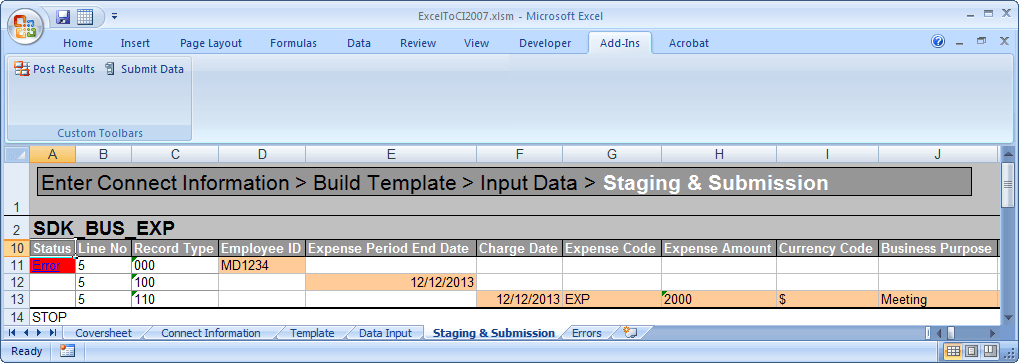
Staging and Submission Actions Toolbar
| Field or Control | Description |
|---|---|
|
Post Results |
The results of the submission are copied to the data input sheet, where you can view the status of each row that is submitted and make any necessary corrections to rows that have the status of Error. |
|
Submit Data |
The login dialog box appears. You must specify your user ID and password. The system submits the data to the database in the chunks that you specified on the Connection Information sheet. After correcting any errors on the data input sheet, you can submit the data again. The items that had been marked as Error will be resubmitted, whereas those marked OK and Warning will be ignored. |
Error When Submitting Existing Keys
If you receive the error message Row already exists with the specified keys and you are in CREATE mode, the key already exists at level 0 or is part of the search record.
To verify that the key exists:
-
Open the component interface in PeopleSoft Application Designer.
-
Launch the component interface tester by selecting .
The component interface Tester search dialog box appears. This dialog box displays the keys (in the left-hand columns) for getting, creating, or finding an instance of the component interface.
-
Enter the value for the key that you are testing.
-
Click Get Existing for the key that you are about to add, using the Excel to component interface utility.
If the Get Keys command returns the key, the key already exists and you must add data by using UPDATE mode.
If you receive a message that no row exists for the key, then the key does not exist at level 0 and the data should be added by using CREATE mode.