Configuring the Deployments
After creating the deployments, set up the database connection in the Oracle GoldenGate Service Manager.
Use the Service Manager web-based UI to set up the database connections. You must set up the connection on both the source and target.
-
Enter the URL in a browser for the Oracle GoldenGate Service Manager interface:
http://<fully qualified host name>:<Service Manager port>.
The host name is the name of the host where Service Manager is running, and the Service Manager port is specified in Section C of the deployment response files. The sample response files shown in this topic are oggca_source.rsp and oggca_target.rsp.
-
Enter the Service Manager credentials that you entered in the response files for the deployment.
The Service Manager administrator credentials, ADMINISTRATOR_USER and ADMINISTRATOR_PASSWORD, are set in Section B of the response files. The administrator user in these examples is psft_sm.
-
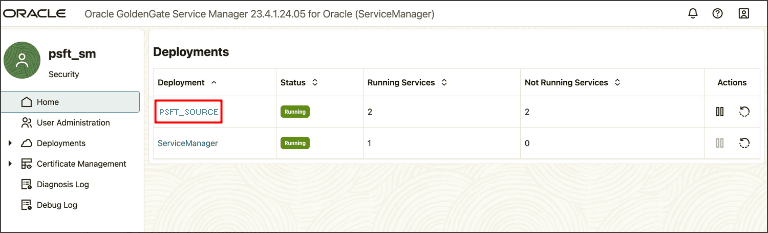
On the Service Manager home page, select the link for the PeopleSoft deployment from the Deployment grid.
The deployment name, which is PSFT_SOURCE in this example, is specified in Section A of the deployment response file. The services for the deployment are listed.
This example illustrates the Deployments page in Oracle GoldenGate Service Manager.
-
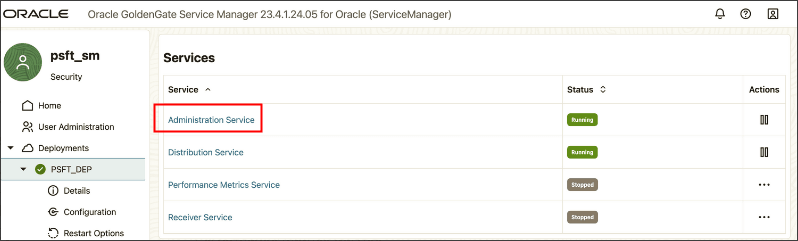
Select the Administration Service link.
This example illustrates the Services page in Oracle GoldenGate Service Manager.
-
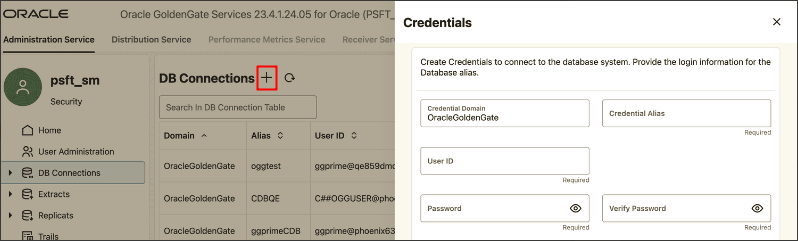
Click the DB Connections plus sign (+) to open the Credentials page.
Enter the following information:
-
Credential Domain — OracleGoldenGate (default)
-
Credential Alias — Enter an alias for the user ID.
-
User ID — Enter the oggadmin user that you created earlier.
-
Password and Verify Password — Enter the access ID password.
This example illustrates the Credentials page.
-