Defining Auditing Triggers
Select , and search by Record (Table) Name, Audit Record Name, or Trigger Name to access the Audit Triggers page.
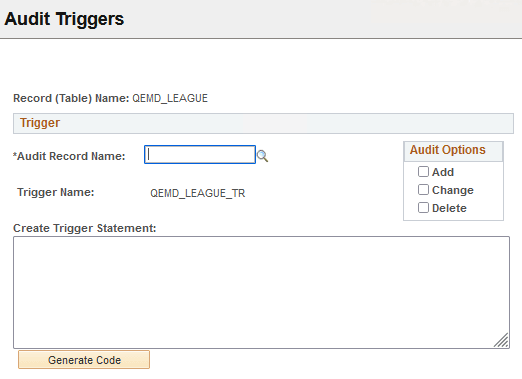
This example illustrates the fields and controls on the Audit Triggers page.
| Field or Control | Description |
|---|---|
|
Audit Record Name |
Use the Browse button to search the PSRECDEFN table. The Audit name must exist before a trigger can be created. |
|
Trigger Name |
By default, the system names audit triggers by using the following naming convention <base record>_TR, for example, ABSENCE_HIST_TR. |
|
Audit Options |
Select from the options Add, Change or Delete. |
|
Create Trigger Statement |
The statement is populated when the Generate Code button is clicked. You can customize the script if you need to. It depends on your preference. One of the following sections contains RDBMS information to help you view the contents of the script. |
|
Generate Code |
Click this button when you complete the previous fields to generate the Trigger Statement. |
To define an audit trigger
-
Select
-
Click Add a New Value.
-
Enter or browse to find an existing base record.
-
On the Audit Trigger page, choose the record to hold the auditing data, the audit record.
-
Under Audit Options, select the events to audit, as in when data is added, changed, or deleted.
You can select all of the options.
-
Click Generate Code.
This generates the SQL that ultimately creates the trigger.
-
Click Save.
All of this information, Record Name, Audit Record Name, Trigger Name, and Create Trigger Statement, gets saved to the PeopleSoft table, PSTRIGGERDEFN.
Perform these steps for each trigger that you want to create. After you create all the trigger statements, then you create and run the trigger script, which is described in the following section. You must use separate audit records for each record to be audited when using triggers to audit multiple records.
Important:
The DDL for these database audit triggers can only be properly created using the Audit Triggers page. Do not use any other means to create the DDL for these triggers.