Understanding Active Data Guard Within PeopleSoft
Oracle Active Data Guard, with Oracle Database Enterprise Edition 11g or higher, enables you to offload resource-intensive activities from a production database to a synchronized standby database. Oracle Active Data Guard (ADG) enables read-only access to a physical standby database for queries, sorting, reporting, web-based access, and so on, while continuously applying changes received from the production database. If you use ADG at your site, PeopleTools provides the infrastructure to use ADG with your PeopleSoft application databases.
The intent of this feature integration is that most SQLs in a mostly-read-only (MRO) marked unit of work are redirected to the standby database in an ADG configuration. The ability to redirect a unit of work (UOW) to a standby database is limited to PeopleSoft components and processes. Within any MRO marked component or process, not all SQL is always redirected to a standby database; the percentage of SQL that is redirected depends on the specific component or process and what types of calls are made within that UOW.
The PeopleSoft offload reporting infrastructure using ADG enables the use of a standby database for a subset of the PeopleTools reporting features. For an optimal implementation, you should configure ADG for sub-second replication. Slow performance can be expected in configurations where there is significant network latency between the primary and standby databases. To mitigate potential performance issues over WANs with large network latency, an alternative configuration that can be used with our infrastructure is:
local primary database and local standby database + remote standby database
where the local standby database is used for ADG reporting, and the remote standby database is used for high availability purposes.
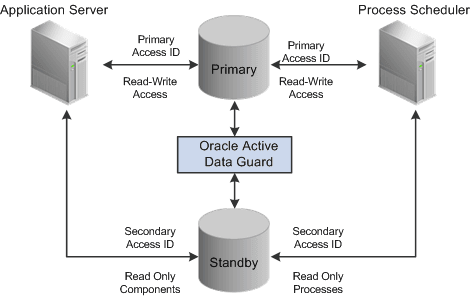
The following diagram depicts how Oracle Active Data Guard enables you to incorporate the use of a standby database for you to offload designated read-only transactions, freeing up more resources to handle the read-write transactions on your primary (production) database.
Note:
This documentation uses the acronyms RO to refer to "read-only" and MRO to refer to "mostly-read-only."
The following table describes the elements within the diagram:
| Element | Description |
|---|---|
|
Primary Database |
Your production database, handling the read-write requests of your transactional system. For example, this database fills orders, updates employee information, adds new product offerings, and so on. |
|
Standby Database |
Your clone of the primary database designed to handle read-only, or mostly-read-only (MRO), requests so that those transactions can be offloaded from your primary database, conserving resources on the production system. Examples of MRO requests include, PSQUERY Viewer, Tree Viewer, components that only submit SELECT SQL to display lists of employees, products, and so on. |
|
Oracle Active Data Guard |
Synchronizes the data stored in the primary and standby databases so that they remain exact duplicates. This is achieved using a combination of Oracle Active Data Guard features and DBLINKS and Remote Synonyms defined by scripts delivered with PeopleTools. |
|
Primary Access ID |
The PeopleSoft access ID used for connecting to the primary, production database. |
|
Secondary Access ID |
The alternative PeopleSoft database user (access ID), which will be used for connecting to the standby database and subsequently accessing the primary database’s tables using LOCAL and REMOTE synonyms. |
|
Read Only components |
When Oracle Active Data Guard is enabled and PeopleSoft is configured with a standby database, these components are RO enabled “out of the box:"
Other components can also be made to run against the standby database, by setting the Read Only option in the component properties dialog box in Application Designer. See Configuring Read-Only Components. Limitations:
|
|
Read Only processes |
When PeopleSoft is configured for Oracle Active Data Guard the following processes are enabled, as delivered, to run against the standby database: Application Engine PeopleSoft Query:
PS/nVision:
SQRs:
Audit Utilities:
Other processes can also be enabled to run against the standby database by setting the Read Only option on the Process Definition properties page in Process Scheduler. Note: Do not run DDDAUDIT report on a standby database. Note: For Scheduled Query, if a user attempts to schedule a query to run against the standby database, and selects output type Feeds on the Process Scheduler Request page, that process will be redirected to the primary database. This overrides the RO enabled Run Scheduled Query process. Note: The use of Oracle Active Data Guard with PeopleSoft batch processing only applies to the following: Application Engine processes run through the Process Scheduler with PSAESRV configured and SQR processes. Note: To enable SQR processes to run against the standby database, refer to Configuring Read-Only Processes. SQR Processes that are generally considered reports are ideal candidates for redirection to the standby database. |