Using Data Partitioning for Archiving
When scheduling an archive process from the Data Archive Manager run control page, you can enable data partitioning for the set of data being processed. This option is available for all archive process types: Selection, Delete, Rollback and Remove from History.
When you set up a job with data partitioning, the job will then partition the archive data uniformly into the specified number of partitions and spawn a corresponding number of PSARCHIVE application engine (AE) processes that will process each of these partitions simultaneously in parallel.
Before you can schedule an archive job, you must complete the following configuration:
- In Application Designer, create a new record definition (Type: SQL Table) for a Work Table.
- The work table should contain all the key fields of the Base Record in the Base Archive Object.
- Insert delivered subrecord PSPTDAM_DP_SBR into this Work Table definition. This will add two additional fields PARTITION_NUMBER and PROCESS_INSTANCE.
- Build the work table definition.
- In Application Designer, create a new record definition (Type: Temporary Table) for the Temp Table.
The temp table should be identical in structure to the Work table that was just created. Do not build the temp table yet.
- Access the Manage Archive Objects page (PeopleTools, then Data Archive Manager, and then Manage Archive Objects).
This example illustrates the Archive by Data Partitioning portion of the Manage Archive Objects page before AE generation.
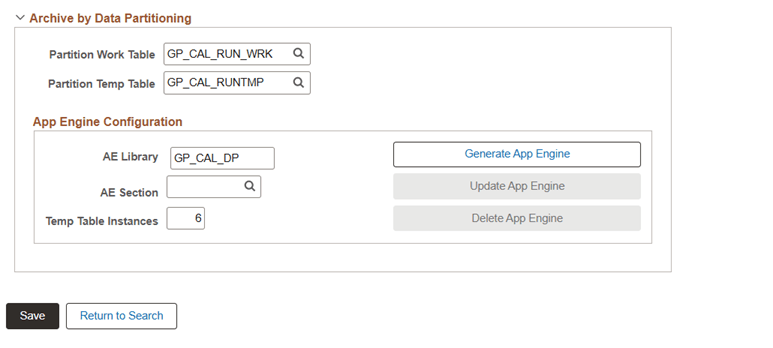
- In the Archive by Partitioning section, specify the following:
- For Partition Work Table, select the work table from step 1.
- For Partition Temp Table, select the temp table from step 2.
- Enter a name for the AE program in the AE Library field.
The AE Library has two purposes:
- To contain any optional logic to be run prior to populating the work table when using the Data Partitioning option.
- Temp Table defined for the data partitioning will be associated with this AE library.
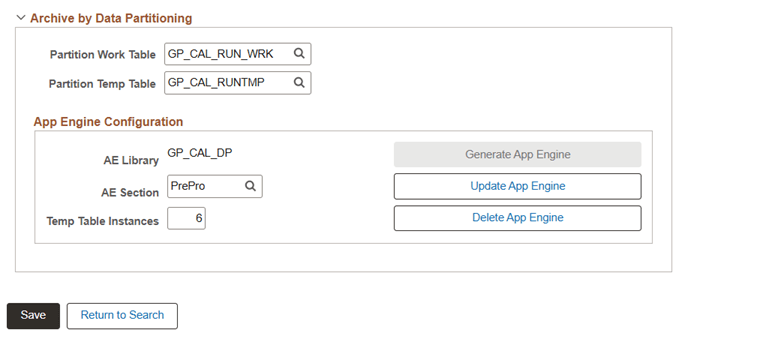
- Leave the AE Section field blank as this gets set automatically to "PrePro" upon App Engine generation.
PrePro will be the initial placeholder section in the generated App Engine that can be used for any optional logic to be run prior to work table population, if required.
- Enter the number of Temp Table instances to assign.
The number of instances specified at this stage should be at least twice the maximum number of concurrent AE Processes that can be run on the server.
- Click Generate App Engine to automatically create the AE program/section.
The generated AE will be automatically associated with the specified Temp Table.
This example illustrates the Archive by Data Partitioning portion of the Manage Archive Objects page after AE generation.
- Save the Archive Object.
- In Application Designer, open the Temp table definition created in step 2, and build it.
Optional Additional Steps
- The AE section "PrePro" does not contain any code by default, but can optionally be modified to include pre-processing logic that should be run prior to the selection and insertion of dataset keys into the work table. Note that this will be run in addition to any existing pre- and post- processing AE programs specified in the Data Archive Template definition.
Additional custom AE sections can be created in the App Engine if desired (for example, to contain pre-processing logic for different scenarios). The AE Section field can be used to look up and select another such AE section if necessary.
- If the number of Temp Table instances needs to be adjusted, modify this field value and click on the "Update App Engine" button to update the App Engine.
Remember to rebuild the Partition Temp Table in App Designer after this step.
- The Delete App Engine button can be used to delete the associated App Engine if necessary.
Schedule a Data Archive Job with Data Partitioning Enabled
After you complete the configuration, when you want to schedule a Data Archive job with Data Partitioning enabled:
- Access the Archive Data To History page (select PeopleTools, then Data Archive Manager, and then Archive Data to History.
This example illustrates the Archive Data To History page.
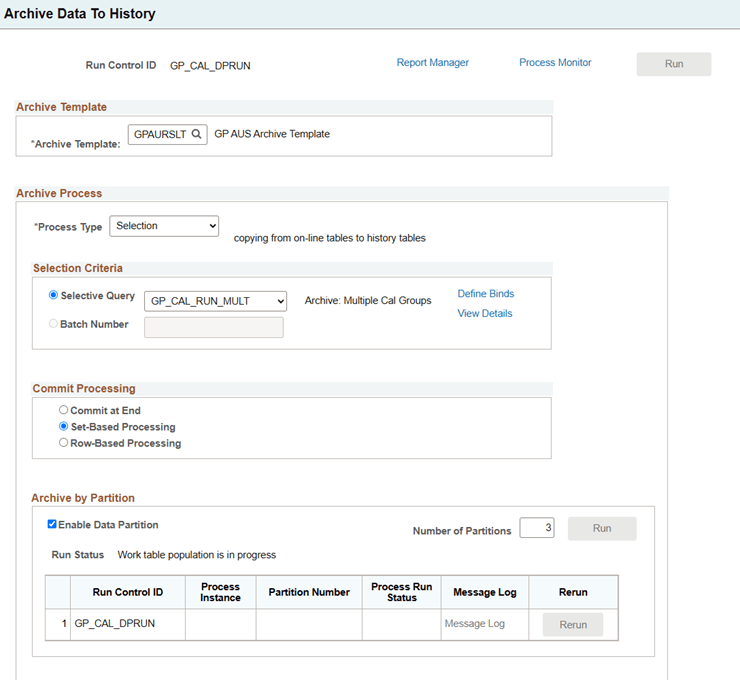
- Select an Archive Template that uses this Data Archive Object.
- In the Archive By Partition section, select the Enable Data Partitioning option, and specify the desired number of partitions to create.
Note:
There is no need to limit the number of partitions requested to the number of Temp Table Instances that have been built. Instead, it is important to ensure that the number of temp table instances that have been built are twice as many as the maximum number of AE Processes that can be run on the server concurrently. - Click Run to start the PSARCHIVE_DP AE program, which will in turn do the following:
- Run any code in the specified AE Section (optional).
- Populate the Work Table, partitioning the data in as many partitions as requested.
- Spawn a separate PSARCHIVE process for each partition that was created. Each of these process will procure its own Temp Table instance, and will populate it with the specific data belonging to the single partition assigned.
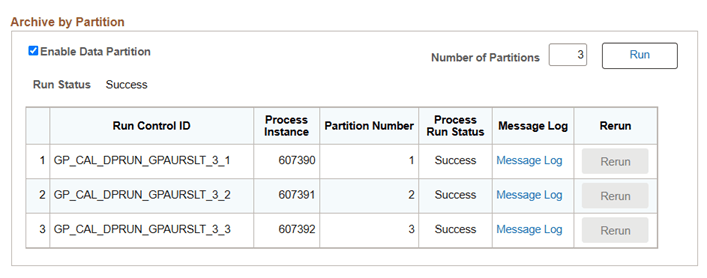
- Follow the progress on the Archive By Partition grid, which displays the status of each of the spawned PSARCHIVE processes.
If an error occurs, click Rerun to restart the process.
- When all processes have completed successfully, the Run Status above the grid will be updated to Success, as shown in this example.
Guidelines on Commit Processing
Archive jobs use Set-Based Processing by default. In other words, the Archive Selection, Remove from History, Rollback, and Delete processes will issue commits after each record has been processed. To override this, you may specify Row-Based Processing or Commit at End processing instead. However, the appropriateness of doing this when enabling the data partitioning option may depend on your specific requirements. When running an archive process using Data Partitioning, the following important points should be taken into consideration:
- Specifying Commit at End
The data will be processed in the same way as when using "Set-Based Processing"; that is, using a single SQL statement to process each record. However, the usual commit after processing each record will be omitted, and a single SQL commit will be issued at the end of the process. When specifying this option for an archive job using the data partitioning option, it must be noted that each spawned PSARCHIVE process will issue its own SQL commit at the end of its job processing, just for its allocated subset of the entire set of data. In other words, if any number of the spawned PSARCHIVE processes fails to complete successfully, all changes for those partitions of data only, will be rolled back. In light of this, it may not make sense in most circumstances to enable this option for archive processes using data partitioning.
Furthermore, when using "Commit at End" processing for an archive process that does not utilize data partitioning, this option ensures the ability to rollback all changes in its entirety if the process were to run into an exception of some kind. However, when using data partitioning, the same guarantee cannot be provided due to the fact that by design, the archive process will be broken into multiple individual PSARCHIVE processes, and each of these will commit all changes for its respective partition only, upon completion.
- Specifying Row-Based Processing
The data will be processed using SQL fetches in PeopleCode, one row at a time. Commits will be issued after a specified number of rows has been processed, as specified via the "Commit Frequency" parameter on the run control page. This method can be much more memory intensive and take much longer to run than Set-Based Processing, but may be required for two reasons.
Firstly, Oracle databases require a specific configuration (a bit flag in the DATABASE_OPTIONS field in PSSTATUS record) with regards to their support for LOB data types. Without this configuration, the archive process is not supported if any of the records contain LONG, IMAGE, or ATTACHMENT columns. This limitation however does not apply when using Row-Based Processing. This limitation may not be a practical limitation for most PeopleSoft users since the LOB data type has long been the standard with current versions of Oracle databases, and the LONG data type has long been deprecated. However, it is hard to say that this will never be encountered with legacy datasets that have not been converted or migrated to use LOB data types.
Secondly, Row-Based Processing may be used to reduce adverse effects on the database when archiving large amounts of transactional data, and where more frequent commits could be a means to counter this. Row-based processing can be utilized when running an archive process with data partitioning enabled, if desired. However, since the intention of using data partitioning is to improve performance when archiving data, it would not necessarily make the most sense to simultaneously enable Row-based processing which in effect has a severe negative impact on performance. Additionally, the data partitioning option can itself be used to break large data sets into multiple chunks, effectively resulting in more frequent commits to the database. In other words, the data partitioning option may be seen as an alternative and much more performant option to using the Row-based processing option.