Converting Feed Metadata from PeopleTools 8.50 or 8.51 to the Current Release (Ad Hoc Conversions)
This section provides an overview of using the Metadata Conversion page and discusses how to:
-
Convert feed definitions to the current release.
-
Convert feed data types to the current release.
-
Convert feed categories to the current release.
The PeopleTools upgrade process automatically converts existing feed metadata to the format introduced in PeopleTools 8.52. Therefore, if you have upgraded your PeopleSoft system from a previous release, then you do not need to complete any of these ad hoc conversions. However, if you have feed definitions, feed data types, or feed categories in a PeopleSoft system that has not been upgraded and want those feed objects to be migrated to an instance on the current release, then you can use the Metadata Conversion page and the procedures in this section to convert that metadata in an ad hoc manner to the PeopleTools 8.52 format.
Overview of Using the Metadata Conversion Page
Access the Metadata Conversion page (PeopleTools, Feeds, Feed Metadata Conversion).
This example illustrates the fields and controls on the Metadata Conversion page. You can find definitions for the fields and controls later on this page.
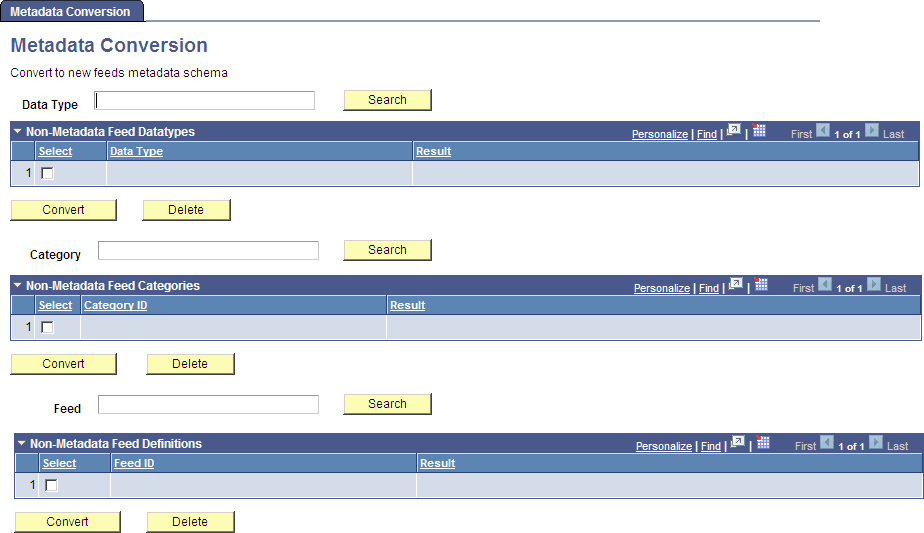
Use the Metadata Conversion page to convert feed metadata from a previous release (PeopleTools 8.50 or 8.51) to the current release. Each object type (feed definition, feed data type, and feed category) can be loaded and converted separately of the other object types.
| Field or Control | Description |
|---|---|
|
Data Type |
Enter any text to search for and retrieve all imported feed data types matching the search string in its initial characters. The following search strings each retrieve the data type named ADMN_TYPE: If no search string is specified, then all imported feed data types are retrieved. |
|
Category |
Enter any text to search for and retrieve all imported feed categories matching the search string in its initial characters. The following search strings each retrieve the category named FINANCE: If no search string is specified, then all imported feed categories are retrieved. |
|
Feed |
Enter any text to search for and retrieve all imported feed definitions matching the search string in its initial characters. The following search strings each retrieve the feed definition named ADMN_WORKLIST1: If no search string is specified, then all imported feed definitions are retrieved. |
|
Search |
Click the Search button to search for imported objects matching the search criteria. If no search string is specified, then all imported objects of that type are retrieved. |
|
Select |
Select an object to convert or delete. |
|
Convert |
Click the Convert button to converted the selected objects to the PeopleTools 8.52 format. Clicking the Convert button converts the data only and doesn't delete data from the staging tables (the PS_PTFP_ tables). Use the Delete button to manually delete data from the staging tables. Important: If an object with the same ID already exists in the database, then a new version of that object is created, which becomes the current version of the object. |
|
Delete |
Click the Delete button to remove the selected objects from the pre-PeopleTools 8.52 staging tables—that is, from the tables with a PS_PTFP_ prefix. See Feed Metadata Tables. |
Converting Feed Definitions to the Current Release
Converting feed definitions from PeopleTools 8.50 or 8.51 to the current release consists of three major steps:
-
Exporting the feed definitions from the source system.
-
Importing the feed definitions into the PeopleTools 8.52 (or later) system.
-
Converting the metadata to the PeopleTools 8.52 format.
To export the feed definitions from the source system, retrieve and run the appropriate Data Mover script:
-
In the browser logged into the PeopleTools 8.52 (or later) system, select
-
Enter 219 in the Message Set Number field and press the ENTER key.
-
Click the Find link and enter one of the following values in the Enter Search String field:
-
Enter 3300 to retrieve the script for exporting feed definitions without user personalization data.
-
Enter 3302 to retrieve the script for exporting feed definitions with user personalization data.
-
-
Click the OK button
-
Copy the script from the Description field.
-
Run PeopleSoft Data Mover on the source database.
-
Paste the script into the upper pane.
-
Modify the script as follows:
-
Change all occurrences of %3 to a value for this export of data—for example:
PRODSYS01 -
Provide a complete path to the .DAT and .LOG files as needed.
-
Change all occurrences of %4 to identify the specific feed ID or IDs that you want to export—for example:
'ADMN_WORKLIST_01' 'ADMN_WORKLIST_01', 'ADMN_WORKLIST_02' 'ADMN_WORKLIST%', 'ADMN_MY_%' -
Optionally, replace %1 and %2 with values to provide a timestamp and the user ID who performed the conversion.
-
-
Run the script.
To import the feed definitions into the PeopleTools 8.52 (or later) system, retrieve and run the appropriate Data Mover script:
-
In the browser logged into the PeopleTools 8.52 (or later) system, select
-
Enter 219 in the Message Set Number field and press the ENTER key.
-
Click the Find link and enter one of the following values in the Enter Search String field:
-
Enter 3301 to retrieve the script for importing feed definitions without user personalization data. Use this script if you selected 3300 in the previous step 3.
-
Enter 3303 to retrieve the script for importing feed definitions with user personalization data. Use this script if you selected 3302 in the previous step 3.
-
-
Click the OK button
-
Copy the script from the Description field.
-
Run PeopleSoft Data Mover on the PeopleTools 8.52 (or later) database.
-
Paste the script into the upper pane.
-
Modify the script as follows:
-
Change all occurrences of %3 to the value that you specified for %3 in the previous step 8—for example:
PRODSYS01 -
Provide a complete path to the .DAT and .LOG files as needed.
-
Change all occurrences of %4 to the value that you specified for %4 in the previous step 8—for example:
'ADMN_WORKLIST_01' 'ADMN_WORKLIST_01', 'ADMN_WORKLIST_02' 'ADMN_WORKLIST%', 'ADMN_MY_%' -
Optionally, replace %1 and %2 with values to provide a timestamp and the user ID who performed the conversion.
-
-
Run the script.
To convert the metadata to the PeopleTools 8.52 format:
-
In the browser logged into the PeopleTools 8.52 (or later) system, select
-
Click the Search button next to the text field labeled Feed to retrieve all imported feed definitions. Alternatively, enter the initial letters of the feed IDs for the feed definitions that you want to retrieve in the Feed text field and click Search.
The Non-Metadata Feed Definitions grid is loaded with imported feed definitions.
-
Click in the Select column to select each of the feed definitions that you want to convert.
-
Click the Convert button.
-
To verify that the selected feed definitions were converted to the PeopleTools 8.52 format, go to the My Feeds page.
-
Click the Search button to list all feed definitions. Alternatively, enter search criteria to retrieve selected feeds only.
Converting Feed Data Types to the Current Release
Converting feed data types from PeopleTools 8.50 or 8.51 to the current release consists of three major steps:
-
Exporting the feed data types from the source system.
-
Importing the feed data types into the PeopleTools 8.52 (or later) system.
-
Converting the metadata to the PeopleTools 8.52 format.
To export the feed data types from the source system, retrieve and run the appropriate Data Mover script:
-
In the browser logged into the PeopleTools 8.52 (or later) system, select
-
Enter 219 in the Message Set Number field and press the ENTER key.
-
Click the Find link and enter 3304 in the Enter Search String field
-
Click the OK button
-
Copy the script from the Description field.
-
Run PeopleSoft Data Mover on the source database.
-
Paste the script into the upper pane.
-
Modify the script as follows:
-
Change all occurrences of %3 to a value for this export of data—for example:
PRODSYS01 -
Provide a complete path to the .DAT and .LOG files as needed.
-
Change all occurrences of %4 to identify the specific feed data type ID or IDs that you want to export—for example:
'MY_DATATYPE_01' 'MY_DATATYPE_01', 'MY_DATATYPE_02' '%FEED', 'MY_%' -
Optionally, replace %1 and %2 with values to provide a timestamp and the user ID who performed the conversion.
-
-
Run the script.
To import the feed data types into the PeopleTools 8.52 (or later) system, retrieve and run the appropriate Data Mover script:
-
In the browser logged into the PeopleTools 8.52 (or later) system, select
-
Enter 219 in the Message Set Number field and press the ENTER key.
-
Click the Find link and enter 3305 in the Enter Search String field.
-
Click the OK button
-
Copy the script from the Description field.
-
Run PeopleSoft Data Mover on the PeopleTools 8.52 (or later) database.
-
Paste the script into the upper pane.
-
Modify the script as follows:
-
Change all occurrences of %3 to the value that you specified for %3 in the previous step 8—for example:
PRODSYS01 -
Provide a complete path to the .DAT and .LOG files as needed.
-
Change all occurrences of %4 to the value that you specified for %4 in the previous step 8—for example:
'MY_DATATYPE_01' 'MY_DATATYPE_01', 'MY_DATATYPE_02' '%FEED', 'MY_%' -
Optionally, replace %1 and %2 with values to provide a timestamp and the user ID who performed the conversion.
-
-
Run the script.
To convert the metadata to the PeopleTools 8.52 format:
-
In the browser logged into the PeopleTools 8.52 (or later) system, select
-
Click the Search button next to the text field labeled Data Type to retrieve all imported feed data types. Alternatively, enter the initial letters of the feed data type IDs for the feed data types that you want to retrieve in the Data Type text field and click Search.
The Non-Metadata Feed Datatypes grid is loaded with imported feed data types.
-
Click in the Select column to select each of the feed data types that you want to convert.
-
Click the Convert button.
-
To verify that the selected feed data types were converted to the PeopleTools 8.52 format, go to the Define Feed Data Types page (select PeopleTools, Feeds, Define Feed Data Types).
-
Click the Search button to list all feed data types.
Converting Feed Categories to the Current Release
Converting feed categories from PeopleTools 8.51 to the current release consists of three major steps:
-
Exporting the feed categories from the source system.
-
Importing the feed categories into the PeopleTools 8.52 (or later) system.
-
Converting the metadata to the PeopleTools 8.52 format.
Note:
Feed categories were introduced in PeopleTools 8.51. Therefore, these procedures apply to PeopleTools 8.51 only, and not to 8.50.
To export the feed categories from the source system, retrieve and run the appropriate Data Mover script:
-
In the browser logged into the PeopleTools 8.52 (or later) system, select
-
Enter 219 in the Message Set Number field and press the ENTER key.
-
Click the Find link and enter 3306 in the Enter Search String field
-
Click the OK button
-
Copy the script from the Description field.
-
Run PeopleSoft Data Mover on the source database.
-
Paste the script into the upper pane.
-
Modify the script as follows:
-
Change all occurrences of %3 to a value for this export of data—for example:
PRODSYS01 -
Provide a complete path to the .DAT and .LOG files as needed.
-
Change all occurrences of %4 to identify the specific feed category ID or IDs that you want to export—for example:
'MY_CATEGORY_01' 'MY_CATEGORY_01', 'MY_CATEGORY_02' '%' -
Optionally, replace %1 and %2 with values to provide a timestamp and the user ID who performed the conversion.
-
-
Run the script.
To import the feed categories into the PeopleTools 8.52 (or later) system, retrieve and run the appropriate Data Mover script:
-
In the browser logged into the PeopleTools 8.52 (or later) system, select
-
Enter 219 in the Message Set Number field and press the ENTER key.
-
Click the Find link and enter 3307 in the Enter Search String field.
-
Click the OK button
-
Copy the script from the Description field.
-
Run PeopleSoft Data Mover on the PeopleTools 8.52 (or later) database.
-
Paste the script into the upper pane.
-
Modify the script as follows:
-
Change all occurrences of %3 to the value that you specified for %3 in the previous step 8—for example:
PRODSYS01 -
Provide a complete path to the .DAT and .LOG files as needed.
-
Change all occurrences of %4 to the value that you specified for %4 in the previous step 8—for example:
'MY_CATEGORY_01' 'MY_CATEGORY_01', 'MY_CATEGORY_02' '%' -
Optionally, replace %1 and %2 with values to provide a timestamp and the user ID who performed the conversion.
-
-
Run the script.
To convert the metadata to the PeopleTools 8.52 format:
-
In the browser logged into the PeopleTools 8.52 (or later) system, select
-
Click the Search button next to the text field labeled Category to retrieve all imported feed categories. Alternatively, enter the initial letters of the feed category IDs for the feed categories that you want to retrieve in the Category text field and click Search.
The Non-Metadata Feed Categories grid is loaded with imported feed categories.
-
Click in the Select column to select each of the feed categories that you want to convert.
-
Click the Convert button.
-
To verify that the selected feed categories were converted to the PeopleTools 8.52 format, go to the Define Feed Categories page (select PeopleTools, Feeds, Define Feed Categories).
-
Click the Search button to list all feed categories.