Embedding the Suggestions Search Box
You can embed the suggestions search box on a page within a component to provide search capabilities in addition to the search configured for the component. The suggestions search box functionality is provided by PTS_INTELLISCHS_FL, a PeopleTools-delivered subpage. Similar to keyword search, you must use the Search Framework to create a search index for use with the suggestions search box. That index serves as the basis for the suggestions displayed as the user types.
In this example, the search suggestions are retrieved from the PTPORTALREGISTRY index.
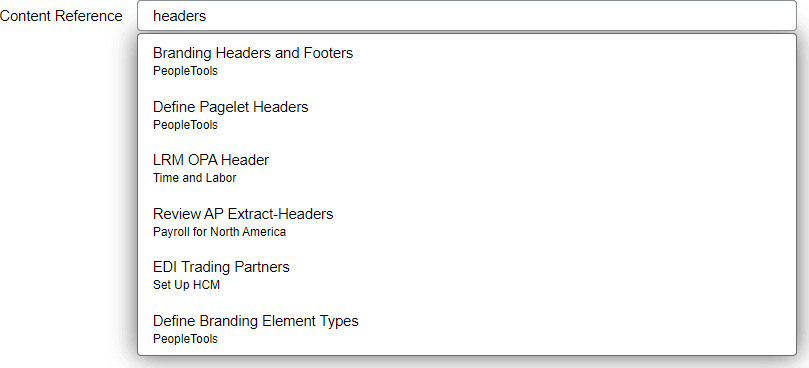
Use this process to embed the suggestions search box on a page within a component:
-
Use the Search Framework to create a search definition and category, and then index the searchable data.
-
Insert a container group box for the suggestions search box. On the Fluid tab, enter pts_pagesearch_div as an application-specific style class.
-
Insert the PTS_INTELLISCHS_FL subpage into the group box.
If you want to display a search drop-down list box from which you can select search categories that are different from the search context, you should insert a subpage in the PTS_INTELLISCHS_FL subpage. The subpage uses a dynamic view.
-
Define page Activate PeopleCode to associate the search index with the suggestions search box and set other properties for its operation. For example:
import PTSF_SEARCHUI:SearchbarContext;
Component PTSF_SEARCHUI:SearchbarContext ≻

&sc = create PTSF_SEARCHUI:SearchbarContext();
&sc.Placeholder = MsgGetText(240, 4250, "Search for Component Cref");
&sc.CustomSearchCategory = "PTPORTALREGISTRY";
&sc.IsIncludeHiddenCref = True;
&sc.IsComponentOrGenericURL = True;
&sc.ShowGridIcons = False;
&sc.ShowCategoryDropDown = False;
&sc.ShowGlobalSearchButton = False;
&sc.SetSearchbarContext();

SetCursorPos(%Page, PTS_INTSRCH_WK.PTS_KEYWORDS_SS);
Note:
Certain properties of the PTSF_SEARCHUI:SearchbarContext class apply to the PTPORTALREGISTRY index only.
To implement search categories drop-down list box, use the ArrCustomSearchCategory property.
import PTSF_SEARCHUI:SearchbarContext; &sc = create PTSF_SEARCHUI:SearchbarContext(); &sc.KeywordLabel = "Keywords "; &sc.SrchWidgetId = %Request.FormName | "divPTS_SEARCHWIDGET"; &sc.CustomSearchCategory = "PTPORTALREGISTRY"; &sc.ArrCustomSearchCategory.Push("QE_PIASRCH_JOB_OPENINGS"); &sc.ArrCustomSearchCategory.Push("QE_FILE_PIASRCH"); &sc.ArrCustomSearchCategory.Push("QE_NUI_ITM_NM"); &sc.SetSearchbarContext(); -
If your use of search suggestions is to allow the user to navigate to a search result, then no additional PeopleCode is required. However, if you intend to use the selected search result for other purposes (for example, to create a configuration based on the selected content reference), then you will need to write additional PeopleCode to make use of the selected result.
-
Create a FieldChange PeopleCode program on the component record field, PTS_INTSRCH_WK.PTPORTAL_OBJNAME_S.
The following example is an excerpt of the relevant code demonstrating how to use the value returned in the PORTALOBJSS field to search in the portal registry for the content reference (CREF) associated with this portal object ID. The code excerpt then hides the container group box created in step 2 above and reveals a work grid for completing some configuration associated with the CREF.
Component string &PortalObjName, &strPnlGrpName, &strMenuName;

/* The CrefName/Portal obj name of the component selected from the suggestions will be stored in this field by the search code via their subpage. */
Local string &PortalObjNm = GetPageField(%Page, "PORTALOBJSS").Value;

Local ApiObject &Portal1, &Cref;

&Portal1 = %Session.GetPortalRegistry();
Local boolean &IsOpen = &Portal1.Open(%Portal);
If &IsOpen And
      All(&PortalObjNm) Then
   &Cref = &Portal1.FindcrefByName(&PortalObjNm);
   /* Hide the group box containing the suggestions subpage. */
   Local Field &SrchGrpBox = GetPageField(%Page, "PT_EVM_SRCH_GRPBOX");
   &SrchGrpBox.Visible = False;
   /* Reveal the group box containing the work grid. */
   Local Field &GridGrpBox = GetPageField(%Page, "PTCS_EVMAP_CFGSGBX");
   &GridGrpBox.Visible = True;
   /* Application-specific configuration based on the selected CREF. */
End-If;
&Portal1.Close();