(Optional) Completing Inter-Domain Configuration
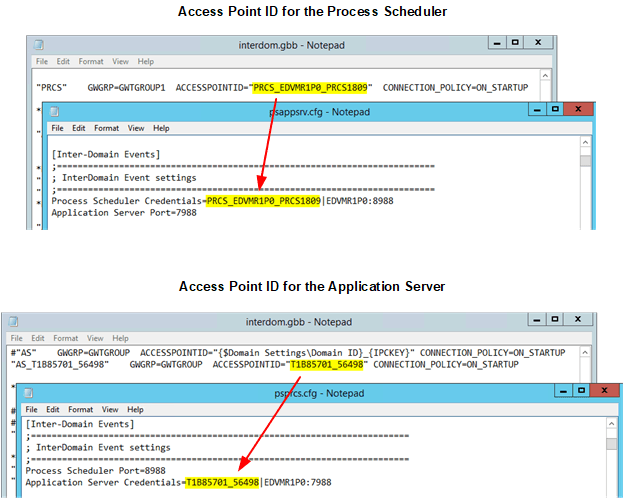
To complete the inter-domain configuration, you need to copy the Process Scheduler access point ID to each application server’s configuration. Then, you need to copy the application server access point ID to the Process Scheduler’s configuration. By default on PeopleSoft systems, the Process Scheduler listens on port 8988 for inter-domain connections; and the application server listens on port 7988. After rebooting both domains, check the Tuxedo log files to ensure that the inter-domain connection has been established.
An application server domain can be configured to receive push notification events from one or more Process Scheduler domains simultaneously. While a Process Scheduler domain can be configured with more than one application server domain, the Process Scheduler domain connects to only one application server domain the when the Process Scheduler domain is booted. The other configured application server domains remain available as fail-over servers. However, the configuration does not specify a primary server and fail-over servers explicitly. When the Process Scheduler domain is booted, a connection is established by Tuxedo to one of the available servers.
As a first step as described in previous tasks, you must configure the application server and Process Scheduler domains to generate the inter-domain events configuration (interdom.gbb files for each domain).
This example illustrates how the configuration settings for inter-domain events can be coped from a Process Scheduler domain to an application server domain and vice versa. The access point IDs and port values must match on both domains to ensure successful transactions.
Configuring the Application Server Domain for Inter-Domain Events
Note:
When your environment consists of multiple application server domains, you can configure any one of the application server domains for inter-domain events.
To configure inter-domain events for the application server domain:
-
Run psadmin.exe.
-
Select the Process Scheduler domain.
-
Select Configure this domain.
-
Enter the 15 the Custom configuration option.
-
Press the Enter key for Do you want to change any values (y/n/q)? [n], and continue to press the Enter key until the Values for config section – Inter-Domain Events appear.
-
Review and modify as needed the values in inter-domain events:
Process Scheduler Credentials=PRCS1|localhost:8988
Application Server Port=7988
Field or Control Description Process Scheduler Credentials
Specify the credentials for each Process Scheduler domain from which notifications will be received in the format:
Process Scheduler Credentials=ACCESSPOINTID|HOST_NAME:PS_port-
ACCESS_POINT_ID: Open the PS_CFG_HOME\appserv\prcs\DOMAIN_ID\interdom.gbb file for the Process Scheduler domain. Locate the section in the file that is similar to the following::
*DM_LOCAL "PRCS" GWGRP=GWTGROUP1 ACCESSPOINTID="PRCS_SERVER01_PSNT1234"Note:The ACCESSPOINTID must be 30 bytes or fewer in length—that is, it must be 30 characters or fewer (including the trailing Null character).
-
HOST_NAME: The host name of the machine that is running Process Scheduler domain.
-
PS_port: The port number provided in the interdom.gbb file for the Process Scheduler domain. Each Process Scheduler domain must have a unique port number.
The completed configuration values for the Process Scheduler domain will look similar to the following example:
Process Scheduler Credentials=PRCS_SERVER01_PSNT1234|SERVER01:8988Note:If there are multiple Process Scheduler domains from which you want to receive push notifications, then provide the configuration for each domain separated by a comma. For example:
Process
                                                  Scheduler
                                                  Credentials=PRCS_SERVER01_PSNT1234|SERVER01:8988,PRCS_SERVER01_PSNT5678|SERVER01:8999
Application Server Port
You can retain the port number as is.
-
-
Enter q to return to the PeopleSoft Domain Administration menu, and load any configuration changes.
-
Boot the application server domain.
Configuring the Process Scheduler Domain for Inter-Domain Events
To enable inter-domain events for a Process Scheduler domain:
-
Run psadmin.exe.
-
Select the Process Scheduler domain.
-
Select Configure this domain.
-
Enter the 7 the Custom configuration option.
-
Press the Enter key for Do you want to change any values (y/n/q)? [n], and continue to press the Enter key until the Values for config section – Inter-Domain Events appear.
-
Review and modify as needed the values in inter-domain events:
Values for config section - Inter-Domain Events
    Process Scheduler Port=8988
    Application Server Credentials=APPDOM1|localhost:7988
Field or Control Description Process Scheduler Port
Specify the port through which this Process Scheduler domain sends event notifications.
Note: You can leave the port value as is if you are configuring a single Process Scheduler domain. If you are configuring inter-domain events for multiple Process Scheduler domains on the same machine, then specify a unique port number for each domain.
Application Server Credentials
Specify each application server domain to which this Process Scheduler domain can connect in the following format:
Application Server Credentials=ACCESSPOINTID|HOST_NAME:AS_port-
ACCESS_POINT_ID: Open the PS_CFG_HOME\appserv\DOMAIN_ID\interdom.gbb file for the application server domain. Locate the section in the file that is similar to the following:
*DM_LOCAL
"AS_T85704AA_41162" GWGRP=GWTGROUP ACCESSPOINTID="T85704AA_41162"
Note: The ACCESSPOINTID must be 30 bytes or fewer in length—that is, it must be 30 characters or fewer (including the trailing Null character).
-
HOST_NAME: The host name of the machine, which is running application server domain.
-
AS_port: The port number provided in the interdom.gbb file for the application server domain. You can leave the default value of the port as is.
The completed configuration values for the application server will look similar to the following example:
Application Server Credentials=T85704AA_41162|SERVER01:7988 -
-
Enter q to return to the PeopleSoft Domain Administration menu and load any configuration changes.
-
Boot the Process Scheduler domain.
-
View the TUXLOG files to verify that the inter-domain configuration is valid and that the domains are connected to each other:
-
PS_CFG_HOME\appserv\DOMAIN_ID\LOGS\TUXLOG.TODAY -
PS_CFG_HOME\appserv\prcs\DOMAIN_ID\LOGS\TUXLOG.TODAY
-
-
Search for GWTDOMAIN nearest the end of the log file and evaluate the log entry to determine the status of the connection. The following examples are from a Process Scheduler log file:
-
Success:
192615.EDVMR1P0!GWTDOMAIN.4560.2512.0: LIBGWT_CAT:1129: INFO: Connection established with domain (domainid=<T1B85701_42446>) -
Failure:
192356.EDVMR1P0!GWTDOMAIN.6700.6724.0: LIBGWT_CAT:1073: ERROR: Unable to obtain remote domain id (T1B85701_32872) information from shared memory
192356.EDVMR1P0!GWTDOMAIN.6700.6724.0: LIBGWT_CAT:1509: ERROR: Error occurred during security negotiation - closing connection
-
Note:
If you have multiple Process Scheduler domains on the same machine, then this configuration needs to be completed on each of the Process Scheduler domains.
Related Topics