Working with Secondary Pages
Similar to classic secondary pages, use secondary pages in fluid applications to:
-
Reduce clutter of the main or primary fluid page.
-
Display ancillary information in a separate modal window.
-
Provide a data entry area for secondary or supplemental information.
Unlike classic secondary pages, fluid secondary pages must always be displayed in a modal window. When creating a fluid secondary page:
-
Select Page (Fluid) as the definition type in Application Designer.
-
Select PSL_APPS_CONTENT as the layout page.
Note:
Creating your page in this manner applies the ps_apps_content style to the outermost group box container on the page.
-
On the Use tab of the Page Properties dialog box, set the Page Type to Secondary Page.
-
On the Use tab, determine whether to retain settings for PeopleTools-produced buttons:
Important:
Do not select the Disable Display in Modal Window When Not Launched by DoModal Peoplecode check box for fluid secondary pages. Fluid secondary pages must always be displayed in a modal window.
-
Deselect the OK & Cancel buttons check box if you plan to add custom button definitions directly to the secondary page definition.
Note:
On fluid modal secondary windows, the OK button is actually rendered with the label Done.
-
Deselect the Close Box check box when the OK & Cancel buttons check box is selected or when you plan to add a custom Cancel button directly to the secondary page definition.
This item renders an X in the upper left corner of the modal window that can be used to cancel and close the window.
-
-
Set an appropriate minimum size for the modal window for each form factor, which is inclusive of its title bar. Specify a size that is neither too small nor too large for the content you are displaying in the modal window. Otherwise, the modal window will be rendered incorrectly, sometimes with scroll bars and sometimes not.
Oracle recommends that you use styles to set the minimum size for the modal window. Specify styles on the Fluid tab of the Page Properties dialog box.
For example, page-secmin30x25em sets the minimum size to 30 ems wide by 25 ems tall:
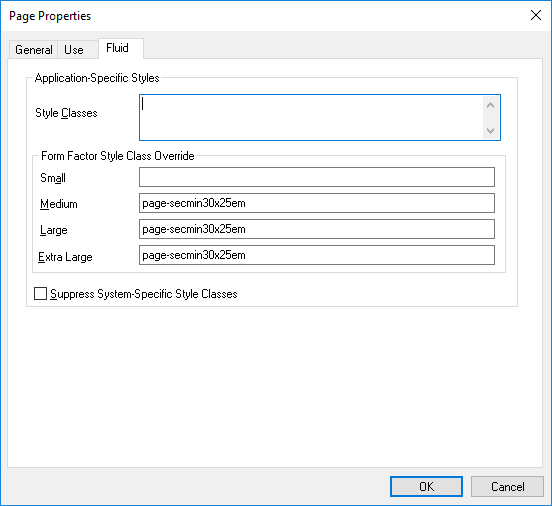
Typically, modal windows on small form factor devices should occupy the full screen. Therefore, no style override was specified in the preceding example.
Note:
You will encounter some Oracle-delivered fluid applications that set width and height in PeopleCode using modal options. Nevertheless, the recommended approach is to use styles as stated here.
-
Add page Activate PeopleCode to set the viewport for this secondary page.
Setting the viewport for each fluid component and secondary page ensures that your fluid applications operate properly across all device types, particularly on small form factor devices such as smartphones. The recommended methodology is to use the SetDefaultViewport method:
import PT_PAGE_UTILS:*;
(create PT_PAGE_UTILS:Utils()).SetDefaultViewport();
When ps_apps_content Is Not Applied to the Outermost Container
When you create your secondary page definition using the PSL_APPS_CONTENT layout page as described in preceding section, ps_apps_content is applied to the outermost group box container. However, in certain cases, ps_apps_content may not be appropriate for the outermost container—for example, if your modal page design includes fixed areas (group boxes) at the top, bottom, or sides of the page. If your secondary page does not have ps_apps_content applied to the outermost group box container, you might have to apply additional styles to ensure that the modal window is sized correctly:
-
If ps_apps_content is applied to another group box within the page, for each fixed group box, apply one of these styles:
-
For a fixed horizontal area (for example, at the top or bottom), add the psc_modal-addheight style to the container group box to add the height of the group box to the computed modal size.
-
For a fixed vertical area (for example, at either side), add the psc_modal-addwidth style to the container group box to add the width of the group box to the computed modal size.
-
Add the psc_modal-addall style to the container group box to add both the height and the width of the group box to the computed modal size.
-
-
If you have a scrollable area but are not using the ps_apps_content style, then apply the ps_scroll-target to this group box. Then, if you have other fixed areas on the page, see the usage notes above for psc_modal-addheight, psc_modal-addwidth, and psc_modal-addall.