Setting the Configuration Manager Profile
When you create your Change Assistant job, PeopleSoft Change Assistant edits some of the workstation Configuration Manager profiles. Now you need to verify the other settings that are used during the upgrade. These are settings on the workstation and you need to do this for each workstation that you may use during the upgrade.
Verify that the Configuration Manager settings are appropriate for your current release directory (for example, similar to your current production environment). PeopleSoft Change Assistant uses the information in your Configuration Manager profile to run automated steps on the current release early in the upgrade.
To set the profile:
-
Open Configuration Manager.
-
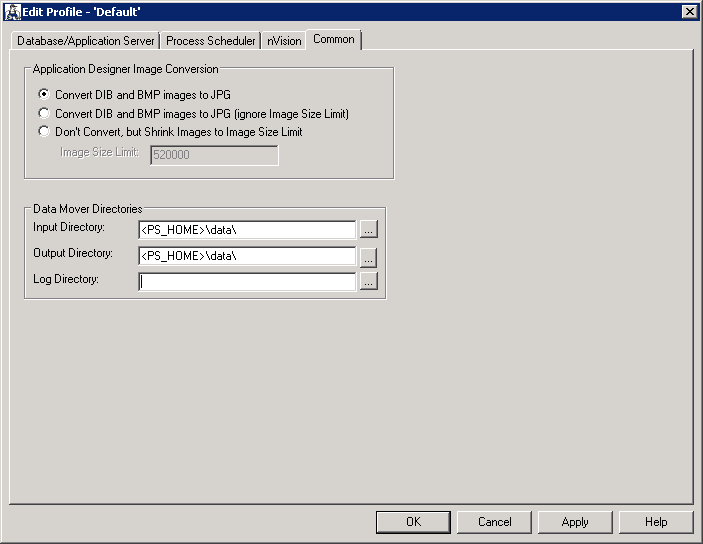
On the Profile tab, select the Default profile, click Edit, and then select the Common tab.
The Edit Profile - 'Default' dialog box appears:
Figure 2-1 Edit Profile - 'Default': Common tab
-
Set the Input Directory to NEW_RELEASE\data.
-
Set the Output Directory to NEW_RELEASE\data, the same name as the Input Directory.
-
Leave the Log Directory field as is.
Change Assistant sets the Log Directory value.
-
Select the Process Scheduler tab and verify your SQR settings.
PeopleSoft Change Assistant will use these settings to launch SQR.