Defining Search Criteria
The first step in a Search and Replace process is to define your search criteria. To define your search, select .
Note:
In addition to using the standard add method to create a new search, you can copy an existing search and then modify the definition as necessary.
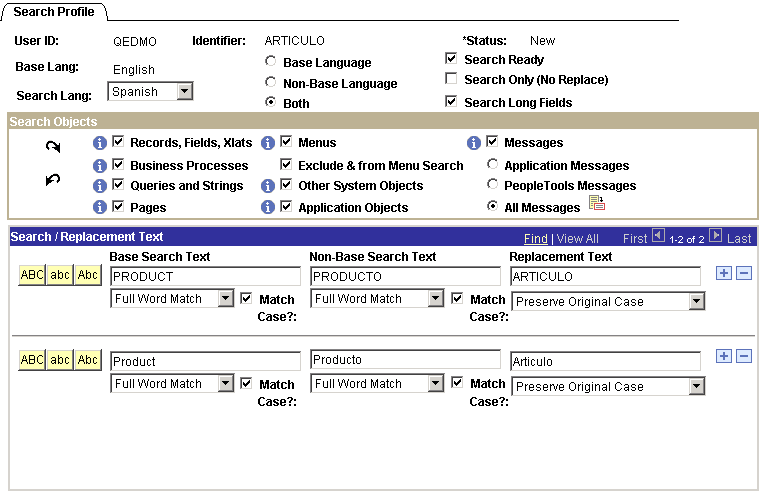
This example illustrates the fields and controls on the Define Translations Search - Search Profile page.
Note:
The Search Profile page displays searches where the status is New only. This means that you can edit the search criteria only while the status is New. You cannot edit the search criteria after running the search.
This section discusses how to:
-
Enable Search processing.
-
Choose which languages to search.
-
Disable the Replace process.
-
Define the search scope.
-
Define search text.
Enabling Search Processing
To enable search processing, select the Search Ready box.
Choosing Languages to Search
To choose languages to search:
-
Select a search language in the Search Lang (search language) drop-down list box.
The Base Lang (base language) display-only field displays the base language of the database.
The search language determines which language tables are searched. If you select the base language as your search language, you can search and replace data on the base language tables only. If you select a non-base language as your search language, your basis for searching can be dependent on either the base language, the search language, or both. However, you can still replace data only in the search language tables.
-
If the search language is different from the base language, select the basis for your search.
Select one of the following options:
Field or Control Description Base Language
You can specify search text only for the base language tables. The system searches the base language tables, but the search returns results only when there’s a match in the base language tables and a corresponding translation in the search language. That is, the Search process ignores occurrences of the word in the base language tables if there is no corresponding translation on the related language table.
Non-Base Language
You can specify search text only for the related language tables. The system searches the related language tables for the text that you have specified and return the results.
Both
You can specify search text for both the base language tables and the related language tables. In this case, the results returned are only those instances where the search criteria for both the base language and related language have been met.
Disabling the Replace Process
To disable the Replace process, select the Search Only (No Replace) check box.
Selecting this check box ensures that the criteria is used only for searching, not for searching and replacing. By selecting this option, you prevent the system from doing anything further after you run the search.
This check box also determines whether the status is set to Complete or Searched after you search. If you select the Search Only (No Replace) check box, then no further action is possible after the search and the status is updated to Complete. Otherwise, the status is updated to Searched.
Defining Your Search Scope
To define your search scope:
-
Specify whether to search long text fields.
Select the Search Long Fields check box to include the long description field in your searches. This setting applies to any type of object that you’re searching.
-
Specify which groups of database objects to search.
Searchable text exists in many parts of the database: fields, queries, menus, and even your application data. Before you search, you must choose which types of database objects you want to search.
Use the Search Objects group box to specify which types of objects are searched. Each check box in this group box represents a group of searchable objects. Select the groups that you want to search.
Note:
With certain Application Designer objects, the translatable text shows up only in Application Designer dialog boxes and on property sheets. For example, you see page descriptions in the Application Designer Open dialog box, but end users don’t see the descriptions when they look at the actual page. The important exception to this situation are fields, translate values, page text, and menus. The descriptions for these four types of objects are visible to end users.
Select one or more of these groups:
Field or Control Description Records, Fields, Xlats
Includes record descriptions, field labels, and translate (xlat) values.
Business Processes
Includes the descriptions for activities and business process maps, and the labels of the icons on those maps.
Queries and Strings
Includes the descriptions for queries and strings.
Pages
Includes descriptions of pages and page text that does not come from a field definition or translate value.
Menus
Includes all levels of navigation, including the component name.
Some menu descriptions include an extra ampersand to designate a hot key. For example, a menu that looks like:

is actually stored in the system as Administer &Workforce. Most likely you would prefer to disregard the ampersand when you search; to do so, select Exclude & from Menu Search.
Other System Objects
Includes all other PeopleTools objects, such as application messages, component interfaces, and process definitions.
Other Application Objects
Includes translatable application data—application tables with related language tables. There doesn’t have to be a translation in your search language; the existence of the related language table is enough to qualify a table for inclusion.
The PeopleSoft system provides a PeopleSoft Data Mover script, TSRECPOP.dms, which creates this list of translatable application tables. If you have customized the system with new translatable tables, you must run this script to recreate the table.
Messages
Includes both the messages and the longer explanatory text that is associated with each message.
When searching messages, you can select the range of message to search. In the PeopleSoft system, message sets 1−999 are reserved for PeopleTools messages. Messages sets 1000−19999 are used by the applications. Selecting either the Application Messages or PeopleTools Messages check boxes narrows your search to the selected numeric range. You can also select All Messages.
Alternatively, you can narrow your search to a specific range of messages. To do this, select the All Messages check box, and then click the prompt button to the right to open the page where you can enter the desired message set range.
Defining the Search Text
To define the search text:
-
Enter the search and text for the base language, the search language or both.
There are three columns for search text. Different choices are available depending on the languages you have selected to search and whether you have allowed replacing.
Field or Control Description Search Text - Base
This option is available if you are searching the base language or both the base and non-base languages.
Search Text - Non Base
This option is available if you are searching the non-base language or both the base language and the non-base language.
Replacement Text
This option is only available when the Search Only (No Replace) check box is not selected.
For each language that you’re searching, enter the text for which you want to search. The system searches only the appropriate language tables.
Note:
You can enter multiple rows in each column. This is useful if you want to search for several different terms, or if you want to search for several forms of the same word. For example, if you want to search for mouse and mice in the same search, create two search rows and use one for each word.
-
Make sure that your search text is in the proper case.
Searching is case sensitive. When you want to search for all occurrences of a word, regardless of case, create multiple search rows and enter the word multiple times—once for each variation.
Use the three abc buttons to automatically put the text in the specified case.
Field or Control Description ABC
Capitalizes the text.
abc
Lowercases the text.
Abc
Puts the text in title case (the first letter of each word is capitalized).
These buttons modify all text in the associated row. So if you are not using the same case in all three columns, take care not to inadvertently reset the case in one column when intentionally resetting the case in another.
-
Choose the matching method for the search.
Directly underneath each search text field, select one of the following matching methods to use when searching for that text:
Field or Control Description Exact Text Match
Returns any instance where the text constitutes the entire contents of the field. For example, if you perform an exact text search on Department, your results won’t include fields that contain Department Code.
Full Word Match
Returns all occurrences of the text string where the string is not embedded in another word. In this case, searching for Department returns occurrences of Department Code, but will not return occurrences of Departments or Departmentalize.
Like Text Match
Returns all occurrences of the text string