Enabling Multi-Language Entry
Multi-language entry makes it more intuitive for a multilingual user to maintain data in several languages before saving a page.
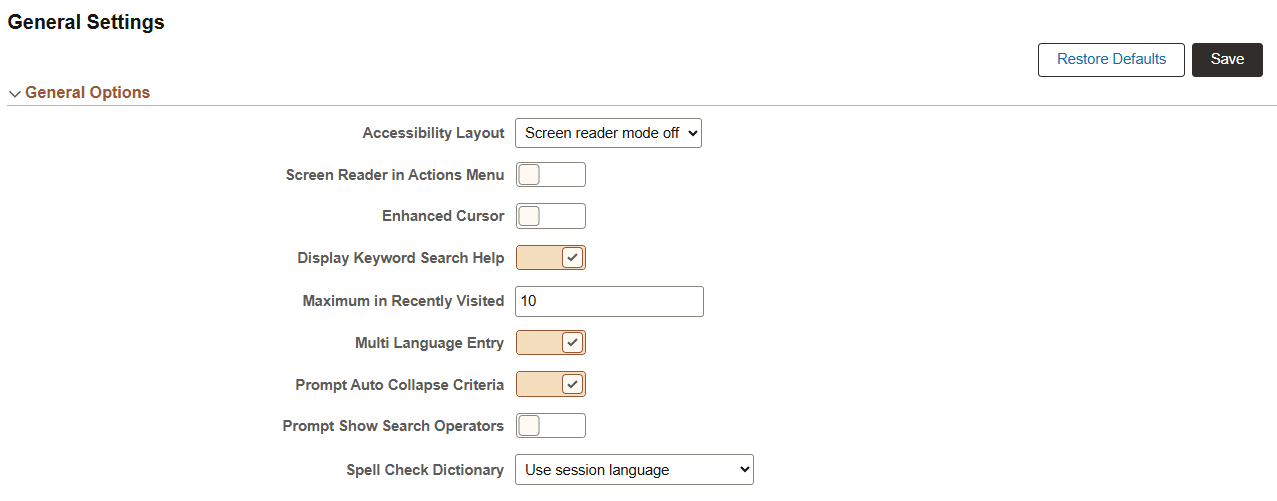
The following example shows the Option Category: General Options page that you use to enable multi-language entry.
This example illustrates the fields and controls on the Personalizations: General Options page with multi-language entry enabled.
To enable multi-language entry:
-
Select on the navigation menu from your homepage.
The Personalizations page appears.
-
Click the Personalize Options button on the General Options line.
The Option Category General Options page appears.
-
Change the value for the Multi Language Entry option to Yes.
-
Click OK.