Managing Languages in the PSLANGUAGES Table
Access the Manage Installed Languages page ().
This example illustrates the fields and controls on the Manage Installed Languages page.
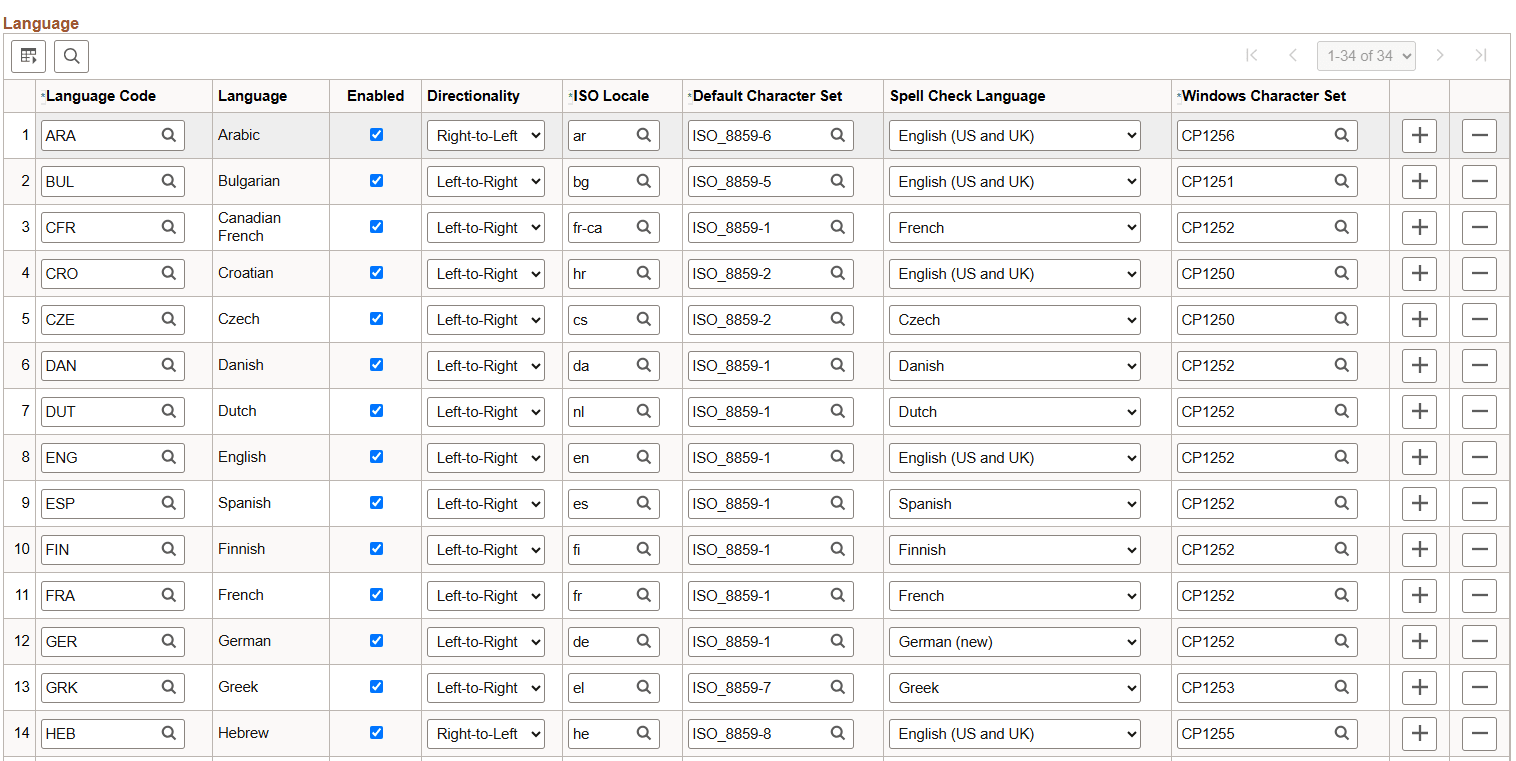
You can update and add the languages used by your PeopleSoft system to the PSLANGUAGES table using the Manage Installed Languages page.
Note:
Whenever modifications to the PSLANGUAGES table are made, such as on the Manage Installed Languages page, the application server’s in-memory cache must be refreshed by restarting the application server in order to cache the new values.
Use the Manage Installed Languages page to:
-
Enable or disable a language.
The PSLANGUAGES table is used by many PeopleTools utilities to determine which languages defined in the database are actually in use, rather than merely being defined but unused.
Note:
English is always delivered as an enabled language. If you do not want to allow your users to sign into the PeopleSoft Pure Internet Architecture using English, you can disable English on this page. However, you must ensure that the language selected in psprcs.cfg is set to one of the languages that remains enabled for your system to operate properly. In addition, for the PeopleTools development environment, Configuration Manager must be set to use one of the languages that remains enabled.
-
Specify a default, non-Unicode character set.
The PSLANGUAGES table also provides a mapping to a default non-Unicode character set that is used to represent that language when a Unicode representation is not possible, for example, during some file system operations.
-
Identify the spell check language.
You also use the PSLANGUAGES table to select the language of the spell check dictionary that is associated with a given language code. The spell check language that you select for a language code is the default spell check dictionary that is associated with that language when the user signs on to the system in that language. The user can override the default spell check dictionary through the My Personalizations option on the homepage.
List of supported Spell Check Language dictionaries:
-
Afrikaans
-
Afrikaans and US English
-
Catalan
-
Catalan and US English
-
Czech
-
Danish
-
Danish and US English
-
Dutch
-
Dutch and US English
-
English (UK)
-
English (US and UK)
-
English (US)
-
Finnish
-
Finnish and US English
-
Finnish morphological database
-
French
-
French and US English
-
German (new)
-
German (new) and US English
-
German (old)
-
German (old) and US English
-
Greek
-
Hungarian
-
Hungarian morphological database
-
Italian
-
Italian and US English
-
Norwegian
-
Norwegian and US English
-
Polish
-
Polish morphological database
-
Portuguese
-
Portuguese (Brazilian)
-
Portuguese (European)
-
Russian
-
Spanish
-
Swedish
-
-
Specify the character set for encoding query results to be downloaded in comma-separated values (CSV) format.
The PeopleSoft system downloads query results to a file in CSV format. You can use the PSLANGUAGES table to select a character set value for a given language code to encode the results.
| Field or Control | Description |
|---|---|
|
Language Code |
Enter the three-letter language code from the PSXLATITEM table. |
|
Enabled |
Select this option to indicate that the language is in use. When this option is selected, login or multi-language entry with this language is allowed. This option is selected automatically during the process of loading translations into the database. However, this option allows you to manually enable a language without loading the translations. |
|
Directionality |
Use the drop-down list box to select left-to-right or right-to-left as the language direction.. |
|
ISO Locale |
Use the lookup to select the ISO locale code from the PSLOCALEDEFN table. The code consists of an ISO 639 language code, optionally followed by an ISO 3166 country code. |
|
Default Character Set |
Use the lookup to select the character set from the PSCHARSETS table. The default character set determines the default encoding for input and output files. |
|
Spell Check Language |
Use the drop-down list box to select the spell check language from the PSXLATITEM table. This enables you to select the language of the spell check dictionary that is associated with a given language code. |
|
Windows Character Set |
Use the Lookup option to select a Microsoft code page to use to encode CSV formatted query results for the corresponding language code. The character set must be valid for Java encoding and mime-type, or downloads will fail with an error. The default value for all language codes is CP1252. |
Note:
You can override the information specified on the Manage Installed Languages page using the Look and Feel tab on the Web Configuration page.
Related Topics