Messages
The following table lists the objects, base tables, related language tables, and tools used for translating message set descriptions and messages.
| Object | Base Table | Related Language Table | Where to Translate |
|---|---|---|---|
|
Message Set Description |
PSMSGSETDEFN |
PSMSGSETLANG |
Translate Messages page. |
|
Messages |
PSMSGCATDEFN |
PSMSGCATLANG |
Translate Messages page. |
|
Message Explanations |
PSMSGCATDEFN |
PSMSGCATLANG |
Translate Messages page. |
The Translate Messages page enables you to translate message set descriptions, messages, and detailed message explanations into a specific target language.
Access the Translate Messages page ().
This example illustrates the fields and controls on the Translate Messages page.
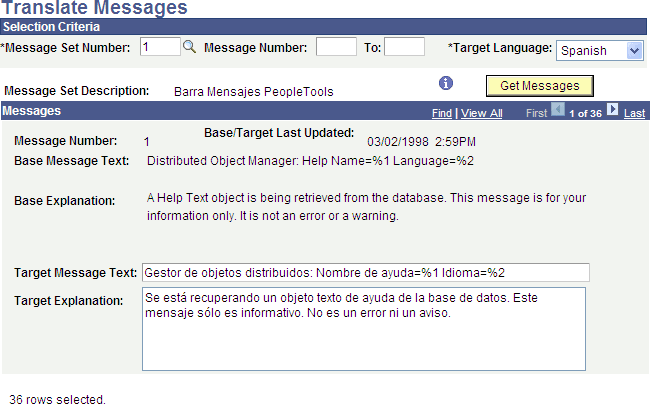
To translate messages:
-
Select a message set with which to work.
Enter a Message Set Number in the field or click the Prompt button to search for a specific message set number.
-
Select messages within the message set with which to work.
-
To select all messages within the message set, leave the Message Number field blank.
-
To select a range of messages within the message set, enter the range in the Message Number fields.
-
-
Select the target language.
-
From the Target Language drop-down list, select a target language.
-
Click the Get Messages button.
The message set description you selected appears under the Message Set Number.
The first message in the set or in the range you selected displays in the Messages section. The Base Message Text and Base Explanation fields display the message and its explanation in the base language.
Use the arrow buttons or the First and Last links on the Messages bar to navigate to the messages retrieved.
-
-
Translate the message set description into the target language.
-
Click the Information icon next to the Get Messages button. The Add Message Set page appears.
-
Enter a Description in the target language for the message set.
-
Enter a Short Description for the message set in the target language. The short description must be 10 characters or less.
-
Click OK to return to the Translate Messages page.
-
-
Translate the message text and explanation into the target language.
-
In the Target Message Text field, enter a translation in the target language for the information in the Base Language Text field.
-
In the Target Explanation field, enter a translation in the target language for the information that appears in the Base Explanation field.
-
-
Click Save.
-
Repeat steps 4 to 6 for each message in the message set.
On the Messages bar, use the Forward or Back arrows or the First and Last links to navigate to other messages within the set to translate.