Implementing WS-Security for Outbound Integrations (Username and SAML Tokens)
This section discusses how to:
-
Specify an authentication token.
-
Specify a default user ID.
-
Specify an external user ID and password.
Specifying Authentication Tokens
Use the WS-Security page in the Nodes component (IB_NODE) to set up WS-Security for outbound integrations.
To access the WS-Security page select and click the WS Security tab.
This example illustrates the Nodes – WS-Security page.
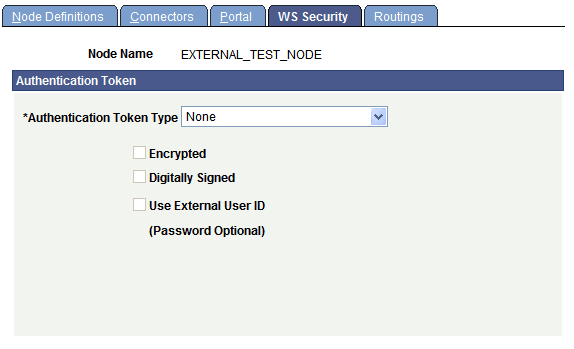
The previous example shows the WS Security page that appears by default. The options that appear on this page vary, depending on the authentication token type with which you are working.
To set up WS-Security for outbound integrations:
-
Select .
The Nodes search page appears.
-
Select the external remote node with which you are integrating.
The Node Definitions page appears.
-
Click the WS-Security tab.
The WS-Security page appears.
-
From the Authentication Token Type drop-down list box select an authentication type. The options are:
-
SAML Token.
-
Username Token.
-
-
To include additional security options, choose any of the following:
Additional information about the possible configuration combinations using these options is discussed elsewhere in this section.
See Describing WS-Security Configuration Options for Outbound Integrations (Username Tokens).
Field or Control Description Encrypt
(Optional.) When you check this box, an Encryption Level drop-down list box appears which allows you to choose the level of encryption.
Digitally Signed
This option appears only when you select Username Token.
(Optional.) Check the box to digitally sign the token information, including the username and password.
Use Default User ID
This option appears only when you select SAML Token.
(Optional.) Check the box to use the Default User ID specified on the Node Definitions page.
If this option is not selected the user ID used is the PeopleSoft single signon user ID.
Use External User ID
This option appears only when you select Username Token.
(Optional.) Check the box to use an external user ID for the username.
If you select this option, you specify the external user ID and optional password (recommended) on the Node Definitions page.
Note: If you do not select this option, the Default User ID specified on the Node Definition page is used as the username in the UsernameToken credential.
-
Click the Save button.
-
Click the Node Definitions tab.
The Node Definitions page appears.
If you chose to use an external user ID, a dialog box appears indicating that you need to specify the external user ID and optional password. Information on performing that task is described in the Specifying External User IDs and Passwords section.
Encrypting Outbound Messages
When you choose to encrypt messages in an outbound service operation, you have the option to encrypt the entire message, the message body only, or the message header only.
Use the Nodes – WS Security page (IB_NODESECURITY) to work with any of these options.
To access the WS-Security page select and click the WS Security tab.
This example illustrates the Nodes – WS Security page. Use this page to choose a message encryption level.
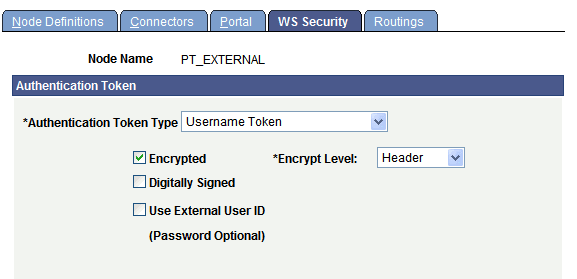
When working with an external node type and you select the Encrypt box, the Nodes — WS Security page displays an Encrypt Level drop-down list box from which you can choose an encryption level.
The encryption level options are:
-
All. This option encrypts the entire message including the message header and body.
-
Body. Encrypts the message body only.
-
Header. (Default) Encrypts the message header only.
Specifying Default User IDs
When using the SAML token type to implement WS-Security, you have the option to use the default user ID for processing. You set the default user ID on the external remote node definition using the Node Definitions page.
When you create a node definition, you must supply a value for the Default User ID. However, you a free to change the value at any time.
See Configuring Nodes.
If you do not check the Default User ID option, the system uses the PeopleSoft User ID/Single Signon User ID for the transaction.
Specifying External User IDs and Passwords
When using the Username token type to implement WS-Security, you have the option to specify an external user ID. You define the external user ID on the Nodes – Node Definitions page.
To access the Nodes – Node Definitions page
This example illustrates the Nodes – Node Definitions page.
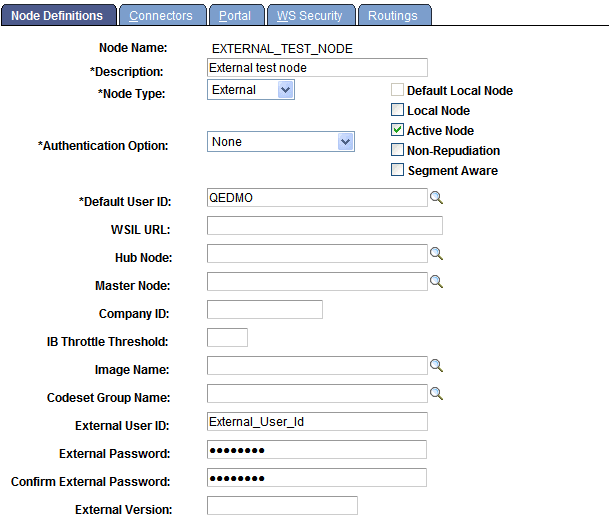
When specifying an external user ID, specifying an external user ID password is recommended.
Note:
The Confirm External Password field appears after you specify the external password and tab out of the field.
To specify the External User ID and Password:
-
On the Node Definitions page, in the External User ID field, enter an external user ID.
-
(Optional.) In the External Password field, enter the password for the external user ID.
Tab out of the field. A Confirm External Password field appears.
-
In the Confirm External Password field, re-enter the external user ID password.
-
Click the Save button.