Setting Oracle Jolt Connection String Properties
The PeopleSoft Node Configuration page provides a grid for setting Oracle Jolt connection string properties for unknown (default) target nodes and known target nodes.
This example illustrates the fields and controls on the PeopleSoft Node Configuration page. You can find definitions for the fields and controls later on this page.
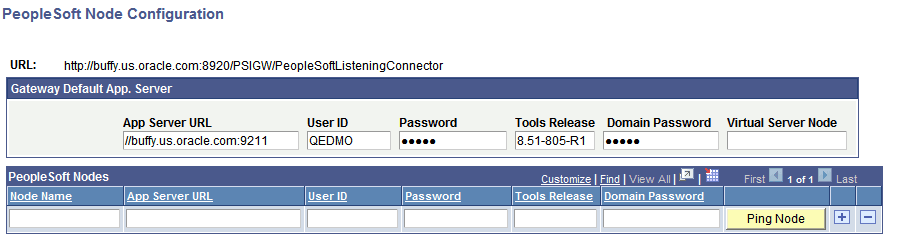
To access the PeopleSoft Nodes Configuration page, select The Gateways page appears. Click the Gateway Setup Properties link. Enter the gateway user ID and password and click the OK button. The PeopleSoft Node Configuration page appears.
To define properties for unknown nodes use the Gateway Default Application Server grid on the PeopleSoft Node Configuration page. To define properties for known nodes use the PeopleSoft Node grid on the PeopleSoft Node Configuration page.
Note:
Setting Oracle Jolt string connection properties for unknown nodes is optional.
| Field or Control | Description |
|---|---|
|
App Server URL(Application Server URL in the Gateway Default App Server Section) |
Enter the machine name and Oracle Jolt port number of the default application server to use if no valid target node can be determined. To determine the Jolt port of the application server, check the JOLTListener section in the psappsrv.cfg file. The file is located in <PS_CFG_HOME>\appserv\<DOMAIN_NAME>. |
|
App Server URL(Application Server URL in the PeopleSoft Nodes Section) |
Enter the machine name and Oracle Jolt port number of the default application server to use if no valid target node can be determined. Note: To determine the Jolt port of the application server, check the JOLTListener section in the psappsrv.cfg file. The file is located in <PS_CFG_HOME>\appserv\<DOMAIN_NAME>. |
|
Domain Password |
Enter the password for the domain as entered in PSADMIN. |
|
Node Name |
Enter name of the PeopleSoft node with which the integration gateway is to communicate. |
|
User ID |
Enter the user ID that you defined when you created the application server domain. |
|
Password |
Enter the user password that you defined when you created the application server domain. PeopleSoft Integration Broker will automatically encrypt this password entry. |
|
Tools Release |
Enter the PeopleTools version number installed on the application server. If you are installing a patch build, include the patch number. For example, if you are installing PeopleTools 8.55 patch build 3, enter the following: 8.55.03 |
|
Virtual Server Node |
This field is used in conjunction with inbound request processing using virtual server domains. See Implementing Inbound Request Load Balancing Using Virtual Application Server Domains. Enter a node name from the list of nodes in the PeopleSoft Nodes grid on the bottom of the page. When utilizing virtual server domains, the system routes inbound requests that do not specify a “To” node to the this node. |
The properties and values you set in the PeopleSoft Node Configuration page are located in the DELIVERED CONNECTOR CONFIGURATION Section of the integrationGateway.properties file.
The properties you set for unknown nodes are in the subsection ## JOLT connect string setting for optional Default Application Server. The properties you set for known nodes are in the subsection ## JOLT connect string settings for Application Server(s) with known NODENAMEs.