Enabling Integration Gateway Message Logging in the Service Operations Monitor
Before you can view integration gateway message log data for service operation transactions in the Service Operations Monitor, you must enable the feature using the Monitor Setup Options page.
To access the Monitor Setup Options page, select
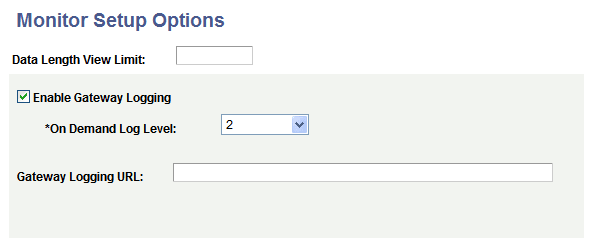
This example illustrates the Monitor Setup Options page showing gateway logging enabled in the Service Operations Monitor.
To enable integration gateway message logging in the Service Operations Monitor:
-
Access the Monitor Setup Options page (.)
-
Check the Enable Gateway Logging box.
-
From the On Demand Log Level drop-down list box, select a logging level. The valid options are:
-
1. Log standard gateway exception errors.
-
2. Log all errors and warnings. (Default.)
-
3. Log errors, warnings and important information.
-
4. Log errors, warnings, important and standard information.
-
5. Log errors, warnings important, standard and low importance information.
-
-
Click the Save button.
This procedure enables you to access gateway logs from the file system. To access the log information from PIA in the Service Operations Monitor using the Asynchronous Details page or the Synchronous Details page, you must also change the default storage directory for the transaction logs. The next section describes changing the storage directory for the transaction logs.