Viewing Test Output
After you run a test on a group of projects, you can view processing information and response information for any project in the group.
Viewing Processing Information
After you run a group of projects, the Completed Projects Output section displays all of the projects in the group and the instances for each project in a hierarchical tree format. To expand and collapse a project folder, click the icon to the left of the folder.
When you expand a project folder, the instances for the project appear as shown in the following graphic.
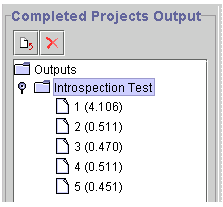
Each page icon represents a project instance. The number in parentheses represents the time needed to process the project instance.
To view detailed processing information about the entire group of projects, select a project, click the Export the Results to File button, and save the contents as a text file. You can then open the text file and view information, such as the total number of project instances in the group, the total time to process all project instances, processing start and end times, and so on. The following example shows the type of output you can view using the Export feature.
   Count                   : 5

   Round-trip times
        Total              : 0.961 (s)
        Minimum            : 0.180 (s) [2]
        Maximum            : 0.200 (s) [3]
        Average            : 0.192 (s)
        Process per second : 5.203

   [1]
        Request            : 0.191 (s) [start = 10:19:20.095, end = 10:19:20.286]
        Response           : 200 - OK
   [2]
        Request            : 0.180 (s) [start = 10:19:20.296, end = 10:19:20.476]
        Response           : 200 - OK
   [3]
        Request            : 0.200 (s) [start = 10:19:20.486, end = 10:19:20.686]
        Response           : 200 - OK
   [4]
        Request            : 0.190 (s) [start = 10:19:20.696, end = 10:19:20.886]
        Response           : 200 - OK
   [5]
        Request            : 0.200 (s) [start = 10:19:21.017, end = 10:19:21.217]
        Response           : 200 - OK
Viewing Response Information for a Project Instance
Send Master enables you to view response information for any project instance in a group of projects.
To view response information for a project instance:
-
Select a project instance in the Completed Projects Output section.
-
Click a project instance.
Response information appears in the Output Information section.