Creating Document Message Definitions
This section discusses adding document message definitions.
Understanding Adding Document Message Definitions
When you create a document message definition in the system, you create a message definition that references a document. .
Prerequisites for Adding Document Message Definitions
Before you add a document message definition to the system, the document definition that the message will reference must exist in the system
Adding a Document Message Definition
When you add a document message definition, additional options appear on the page than when you add other message types.
This example illustrates the Add New Message page. The example shows adding a Document message type to the system.
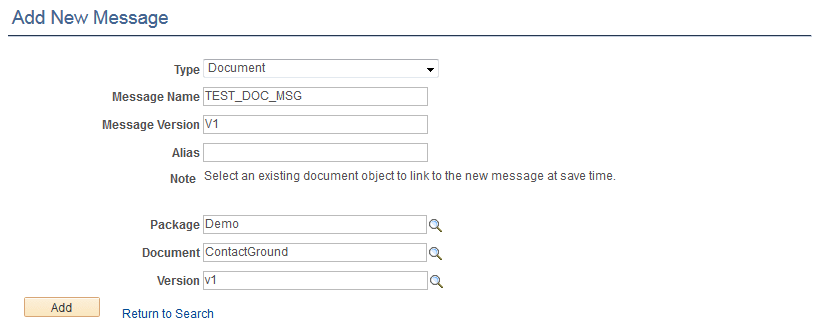
After you provide a message name, version, and optional alias, you specify the document package, document name, and version to which to link the message.
After you click the Add button, the document that you specified in the message definition appears in the Document Builder – Document page.
This example illustrates the Document Builder – Document page. In the example the Metadata References section shows that the message TEST_DOC_MSG.v1 references the document.
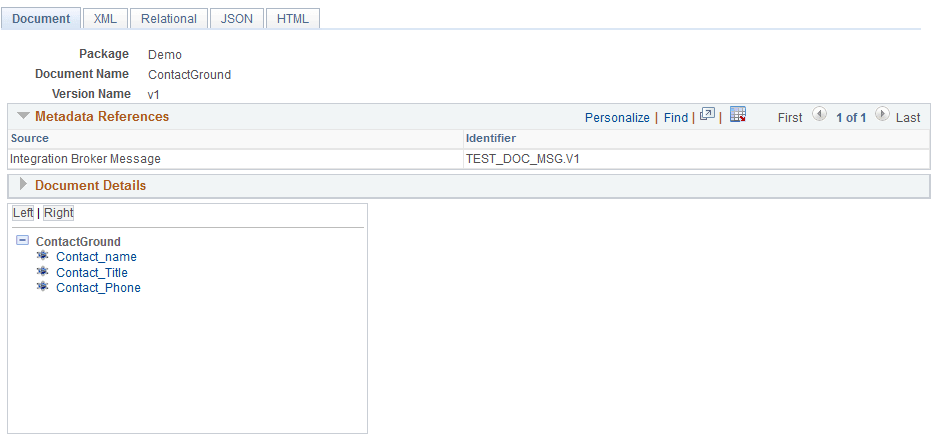
The Metadata References section in the definition shows that there is an Integration Broker message called TEST_DOC_MSG.v1 that references the document.
Note that the message definition is not saved until you click the Save button in the Document Builder.
To add a document message definition:
-
Select .
-
Select the Add New Value tab.
-
From the Type drop-down list, select Document.
-
In the Message Name field, enter a name for the message.
The message name cannot exceed 30 characters. Do not include any spaces in the message name.
-
In the Version field, enter a version for the message.
The message version cannot exceed 30 characters. Do not include any spaces in the message version.
Accepted formats for the message version include:
-
Version_1.
-
V1.
-
-
(Optional) In the Alias field, enter the name that the external system is expecting, if different from the value in the Message Name field.
-
In the Package field, enter the document package or click the Lookup button to search for one.
-
In the Document field, enter the document name or click the Lookup button to search for one.
-
In the Version field, enter the document version or click the Lookup button to search for one.
-
Click the Add button.
The Document Builder–Document page appears, displaying the document definition for the document you specified. The Metadata References grid displays the name of the message definition you added.
-
Click the Save button.