Defining Routing Header Properties for Provider REST Service Operations
On provider REST–based service operations the any-to-local routing definition features a Header Properties page (IB_ROUTINGRESTPROP) where you add request message and response headers to the service operation. The headers are shown in the generated WADL document for the service operation.
To access the Header Routings page Routings-Header Properties page select and click the Header Properties tab.
This example illustrates the Routings – Header Properties page. The example shows the header properties for a system-generated any-to-local routing for a REST-based provider service operation.
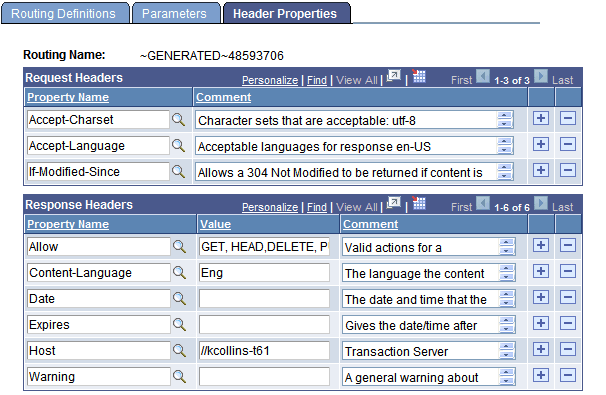
The request and response headers that you can add are standard HTTP request and response header fields. There are several sources for addition information and descriptions of HTTP header fields. One such source is the World Wide Web Consortium (W3C).
See World Wide Web Consortium.
Note:
If you regenerate a routing any header fields defined for the routing are deleted and you must recreate them.
You also use this page to define compression on provider service operations requests and responses.
See Setting Compression for REST Service Operations.
Use the LoadRESTHeaders method of the IBInfo class to load the response and request headers at runtime.
See Using PeopleCode to Manage Provider REST Service Operations.
Adding Request Header Properties
To add a request header property:
-
Access the Routings-Header Properties page ( and click theHeader Properties tab).
-
In the Request Headers section of the page, click the Add Row button (+) to add a row.
-
In the Property Name field, click the Lookup button and select a property to add.
The system adds the property to the grid.
-
In the Comments field, enter a comment about the property.
-
Repeat steps 2–4 to add additional request header properties.
-
Click the Save button.
Adding Response Header Properties
To add a response header property:
-
Access the Routings-Header Properties page ( and click the Header Properties tab).
-
In the Response Headers section of the page, click the Add Row button (+) to add a row.
-
In the Property Name field click the Lookup button and select a property to add.
The system adds the property to the grid.
-
In the Value field enter a value for the property.
-
In the Comment column enter a comment for the property.
-
Repeat Steps 2–5 to add additional response header properties.
-
Click the Save button.