Defining a Transform Program
To define a transform program, create a new application engine object in PeopleSoft Application Designer. Then in the Program Properties dialog box you specify the program type as a transform program.
This example illustrates the Program Properties – Advanced page for an application engine program.
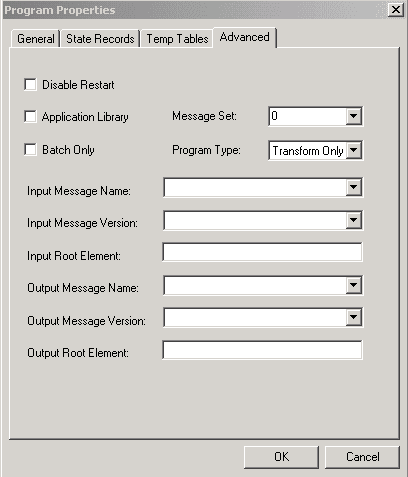
In the previous example, note that the Program Type field displays Transform Only.
To define a transform program:
-
In PeopleSoft Application Designer, select and click the OK button.
A new application engine program window appears.
-
On the toolbar, click the Properties button.
The Program Properties dialog box appears.
-
Click the Advanced tab.
-
From the Program Type drop-down list box, select Transform Only.
Additional fields relating to input messages, output messages and root elements appear.
-
Select an input message and version:
-
From the Input Message Name drop-down list box, select the name of the message before transformation is applied.
-
From the Input Message Version drop-down list box, select the version of the input message.
-
-
In the Input Root Element field, enter the name of the input schema root element to use.
Enter a value in this field if the input message has multiple root elements. If the input message has multiple root elements and you do not enter an input root element, the first root element in the message is used for transformation.
This field is disabled when the input message is a rowset-based message.
-
Select an output message and version.
-
From the Output Message Name drop-down list box, select the name of the message after transformation is applied.
-
From the Output Message Version drop-down list box, select the version of the output message.
-
-
In the Output Root Element field, enter the name of the output schema root element to use.
This field is disabled when working with rowset-based messages.
-
Click the OK button.
-
The Program Properties dialog box closes.
-
Select