Launching Oracle XSL Mapper
You launch Oracle XSL Mapper from within an application engine transform program.
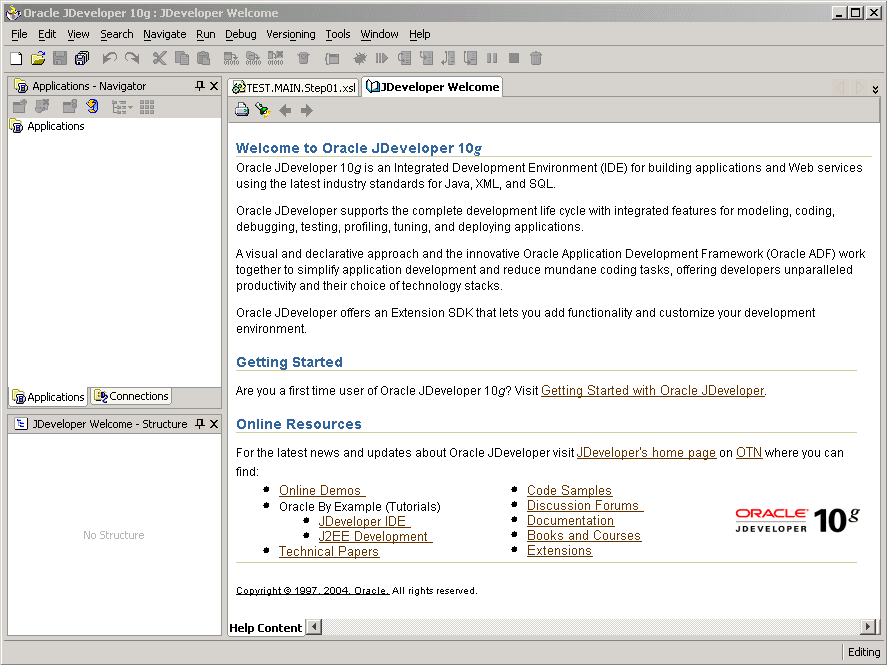
The first time you launch the mapper, the Oracle JDeveloper Welcome window appears.
This example shows the JDeveloper Welcome window.
Note:
The first time you launch Oracle XSL Mapper a Configure Tile Type Associations dialog box appears. While using the mapper you do not work with any Java files and you can disregard the dialog box.
The Oracle JDeveloper Welcome window displays only the first time you access JDeveloper. When you subsequently open Oracle XSL Mapper, the transform program appears in the Design view.
This example illustrates the Oracle XSL Mapper – Design view.
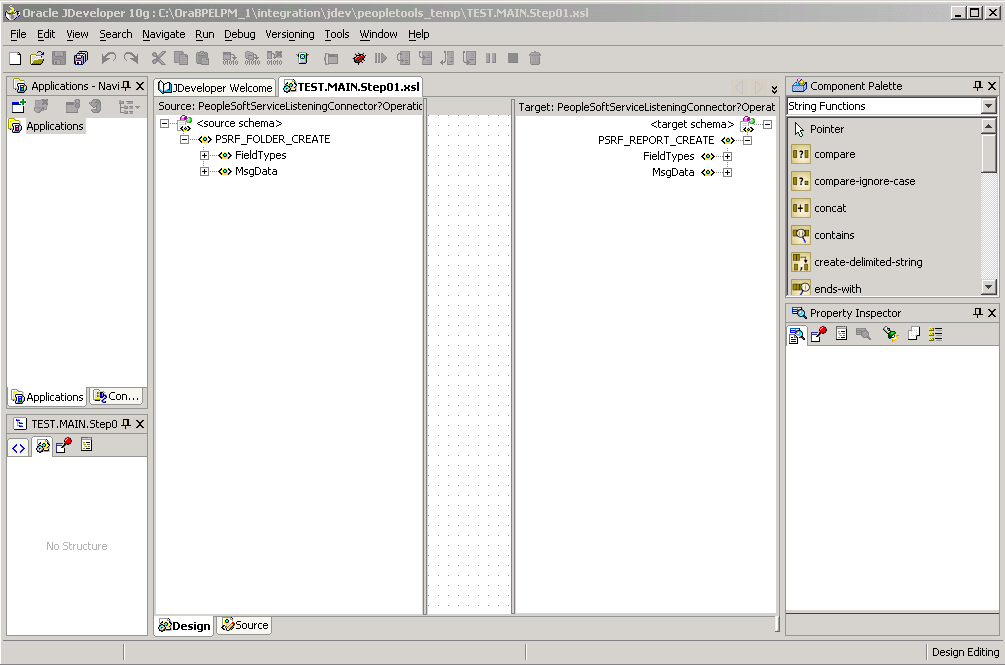
The transform program name in the mapper takes the following format:
<transform_program_name>.<section_name>.<step_name>.xsl To launch Oracle XSL Mapper:
-
Create a Transform Only application engine program and define the program properties described earlier in this topic.
-
Double-click the XSLT action.
-
Access the Oracle XSL Mapper–Design view.
When accessing the mapper for the first time, when you double-click the XSLT action and launch Oracle JDeveloper the JDeveloper Welcome window appears. To switch to the Design view, above the Source pane, click the transform file name tab or from the Window menu click the transform file name.
In subsequent attempts to launch the mapper, double-clicking the XSLT action automatically opens the transform program in the Design view.