Navigating the XSLT Transform Builder
To access the XSLT Transform Builder page select
This example illustrates the fields and controls on the XSLT Transform Builder page. You can find definitions for the fields and controls later on this page.
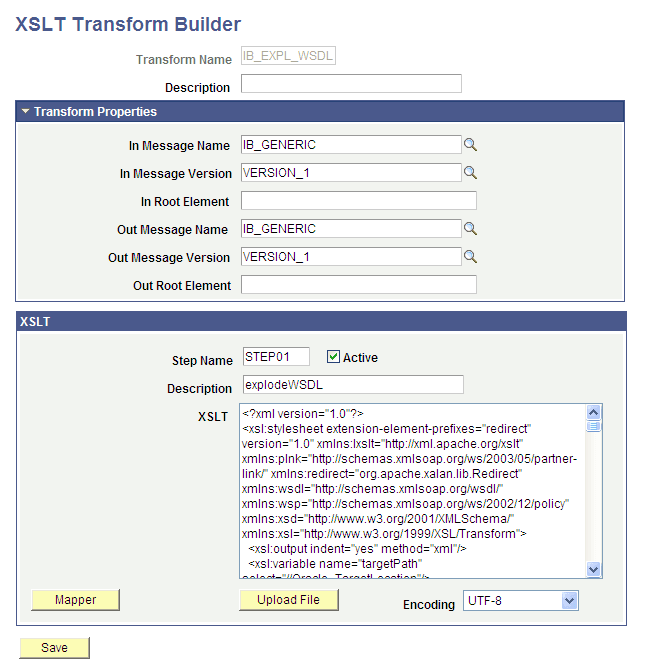
The page features the following sections:
| Field or Control | Description |
|---|---|
|
Metadata |
This section contains the transform program name and description. |
|
Transform Properties |
Use the section to define the message name, message version, and root element before the transformation is applied, and the names to apply to them after the transformation is applied. By default, this section is collapsed when you open the XSLT Transform Builder page. Click the arrow next to the section label to expand and collapse the section. |
|
XSLT |
Use this section to define the step and XSLT code to program the step. You can code step manually in the space provided or upload code from a file. When using the Oracle XSL Mapper to code a step, after you exit the Oracle XSL Mapper, the code appears in this space. |
The page features the following fields and controls:
| Field or Control | Description |
|---|---|
|
Transform Name |
Name of the transformation program. |
|
Description |
Description of the transformation step. |
|
In Message Name |
Message name before transformation. |
|
In Message Version |
Message version before transformation. |
|
In Root Element |
Name of the root element before transformation. This field is required with the message type is a nonrowset-based message. |
|
Out Message Name |
Message name after transformation. |
|
Out Message Version |
Message version after transformation. |
|
Out Root Element |
Name of the root element after transformation. This field is required with the message type is a nonrowset-based message. |
|
Step Name |
Name of the step. |
|
Active |
Check the box to indicate the transformation step is active. Clear the box to deactivate the transformation step. |
|
Mapper |
Click the button to launch the Oracle XSL Mapper to code the transformation. |
|
Upload File |
Click the button to upload transformation code from a file. |
|
Encoding |
If uploading transformation code from a file, select the encoding applied to file from the list. The options are:
|
|
Save |
Click the button to save the transformation program. |