Specifying Multiple Queues to Process Service Operations
When a service operation contains a message assigned to an unordered queue, the Service Operations–General page displays a Multi-Queues link. The Multi-Queues link displays in the Message Information section of the page.
Use the link to specify multiple queues to process the service operation.
This example illustrates the Message Information section on the Service Operations – General tab. A Multi-Queues link appears to the right of the Queue Name field.

When you click the Multi-Queues link, the Queues List page (IB_SERVICEQUEUES) appears.
This example illustrates the Queues List page. The example shows that one queue, IB_EXAMPLES, has been assigned to process the service operation.
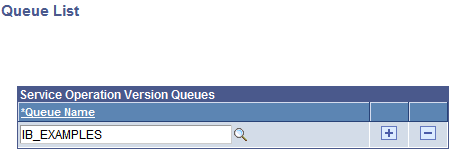
The Queues List page shows the queues assigned to process a service operation. Use the Add Row button (+) to add new rows and use the Lookup button to search for and specify additional queues to process the service operation. Note that when you use the Lookup button to search for a queue, only those queues that are active and unordered are available to select.
To assign multiple queues to process an inbound service operation:
-
Access the Service Operations–General page ().
-
In the Message Information section, click the Multi-Queues link. The Queue List page appears.
-
Click the Add Row button (+) to add a new row. A new row appears.
-
Click the Lookup button to search for an select an unordered queue.
-
Repeat steps 3 and 4 to assign additional queues to process the service operation.
-
Click the OK button. The Service Operations–General page appears.
-
Click the Save button.
To remove a queue, click the Delete Row button (-) next to the queue name to remove. Click the OK button to return to the Service Operations–General page. Then, click the Save button.