Accessing and Sharing Browser Reports
This section discusses how to:
-
Access browser reports.
-
Share browser reports.
Accessing Browser Reports
To access a browser report, double-click on the line in the output window containing "Browser Compare Report Created.”
Enter password, if prompted. You can set password for browser compare reports in Report Options tab on the Upgrade Options dialog box.
The following is a screen image of Accessing Browser Reports in PeopleSoft Compare Report Viewer.
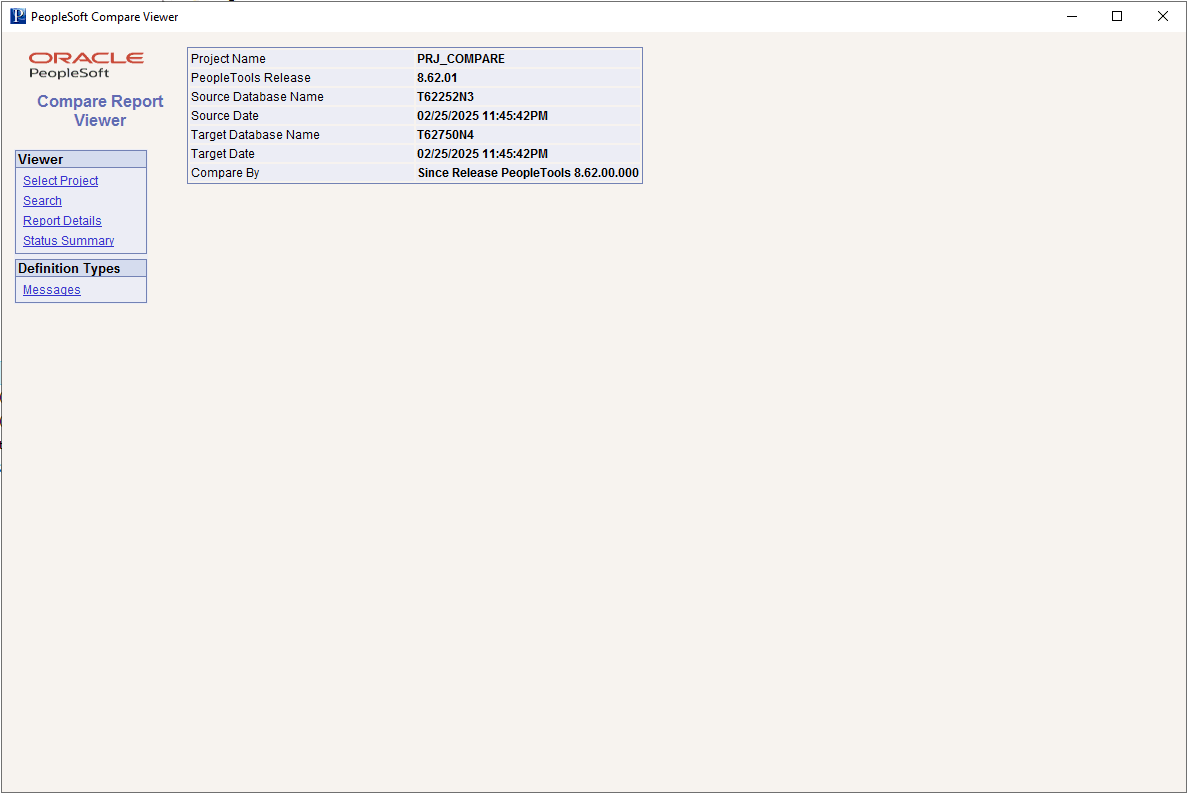
The Viewer menu contains menu options related to navigating within the report. The Definition Types menu enables you to dill down into the compare data for each definition type compared. The Definition Types menu only contains the definitions compared.
Note that the PeopleSoft Compare Report Viewer (pscmpviewer.exe) is placed in the same folder location where browser compare reports are saved.
The compare reports are saved to the location you specify in the Report Output Directory field in Tools > Options on the General tab.
Sharing Browser Reports
PeopleSoft Application Designer writes the browser reports to a subdirectory named after the project name within the Report Output Directory specified on the General tab on the Options dialog. For example, if the Report Output Directory is c:\psreports and the project name is “PROJECT,” then the browser reports exist in c:\psreports\PROJECT. To view the compare results, double-click CompareViewer.html and then select the desired project name.
For each type of definition you compare, there is a subdirectory containing XML files storing the compare data for that definition type. For example, if you compared pages, the XML file containing compare data for the page compare exists in c:\psreports\PROJECT\Pages. These files can be used as source data for custom displays of the compare data. The PeopleSoft Compare Report Viewer uses these XML files along with various HTML and XSL files to present your compare data.
To share the browser reports, PeopleSoft recommends:
-
Copying the entire high-level report output directory (containing all subdirectories, HTML, and XSL files) and copying it to a shared network drive.
-
Compressing the entire directory and sending or posting individual copies as needed.