Copying a Project From a File
The Copy Project From File command in the Tools menu imports PeopleTools definitions and the project definition from a file that was previously copied by using the Copy To File feature.
Tracking Fixed Incidents
When PeopleSoft delivers a software update, it is in the form of a change project file. This project file usually includes enhancements or updates that fix incidents. You can view incident IDs and their dependencies before you copy the file to the target database.
To view incident IDs that were included in the project file:
-
Open the maintenance project that you are planning to copy to the database.
-
Click the Project Properties button.
-
Select the Update IDs tab.
This tab contains a list of update IDs that were fixed and applied to the software.
-
Select the Pre-Requisites tab.
This tab contains a list of update IDs that are dependent on other fixes that are being applied. These are validated against the target database when you copy the project. If a fix in the Pre-Requisites list has not been applied, a message appears, indicating that the target database is missing a dependency. The only way to have the system allow you to copy projects that have dependencies that are not applied is to select the Override Pre-Requisites check box.
Note:
We can track applied update ID fixes only through the Copy Project From File command in the Tools menu. Therefore, every update ID fix that PeopleSoft delivers is in a change project that must be copied to your database.
See Change Assistant and Update Manager: Creating a Change Project
Copying From a File a Project That Does Not Exist in the Database
To copy a project from a file:
-
Select
The Copy From File: Select Project dialog box appears.
-
Browse to locate the project file or select the file from the Projects list.
Note:
You can use the Open button to open folders while browsing. It does not open the project file and begin the copy process.
You can copy only one project from a file at a time.
-
Select the project from the projects list by clicking Select or double clicking the project name.
The Copy From File dialog box appears.
-
Select whether to use the project definition from the file or the database, and click OK.
-
Select the definition types to copy.
The Definition Type(s) list shows the definition types that have been exported and are available to be copied into the database.
-
Select the Override Pre-Requisites check box if required.
You can select the Override Pre-Requisites check box if you want the system not to check for project prerequisites and apply the project regardless of prerequisites that have not been applied.
-
Select the Compile PeopleCode after Import check box.
You can select the Compile PeopleCode after Import check box to compile all the PeopleCode programs in the Project.
-
Click to Options button.
-
Select the Copy Options tab.
This example illustrates the fields and controls on the Copy Options tab. You can find definitions for the fields and controls later on this page.
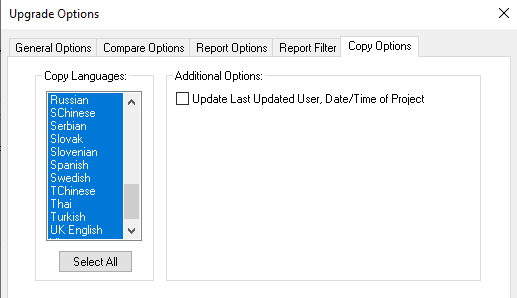
Field or Control Description Copy Languages
Select the languages to copy.
Update Last Updated User, Date/Time of Project
By default when you copy a project from file, the last update date for the project is shown as time when the file was created. Select this option to set the LASTUPDOPRID to current signed on userid and LASTUPDDTTM to current date.
-
Click Copy.
There are two phases to the Import process: content on the XML file is written to the system cache directory (as specified in the PeopleSoft Configuration Manager) under a stage directory for the current database. Then the cache is copied to the database. When the import is complete, the cache files are deleted.
The Progress dialog box shows the progress of the Copy process as it copies each definition from the export directory into the attached database. When the Copy from File process successfully completes, the system creates a new project definition from the PeopleTools definitions in the current database.
If you click the Cancel button before copying the project, the project becomes invalid and the system deletes the project reference from the database.
Note:
When copying application packages and Portal Registry Structures, the Progress dialog box may display unexpected counting behavior, making it appear that definitions are being processed more than once. This behavior is expected.
Copying From a File a Project That Does Exist in the Database
The process for copying a project from a file when a project of the same name exists in the database is slightly different. After selecting Tools, Copy Project, From File and a project of the same name already exists in the database to which you are currently signed on, the following dialog box appears.
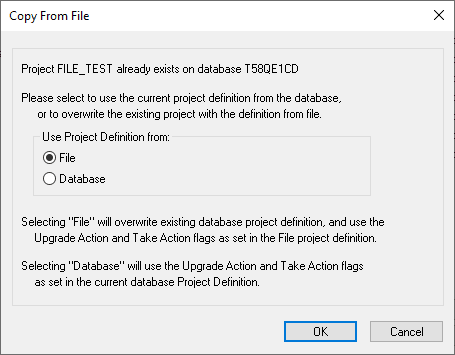
This prompt enables you to specify which project definition to use, the one stored in the database to which you are signed on or the one stored in the file from which you intend to copy. Keep in mind that the project definition is the metadata of the project and determines which definitions (pages, fields, records, and so on) are members of the project.
| Field or Control | Description |
|---|---|
|
File |
Select this option if you intend to copy the project stored in the file regardless of any Upgrade Action or Take Action settings in the database. Note: By selecting this option, you overwrite the project definition of the same name that previously existed in the database. Important: After selecting File and clicking OK, the second Copy From File dialog box appears where you can view source and target information, select Definition Types, select copy options, and so on. If you select Cancel from this dialog box, the project file does not get copied into the database, however, the existing project definition will be deleted from the database. |
|
Database |
Select this option if you intend to maintain control of the upgrade project definition stored in the database and manually override any Upgrade Action or Take Action settings. |