Running a Compare Report
To perform a comparison:
-
Save any changes to objects and close all windows before starting the Compare process.
This ensures that all generated reports are saved during the Compare process. Once the process is complete, you can open the reports from a file and view them online.
-
Lock all of the PeopleSoft Application Designer definitions in the target database.
If you perform a full comparison, it might take several days for you to review all of the comparison reports and set the upgrade settings accordingly. Locking the PeopleSoft Application Designer definitions in the target database ensures that those definitions cannot be changed between the comparison and the time that you perform the copy.
-
Turn off all tracing.
-
Select , and select one of these options:
-
From Database: The PeopleSoft Signon dialog box appears, prompting you to sign in to an upgrade target database.
-
To File: The Compare and Report From File : Select Project dialog appears for you to select the project to compare.
-
-
On the Compare and Report dialog box, select the types of definitions to compare from the Definition list.
-
Click Options to access the Upgrade Options dialog box.
Set all upgrade options including comparison report filters.
-
Select the appropriate Project Item Status / Insert Child Definitions option (if enabled it allows you to preserve the original project).
-
Click Compare to perform the comparison.
The system creates online reports for the definitions that you are comparing. Upgrade Compare reports are saved to the location you specify in the Report Output Directory field in on the General tab.
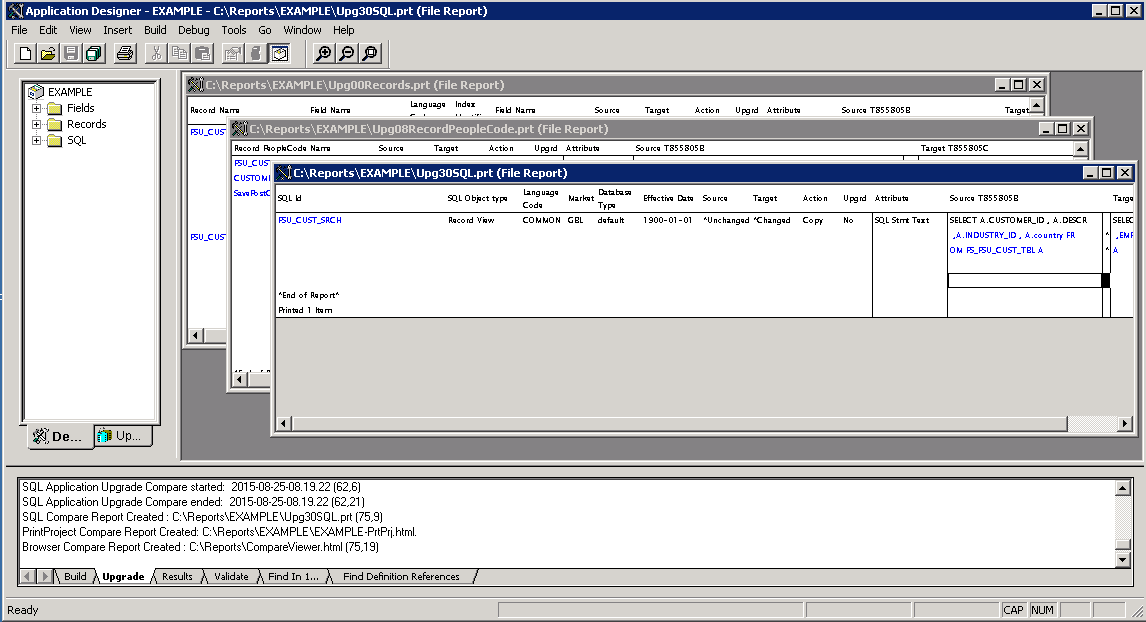
When the compare process completes, the PRT reports (if selected) are opened in Application Designer. Links to reports are displayed in the Output window, as well as compare messages.
This example illustrates the fields and controls in Application Designer when the compare process completes.
Note:
You can also compare definitions using command line syntax.
See Comparing Definitions for Upgrade Using the Command Line.