Viewing and Setting Merge Properties
This section discusses how to:
-
Set Merge properties.
-
View "A" and "B" properties.
Setting Merge Properties
Access the Merge Properties dialog box and select the Merge tab.
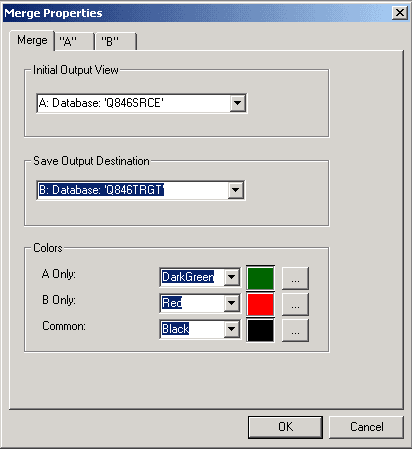
The following is a screenshot of Setting Merge Properties dialog box showing merge tab. You can find definitions for the fields and controls later on this page.
| Field or Control | Description |
|---|---|
|
Initial Output View |
Select the definition you want to appear in the output window of the compare interface. Typically, you set the Initial Output View to contain the definition that would have the most modifications to accept. Either "A" or "B" can be selected. |
|
Save Output Destination |
Select the location where the system saves the contents of the merged output window. The location you select appears on the title bar of the output window. Note: You cannot save the output to a file. |
|
Colors |
Specify the colors that the system should associate with each definition to enhance readability.
|
View "A" and "B" Properties
Access the Merge Properties dialog box and select either the "A" or "B" tab.
The following is a screenshot of Merge properties dialog box showing “A: tab.
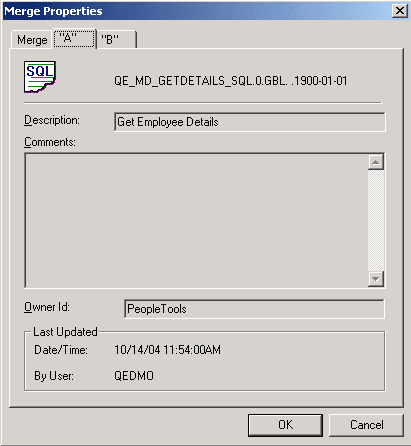
The "A" and "B" tabs display the properties for the current A and B definitions, respectively. These settings are read-only.
Note:
PeopleCode definitions do not possess description or Owner ID properties, so these properties appear blank for PeopleCode definitions.