Defining Permission Lists for REN Server Access
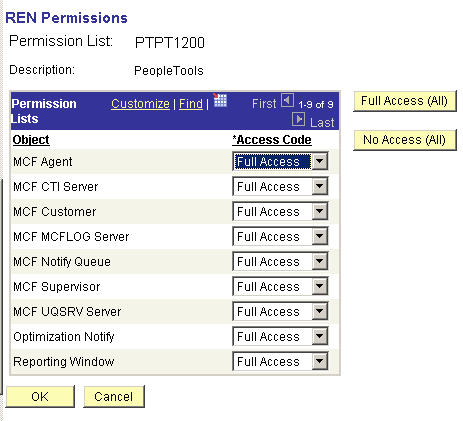
The following REN Permissions page shows the objects and permissions that are defined for permission list PTPT1200. You can create custom permission lists and define access to REN servers.
This example illustrates the objects and permissions that are defined for a permission list on the REN Permissions page.
To define permission lists for REN server access:
-
Select
-
On the search page, search for and select your permission list.
-
On the Permission List page, select the PeopleTools tab.
-
Click Realtime Event Notification Permissions.
-
On the REN Permissions page, select your permissions.
To enable REN server access for roles that are defined with the current permission list, select Full Access for each object that is required by the role. For example, users who require access to the MultiChannel Console must have Full Access defined for the MCF Agent object.
Note:
To enable access to the Report-to-Window functionality, add WEBLIB_RPT to the Web Libraries page of the permission list, and set Reporting Window to Full Access on the REN Permissions page.
Grant full access to the MCF CTI Server object only on the permission list that is assigned to the CTI server role. No other users should have MCF CTI Server access.
The user ID that is configured to start the Process Scheduler must have full access to the Reporting Window REN permission on at least one permission list for that user ID. If the user ID does not have full access to the Reporting Window, then the pop-up window stays in a status of queued.
Related Topics