Configuring Models for Optimization
You need to specify and configure analytic type models for optimization only if both of the following conditions are true:
-
You selected the PeopleCode Plugin check box in the analytic type properties, indicating that your analytic type definition should use the Optimization PeopleCode plug-in.
-
Your application documentation indicates that an optimization model is necessary for the optimization application you are developing.
In the analytic type definition, select the Models tab, and then select Insert, Optimization Model.
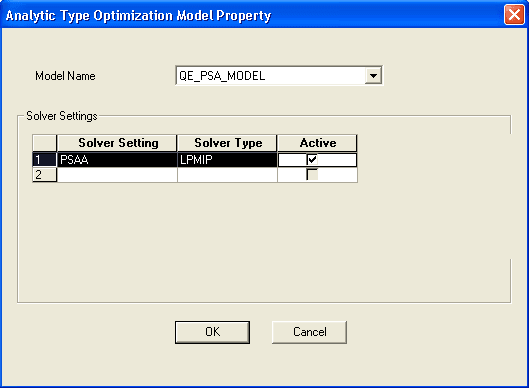
The Analytic Type Optimization Model Property dialog box appears.
This example illustrates the fields and controls on the Analytic Type Optimization Model Property dialog box. You can find definitions for the fields and controls later on this page.
Note:
Your application documentation discusses which models to specify, and what configuration settings to make for each model. You can access the properties of an existing analytic type model by right-clicking the model and selecting the Analytic Type Model Properties option.
| Field or Control | Description |
|---|---|
|
Model Name |
Select the optimization model required to implement an optimization application with this analytic type. |
|
Solver Settings |
A solver setting is a collection of solver parameters with default values that define a particular solver behavior suitable for the optimization model. Specify one or more solver settings to make available to your optimization application, including:
|
Configuring Solver Parameters
For each solver setting that you specify, you can configure one or more solver parameters.
In the Analytic Type Optimization Model Properties dialog box, double-click a solver setting to access the Analytic Type Optimization Solver Property dialog box. This dialog box has a grid with two columns: Parameter ID andParameter Value:
This example illustrates the fields and controls on the Analytic Type Optimization Solver Property dialog box.
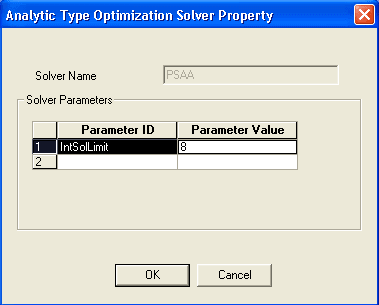
Each solver type has a different set of available parameters, and each parameter has a default value. When you select a solver parameter from the Parameter ID drop-down list box, its default value appears in theParameter Value cell, and a new row appears for adding another parameter. Your application documentation discusses which parameters to specify for each solver setting, and what value to specify for each parameter.
Creating Mathematical Formulation Files
In addition to the analytic server log files, you can also create a mathematical formulation file for debugging. This file is written in either MPS or LP format and can be requested for technical debugging purposes. The file type is generally LP; however, if the system cannot create an LP file it creates an MPS file. The filename is either AnalyticType_AnalyticInst.LP or AnalyticType_AnalyticInst.MPS, with AnalyticType being the name of the analytic type and AnalyticInst being the name of the analytic instance ID. This file is generally written to the same directory as the application server log. Also, this directory can be configured in the application server configuration file.
You indicate whether to write this file by specifying a solver parameter.
In the Analytic Type Optimization Model Properties dialog box, double-click a solver setting to access the Analytic Type Optimization Solver Property dialog box. This dialog box has a grid with two columns: Parameter ID andParameter Value.
Select the WriteMPS option forParameter ID. In theParameter Value column, enter 1 to write the file or 0 to not write the file.