Using the Auto-Complete Feature
The PeopleCode Editor provides an auto-complete feature for PeopleCode application classes, built-in classes, built-in functions, system variables and constants. The auto-complete feature displays the possible options when you insert a period (.) or dot after an object.
The auto-complete feature also supports the display of a tool tip when you hover the mouse over the selected list item. The tool tip displays the method name, parameter type, and the return type.
If you select any item listed in the auto-complete list control and then press F1, it will take you to the context-sensitive online help for that item.
The auto-complete feature is not applicable for objects that are declared as automatic variable and objects that get resolved at run-time.
Setting Up Auto-Complete Feature
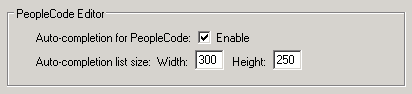
To use the auto-complete feature, you must enable the Auto-completion for PeopleCode option on the Editors tab of the Options dialog box.
This example illustrates the fields for the auto-complete feature.
PeopleCode Built-in Class Objects
If an object is created out of any built-in classes, such as Record, Document, Feed, the methods or properties of the appropriate class are displayed in a list from which an application developer can choose the required method or property. The list displays the set of methods and properties relevant to the object. As the user types in a string for a method, the nearest matching item gets displayed at the top of the auto-complete list control
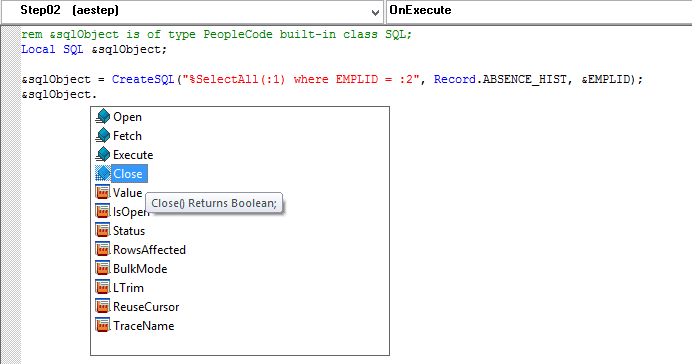
Methods and properties are differentiated by using different icons.
For example, in the
following code snippet, when you enter a period (.) after the object &sqlObject, methods and properties are displayed in a list box.
rem &sqlObject is of type PeopleCode built-in class SQL;
Local SQL &sqlObject;

&sqlObject = CreateSQL("%SelectAll(:1) where EMPLID = :2", RECORD.ABSENCE_HIST, &EMPLID);
&sqlObject.
Note:
The auto-complete feature is not applicable if you create an object as an automatic variable without using the PeopleCode built-in class.
This example illustrates the auto-complete list box for built-in classes.
Application Class Objects
If an object is declared and created from an application class (PeopleTools delivered or customized), the methods or properties of the appropriate class are displayed in a list box.
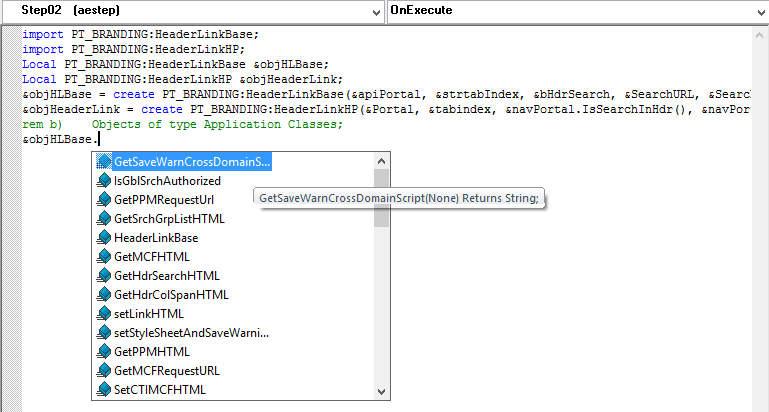
For example, in the
following code snippet, when you enter a period (.) after the object &objHLBase, methods and properties are displayed in a list box.
import PT_BRANDING:HeaderLinkBase;
import PT_BRANDING:HeaderLinkHP;

Local PT_BRANDING:HeaderLinkBase &objHLBase;
Local PT_BRANDING:HeaderLinkHP &objHeaderLink;

&objHLBase = create PT_BRANDING:HeaderLinkBase(&apiPortal, &strtabIndex, &bHdrSearch, &SearchURL, &SearchASLimit, &bGblHdrSearch);
&objHeaderLink = create PT_BRANDING:HeaderLinkHP(&Portal, &tabindex, &navPortal.IsSearchInHdr(), &navPortal.GetSearchPageURL(), &navPortal.GetSearchASLimit(), &navPortal.IsGblSearchInHdr());

rem b)    Objects of type Application Classes;
&objHLBase.
This example illustrates the auto-complete list box for application class objects.
Note:
The auto-complete feature is not supported for objects that are created and assigned to a variable that is not declared explicitly.
If you create an object
and assign it to a variable that is not declared in the PeopleCode
program, the object type is not known at design time to display the
relevant methods or properties. For example, in the following code
snippet, variables &obj1 and &obj2 are
not declared in the PeopleCode program.
,
&obj1 = Create PT_BRANDING:BrandingBase(...);
&obj2 = CreateObject("PT_BRANDING:BrandingBase");
In cases where the class type changes at run time, the methods or properties of the class type that was declared are displayed. For example, if a variable is declared as of type class A and at run-time the type is changed from type A to type B based on a run-time execution of a piece of PeopleCode, the auto-complete feature displays the methods or properties of the type class A because it was declared as type A.
In the following code
snippet, the PeopleCode API CreateObject needs
to resolve it's parameter to know the Application Package name and
the Application Class name. Irrespective of the value of the variable &name that
is resolved at run-time, the auto-complete support is provided for
the class type PT_BRANDING:HeaderLinkBase on the variable &objHLBase.
Local PT_BRANDING:HeaderLinkBase &objHLBase;
&name = SomeFunction();
&objHLBase = CreateObject(&name);
PeopleCode Built-in Functions, System Variables, and Constants Objects
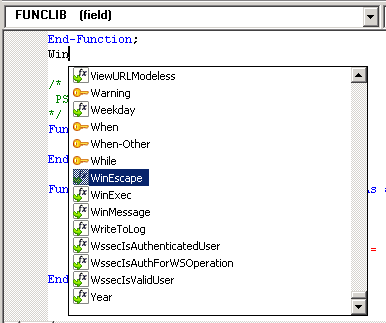
In the PeopleCode editor, press CTRL+ Space bar to view a list of delivered built-in functions, system variables, and constants. The list displays icons for the different items based on the item type. To list the desired set of options, you can enter the desired characters and then press CTRL+ Space bar. For example, to list all built-in functions, system variables, and constants beginning with “win,” type “win” and then press CTRL+Space bar.
Press the Esc key, to close the list box.
This example illustrates the listing of built-in functions, system variables, and constants in PeopleCode Editor.
Auto-completion Support for Keywords
In a PeopleCode Editor, pressing CTRL + Spacebar brings up a list control with a list of delivered built-in functions, system variables, and constants. Pressing CTRL + Spacebar also lists keywords of PeopleCode.
The following image illustrates the listing of keywords and other items in PeopleCode Editor:
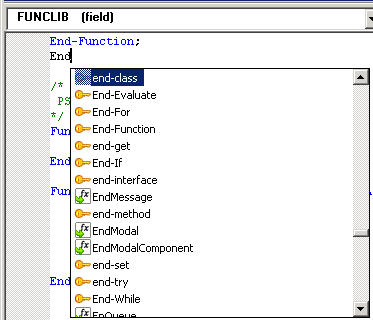
Keywords are shown with a key icon to differentiate them from other items.