Generating JSON Files, Fetching Threshold Parameters, and Sending Alerts with an OpenSearch SSL Setup
The creation of the JSON configuration files requires connection to the Integration Broker REST URL. By default the connection to the Integration Broker REST URL is authenticated using Basic Authentication (Integration Broker User name and password). If your environment is set up to use SSL, you must change the authentication and create the JSON files manually after completing the OSK DPK installation.
In addition, you must also run a script to create the JSON file for threshold parameters. Threshold parameters are used on the Configure Health Alerts page in PeopleSoft Health Center.
-
Install Logstash, and answer n (no) to the prompt about JSON files.
-
Sign in to the PeopleSoft installation (PIA) in a browser and ensure that the Integration Broker user has permission list PTPT4800.
-
Select PeopleTools > Integration Broker > Integration Setup > Service Operation Definitions.
-
Locate the service operation PT_CREATEJSON_REST_GET.
-
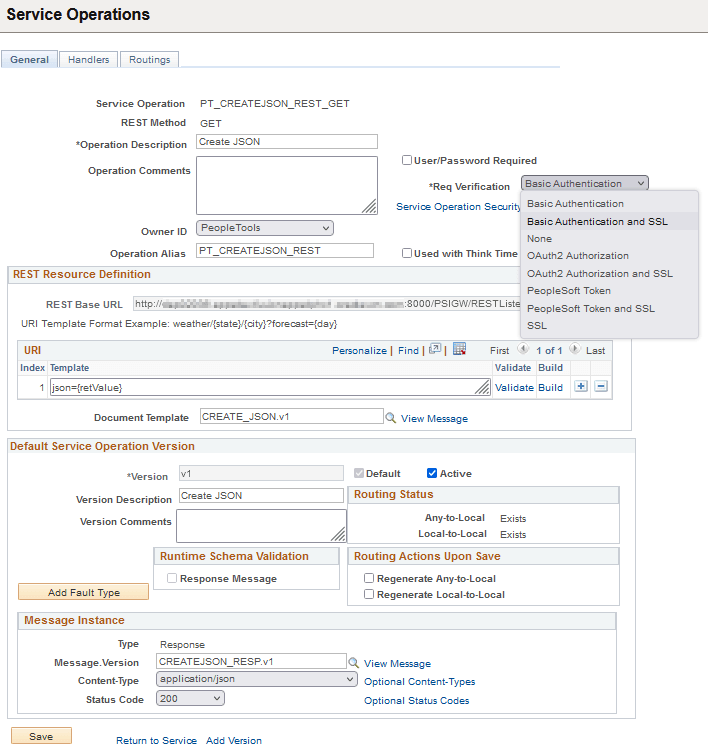
Select Basic Authentication and SSL from the Req Validation drop-down list, and click Save.
This example shows the General page for the PT_CREATEJSON_REST_GET service operation.
Figure 2-1 Service Operations General page
-
On the General page for the service operation, in the URI grid, select the Validate link.
-
Select the SSL check box and then select Generate URL.
-
Make a note of the REST URL on the Validate URI window.
-
Save the changes.
-
Locate the Service Operation PT_HC_ALERTS.
-
Select Basic Authentication and SSL from the Req Validation drop-down list, and click Save.
-
Locate the Service Operation PT_PHCTHRESHOLD_GET.
-
Select Basic Authentication and SSL from the Req Validation drop-down list, and click Save.
-
Obtain a certificate from a Certificate Authority (CA) and save it as certLS.jks.
-
Verify that the JAVA_HOME environment variable is set to the installation location for Java.
-
Generate the truststore using the keytool command.
You are prompted for the password while generating the jks file. Make a note of the password that you enter to use in the next step.
keytool -importcert -keystore <certificate_path>\certLS.jks -file
<certificate_path>\certnew.cer -alias <alias_name>
For example:
keytool -importcert -keystore D:\SSL\newSSLJava11\certLS.jks -file D:\SSL\newSSLJava11\certnew.cer -alias my_ca -
Put the certLS.jks truststore file under LOGSTASH_HOME\pt\config\.
-
Encrypt a password for the truststore using PSLSCipher.bat (Microsoft Windows) or PSLSCipher.sh (Linux).
See Encrypting the Logstash Passwords on Microsoft Windows.
See Encrypting the Logstash Passwords on Linux.
-
Open the JsonLogstash.properties file for editing.
-
Locate the SSL-related parameters and remove any commenting characters.
-
To enable SSL for JMX agents, set JMXSSLEnabled to true.
If you enable SSL, you must also set the parameters JMXSSLTruststorePassword and JMXSSLTruststoreType.
JMXSSLEnabled=true -
Enter the encrypted password for JMXSSLTruststorePassword.
JMXSSLTruststorePassword=encrypted password -
Enter PKCS12 or JKS for the truststore type.
JMXSSLTruststoreType=JKS
-
-
To create the JSON files after completing the OSK DPK installation, go to LOGSTASH_HOME\pt\bin and run CreateJSON.bat (Microsoft Windows) or CreateJSON.sh (Linux).
-
To generate ThresholdParams.json, go to LOGSTASH_HOME\pt\bin and run FetchThreshold.bat (Microsoft Windows) or FetchThreshold.sh (Linux).
See Also
PeopleTools: Search Technology, "Configuring SSL between PeopleSoft and Search Engine"
PeopleTools: Security Administration, "Installing Web Server-Based Digital Certificates"
PeopleTools: Performance Monitor, "Configuring PeopleSoft Health Center"