Using the Automated Configuration Management SEARCH_TEMPLATE
The ACM framework enables you to store environment configuration settings in a template stored in the database or an external template file, which you can reapply when needed. You can use Automated Configuration Management (ACM) to configure the OpenSearch instance. Using ACM allows you to automate the deployment and indexing.
See PeopleTools: Automated Configuration Management.
-
Verify that you have the ACM Administrator role, as mentioned in the previous section.
See Setting Up the PeopleSoft Application for OpenSearch.
-
Select PeopleTools, then Automated Config Manager, then ACM Templates, and then Define ACM Templates.
-
Search for and open SEARCH_TEMPLATE.
-
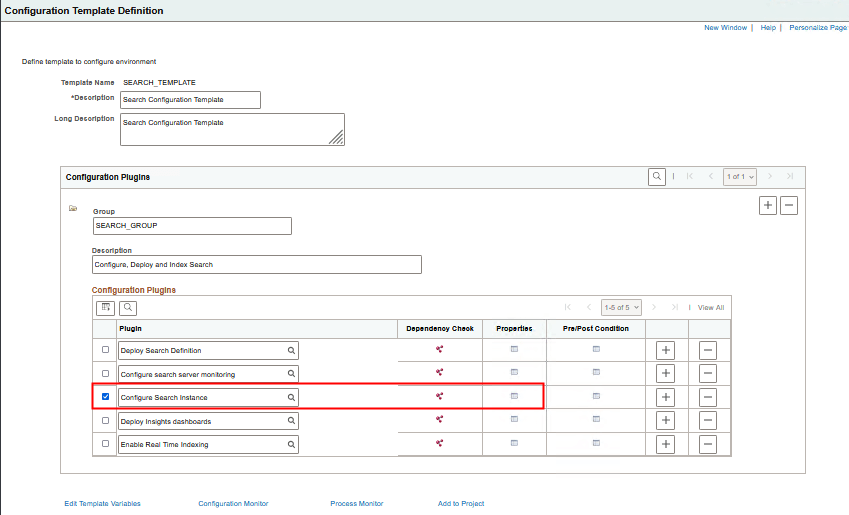
On the Configuration Template Definition page, verify that Configure Search Instance is selected, and then click the Properties icon.
Note:
Do not select Deploy Search Definition or Configure search server monitoring at this point.
Figure 4-2 Configuration Template Definition page for SEARCH_TEMPLATE
-
Specify the properties for the plug-in on the Configure Search Instance page.
The values that begin and end with an AT sign (“@”) are ACM template variables that can be used across multiple plug-ins in the template. As mentioned, PeopleSoft Integration Broker configuration is required for these tasks. These variables will be taken from Integration Broker and shared. You do not have to manually fill them in at this point.
See PeopleTools: Automated Configuration Management.
This table describes the properties for the Configure Search Instance plug-in (PTSFConfigureSrchInstance). Use the properties to configure the PeopleSoft system to talk to OpenSearch and assign roles.
Property Default Value Description env.ptsf_search_instance
PTSF_SEARCH
Search instance name
env.search_provider
OS
Name of the search engine. OpenSearch (OS) is the valid value.
env.search_nodes
1
The number of nodes that have been set up for the OpenSearch cluster.
OpenSearch provides High Availability by forming a cluster of multiple nodes. If you have set up a cluster with multiple nodes, specify the number here. The page expands with additional property fields for the multiple nodes.
See PeopleTools: Search Technology for information on High Availability.
See Adding Additional OpenSearch Nodes for information on adding additional nodes.
env.node1_search_host
@searchhost@
The host name for the node. Enter the server name, including the domain, such as myhost.example.com, or an IP address.
env.node1_search_port
@searchport@
The port on which OpenSearch listens for requests. Enter the value supplied when installing the OSK DPK. The default you see during installation is 9200.
env.node1_search_use_ssl
False
Flag to determine whether the configuration is secure or non-secure. Valid values are:
-
False — indicates non-secure (HTTP) configuration
-
True — indicates secure (HTTPS) configuration.
Set this property to true only when the PeopleSoft environment is configured for SSL and that URL has been used for the OpenSearch callback.
See PeopleTools: Search Technology, "Configuring SSL Between PeopleSoft and Search Engine."
env.node1_search_admin_user
NA
The administrative user for OpenSearch.
Enter the value supplied when installing the OSK DPK. The default is osadmin.
You cannot change this user during the installation. After the installation is complete, you can use the opensearchuser script to add users and assign them administrative roles.
See PeopleTools: Search Technology, "Creating Users and Assigning Roles for a Search Instance."
env.node1_search_admin_password
NA
The password supplied for the osadmin user when installing the OSK DPK.
env.node1_search_read_user
NA
The OpenSearch proxy user.
Enter the value supplied when installing the OSK DPK. The default is people.
env.node1_search_read_password
NA
The password supplied for the proxy user when installing the OSK DPK.
env.insights_host
ss.example.com
The server name for the host where OpenSearch Dashboards is running.
env.insights_port
3456
The port on which OpenSearch Dashboards listens for requests. Enter the value supplied when installing the OSK DPK. The default you see during installation is 5601.
env.insights_use_ssl
false
Flag to determine whether the configuration is secure or non-secure for OpenSearch Dashboards. Valid values are:
-
False — indicates non-secure (HTTP) configuration
-
True — indicates secure (HTTPS) configuration.
See PeopleTools: Search Technology, "Configuring SSL for OpenSearch Dashboards."
env.logstash_host
dd.example.com
The server name for the host where Logstash is running.
env.logstash_port
1234
The port on which Logstash listens for requests. Enter the value supplied when installing the OSK DPK. The default you see during installation is 9800.
env.logstash_use_ssl
false
Flag to determine whether the configuration is secure or non-secure for Logstash. Valid values are:
-
False — indicates non-secure (HTTP) configuration
-
True — indicates secure (HTTPS) configuration.
See PeopleTools: Search Technology, "Configuring SSL for Logstash."
env.search_call_back_user
@userid@
The user ID for OpenSearch to access the PeopleSoft system for access control list (ACL) values. This must be a valid PeopleSoft user ID with Search Server role assigned.
Note: It should not be necessary to change this value.
env.search_call_back_password
NA
Password for the call-back user ID.
env.ps_search_administrator_user
@userid@
Search administrator user name
See Setting Up the PeopleSoft Application for OpenSearch.
env.ps_search_developer_user
@userid@
Search developer user name
See Setting Up the PeopleSoft Application for OpenSearch.
env.gateway_host
@host@.@domain@
Host where the Integration Broker gateway is installed.
env.gateway_port
@httpport@
Port number for the Integration Broker gateway.
env.gateway_ssl_port
@sslport@
Gateway SSL port.
env.use_ssl_gateway
False
Flag to determine whether the gateway is secure or non-secure for callback. Valid values are:
-
False — indicates non-secure (HTTP) configuration
-
True — indicates secure (HTTPS) configuration.
See PeopleTools: Search Technology, "Configuring SSL Between PeopleSoft and Search Engine."
env.default_local_node
@nodename@
Default local node
env.enable_global_menu_search
All
Enable global search and menu search for All, Local, or a comma-separated list or portals.
-
-
Save the template and click Execute to begin the program run.
-
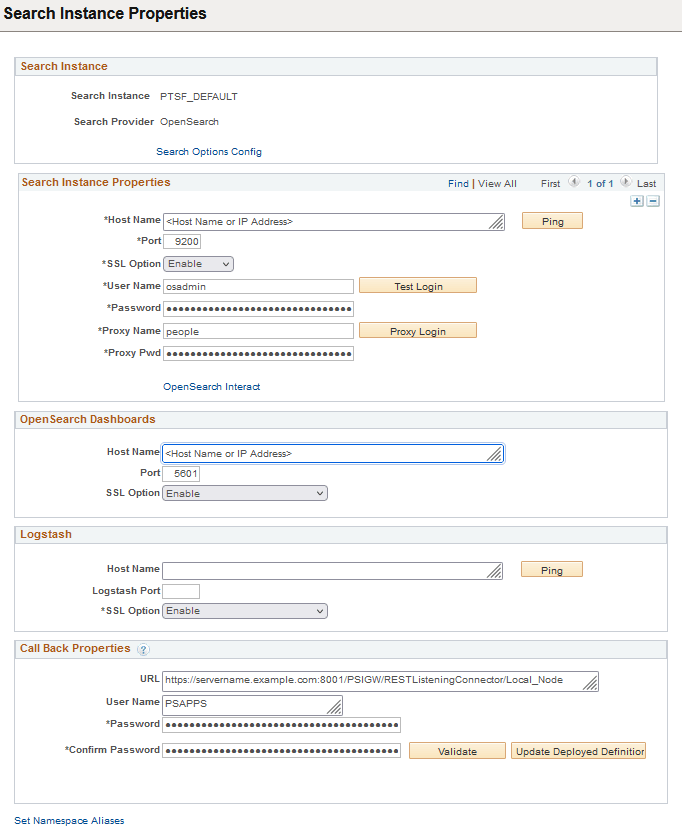
To verify that the search instance page has been configured for OpenSearch, select PeopleTools > Search Framework > Administration > Define Search Instances.
On the Search Instance Properties page, make sure the Search Provider is OpenSearch, and that the Callback URL includes RESTListeningConnector, as in this example:
Figure 4-3 Search Instance Properties page
-
Select PeopleTools, then Automated Config Manager, then ACM Templates, and then Define ACM Templates.
-
Search for and open SEARCH_TEMPLATE.
-
On the Configuration Template Definition page, verify that Deploy Search Definition is selected and click the Properties icon.
Note:
Do not select Configure Search Instance or Configure Search Server Monitoring.
-
Specify the properties for the plug-in on the Deploy Search Definition page and click OK.
This table describes the properties for the Deploy Search Definition plug-in (PTSFAdministerSearch) in the SEARCH_TEMPLATE. Use the plug-in to deploy, undeploy, and schedule index generation.
Property Default Value Description env_ptsf_search instance
PTSF_SEARCH
OpenSearch instance name
env.ptsf_selection_type
GLOBAL
Valid values:
-
ALL
Deploys all search definitions and categories excluding the ones listed in env.ptsf_exclude_definitions.
-
GLOBAL
Deploys search definitions and categories used for Global search.
-
LIST
Deploys the search definitions and their categories mentioned in env.ptsf_include_definitions.
env.ptsf_include_definitions
NA
Comma separated list of search category names to be included. You can use % as an operator in any part of the name. For example, EP_CS%, %CS_DOC%, %CS%DOC% and so on.
env.ptsf_exclude_definitions
NA
Comma separated list of search category names to be excluded. You can use % as an operator in any part of the name. For example, EP_CS%, %CS_DOC%, %CS%DOC% and so on.
env.ptsf_check_audit_errors
True
If true check for access to query/connected query, or invalid objects.
For a search definition if audit errors are found, it will not proceed further with the action specified in the ptsf_admin_operations property for this particular search definition. It will continue with the next one.
env.ptsf_admin_operations
DEPLOY,INDEX
Valid values:
-
DEPLOY — the search definitions will be deployed
-
INDEX — the search index will be scheduled.
The INDEX option will create run control ids for both full indexing and incremental indexing, but schedules only full indexing for the first execution of the SEARCH_TEMPLATE. The full indexing run control ids will have the naming convention <SearchDefinition>_FULL and incremental indexing will have the naming convention <SearchDefinition>_INCR. When the SEARCH_TEMPLATE is executed the second and subsequent times, it will run incremental indexing only if the previously done FULL indexing is successful; otherwise it will again schedule full indexing.
Note: To schedule recurring incremental indexing, you must set the recurrence manually using the incremental run control ids created by ACM framework from the Schedule Index page. ACM will not do this automatically.
-
UNDEPLOY — the search definition will be removed.
-
DEPLOY,INDEX
env.ptsf_index_all_lanaguages
False
If true the schedules are created to index all languages.
env.report_schedule_status_after_minutes
NA
Maximum minutes to wait before reporting scheduling status.
-
Enter 0 to wait till finish.
-
Leave blank to skip report.
-
Enter the time to wait to show status. For example, enter 5 to show the status once after 5 minutes.
env.ptsf_schedule_on_server
NA
Specify the Process Scheduler to run the indexing on. Leave this blank to use master scheduler.
-
-
Save the template and click Execute to begin the deployment.
-
Use the plug-in Configure Search Server Monitoring to configure the OpenSearch monitoring server, deploy the PeopleSoft Health Center dashboards to OpenSearch Dashboards, and deploy the system monitoring and OpenSearch index metrics dashboards to OpenSearch Dashboards.
See the information on the delivered plug-in PTSFMonitorConfiguration in the Automated Configuration Management product documentation.
See PeopleTools: Automated Configuration Management, "Delivered Configuration Plug-ins."
See Search Technology, "Working with Search Instances."