Deploying in Standalone Mode
This section assumes that the user running the script has administrative permission. The script includes the options in the following table:
| Deployment | Script Commands |
|---|---|
|
Install the PeopleTools client software in standalone mode. |
|
|
The setup script deploys to drive C by default. To deploy to a different drive, you can use the option This option installs all specified software (Change Assistant, Change Impact Analyzer, PeopleSoft Test Framework), installation and temporary directories, and log files to the specified drive. The drive can be any valid local or mapped shared drive. |
For example, to install to drive E: |
|
Install the PeopleTools client software in standalone mode and enable logging. |
|
|
Apply CPUs for JDK and the Oracle Database Client on an existing PeopleTools client environment. This usage requires the presence of the PT-MW-DPK. |
For information on using the PT-MW-DPK, see PeopleTools Middleware Deployment Package Installation (PeopleSoft PeopleTools 8.63). |
To deploy the PeopleTools Client DPK in SA mode:
-
Verify that the Microsoft Windows folders options are set to show known file extensions.
Hidden file extensions may interfere with the script. To show file extensions, for example:
-
Open Windows Explorer and select Tools, Folder Options.
Note:
Depending upon the Microsoft Windows operating system, you may use a different method to set the folder options.
-
On the Folder Options dialog box, select the View tab.
-
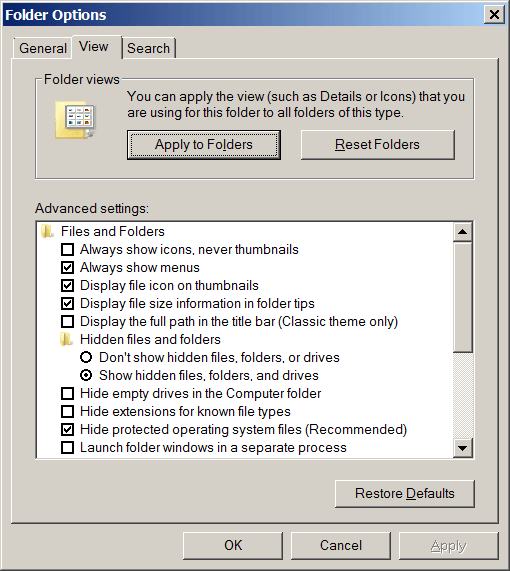
Verify that the check box for Hide extensions for known file types is not selected, as shown in this example:
Figure 5-1 Folder Options dialog box: View tab
-
Click OK to close the box.
-
-
Open a command prompt, running as administrator, and change directory to the C:\tools_client directory.
The tools_client directory includes various sub-directories, and the following files:
-
SetupPTClient.bat
The interactive script that installs the PeopleSoft PeopleTools components such as Application Designer, Change Assistant, Change Impact Analyzer, and PeopleSoft Test Framework.
-
readme.txt
-
-
Run the setup script with the following command to install to drive C.
For other script options, see the table at the beginning of this section.
SetupPTClient.bat -t -
Answer y (yes) at the following prompt to deploy the PeopleTools Client.
If you are running the script after having deployed the PeopleTools Client previously, and you want to install Change Assistant, Change Impact Analyzer, or PeopleSoft Test Framework without deploying the PeopleTools Client again, answer n (no), and continue with step 9.
****** SetupPTClient started at 11:42:38.91 ****** set logger to true Do you want to deploy PeopleTools client? [Y/N]: y -
Specify the RDBMS type for the PeopleTools Client that you want to deploy.
In this example, the RDBMS is option 1, Oracle.
Please Select the Database Platform: 1. Oracle 2. Microsoft SQL Server Enter your choice [1-2] : 1 -
Specify the installation directory, referred to as PSHOME, for the PeopleTools Client, or press ENTER to accept the default directory, C:\PT<release_number>_Client_<database_type>, for example C:\PT8.63.02_Client_ORA.
Please specify the PSHOME for the PeopleTools Client [C:\PT8.63.02_Client_ORA]: -
Specify whether you want to supply configuration details at the following prompt.
Do you want to configure PeopleTools client? [Y/N]:If you answer n (no), you do not want to configure the PeopleTools client, continue with step 9.
If you answer y (yes), specify the information for your environment at the following prompts:
Database Name: HCM92
Server Name: example.com
UserId: VP1
Connect ID: people
Connect Password:
Retype Connect Password:
Note:
When you enter the password, the script does not echo the password or any masking characters as you type.
-
Specify the database name and database server to connect to.
-
The connect ID a valid database-level ID that the PeopleSoft system uses to make the initial connection to the database.
-
For User ID, specify a PeopleSoft user ID, such as VP1 or PS, that has permission to access the database from the PeopleTools client, Application Designer, and so on.
-
-
Select the type of deployment at the following prompt:
See the definitions in Understanding the Standalone Mode Deployment.
Please make your selection for the Tools Client deployment: 1. People Tools Full Upgrade 2. People Tools Patch 3. None of the above Enter your choice [1-3]: -
Specify whether you want to install Change Assistant at the following prompt:
Do you want to install Change Assistant? [Y/N]:If you answer y (yes), specify the installation directory, or accept the default, C:\Program Files\PeopleSoft\Change Assistant:
Please specify the directory to install Change Assistant [C:\Program Files\PeopleSoft\Change Assistant]: -
Specify whether you want to install Change Impact Analyzer at the following prompt:
Do you want to install Change Impact Analyzer? [Y/N]:If you answer y (yes), specify the installation directory for Change Impact Analyzer, or accept the default, C:\Program Files\PeopleSoft\Change Impact Analyzer:
Please specify the directory to install Change Impact Analyzer [C:\Program Files\PeopleSoft\Change Impact Analyzer]: -
Specify whether you want to install PeopleSoft Test Framework at the following prompt:
Do you want to install PeopleSoft Test Framework? [Y/N]:If you answer y (yes), specify the installation directory for PeopleSoft Test Framework, or accept the default, C:\Program Files\PeopleSoft\PeopleSoft Test Framework:
Please specify the directory to install PeopleSoft Test Framework [C:\Program Files\PeopleSoft\PeopleSoft Test Framework]: -
Specify whether you want to configure the PeopleSoft Test Framework at the following prompt:
Do you want to configure PeopleSoft Test Framework? [Y/N]:If you answer y (yes), specify the information for your environment. For information on these parameters, see the PeopleTools Test Framework product documentation.
See PeopleTools: Test Framework, "Installing a PTF Client."
Database Name: HCM92 Server:Port: example.com:443 Node ID: node_name User ID: VP1 Proxy [Y/N]: y Proxy Server: proxyserver.com Proxy Port: 5000 Proxy User: username Proxy Password:******* Retype Proxy Password:******* -
Review the setup steps.
The messages you see depend upon your choices.
Starting Tools Client Deployment! Deploying PeopleTools 8.63.02 Client in C:\PT8.63.02_Client_ORA Configuring PeopleTools 8.63.02 Client Deployment of PeopleTools Client Complete. Tools Client Deployment Ended. ***** SetupPTClient ended at 11:35:08.91 ****** Please review C:\PeopleSoft\PTClientDeploy.log for additional information. -
To review the log file for the setup process, go to %USERPROFILE%\AppData\Local\Temp\PeopleSoft\PTClientDeploy.log.
For example, if the USERPROFILE environment variable is C:\Users\username, the log file location is C:\Users\username\AppData\Local\Temp\PeopleSoft\PTClientDeploy.log.
Note:
If you used the
-d <drive>option to deploy to a drive other than drive C:\, the log file is found in <drive>:\Users\<username>\AppData\Local\Temp\PeopleSoft\PTClientDeploy.log and creates the directory if it does not exist.The PTClientDeploy.log file includes a record of each of the steps in the PeopleTools Client deployment process. If any of the steps fail, a detailed error or warning message will be written to the same log file.