Understanding Log Analyzer Manager
PeopleSoft Log Analyzer is designed to enhance the monitoring and analysis of PeopleSoft environments by collecting, parsing, and visualizing log data from various server components.
PeopleSoft systems generate large volumes of distributed logs across Application, Web, and Process Scheduler Servers, making troubleshooting slow and inefficient due to the manual effort required to analyze them. PeopleSoft Log Analyzer centralizes, consolidates, and visualizes these logs in a searchable interface, helping administrators and support teams improve monitoring, accelerate root-cause analysis, and enable proactive issue detection.
This system uses Fluent Bit to gather logs from various servers, Data Prepper to organize and enrich the log data, and OpenSearch to store and index the logs for fast search capabilities. Additionally, OpenSearch Dashboards provide visual representations of the log data, making it easier to monitor system activity and troubleshoot issues. This setup allows for real-time monitoring and quicker identification of issues, enhancing the overall system reliability.
Configuring Security and Access
To ensure security, only users with specific permissions can access the Log Analyzer Dashboards, similar to the existing PeopleSoft Health Centre dashboards. The system integrates with the PeopleSoft Health Centre, using its configuration settings to connect with OpenSearch. You must have the following Permission Lists to access Log Analyzer:
- PTPT1000 (PeopleSoft User)
- PTPT1200 (PeopleTools)
You can view pre-built dashboards that display user activity and system performance and create custom dashboards tailored to your needs. Configuration files for Fluent Bit and Data Prepper are automatically generated based on the current environment, reducing manual errors. The deployment process includes packaging Data Prepper and Fluent Bit with OpenSearch, updating installation procedures to accommodate user inputs, and ensuring secure access to the dashboards.
Note:
Log Analyzer access may expose user-generated trace files from the Application Server domain, including PeopleCode and SQL trace files that contain sensitive information. Access to Log Analyzer must therefore be restricted to authorized administrators only. Trace files generated for one user may be visible to other users who have access to Log Analyzer.Fluent Bit gathers logs from each server and adds key context (such as domain and file details), OpenSearch Data Prepper extracts important fields (for example, timestamp, severity, source component) and enriches the records with environment details, and OpenSearch stores and indexes the structured data so searches return quickly even when log volumes are large. The dashboards in OpenSearch Dashboards provide near real-time visibility (based on the configured scan interval) as well as historical views for trend analysis, helping teams spot patterns, correlate issues across components (such as by Transaction ID or Process Instance), and reduce time to root-cause. Access is controlled through PeopleSoft security so that only authorized users can view the dashboards, aligned with the same approach used for PeopleSoft Health Centre visualizations.
Understanding the Log Analyzer Configuration Page
Access the Log Analyzer Configuration page by selecting PeopleTools > Health Center > Log Analyzer Manager > Log Analyzer Configuration > Add a New Value.
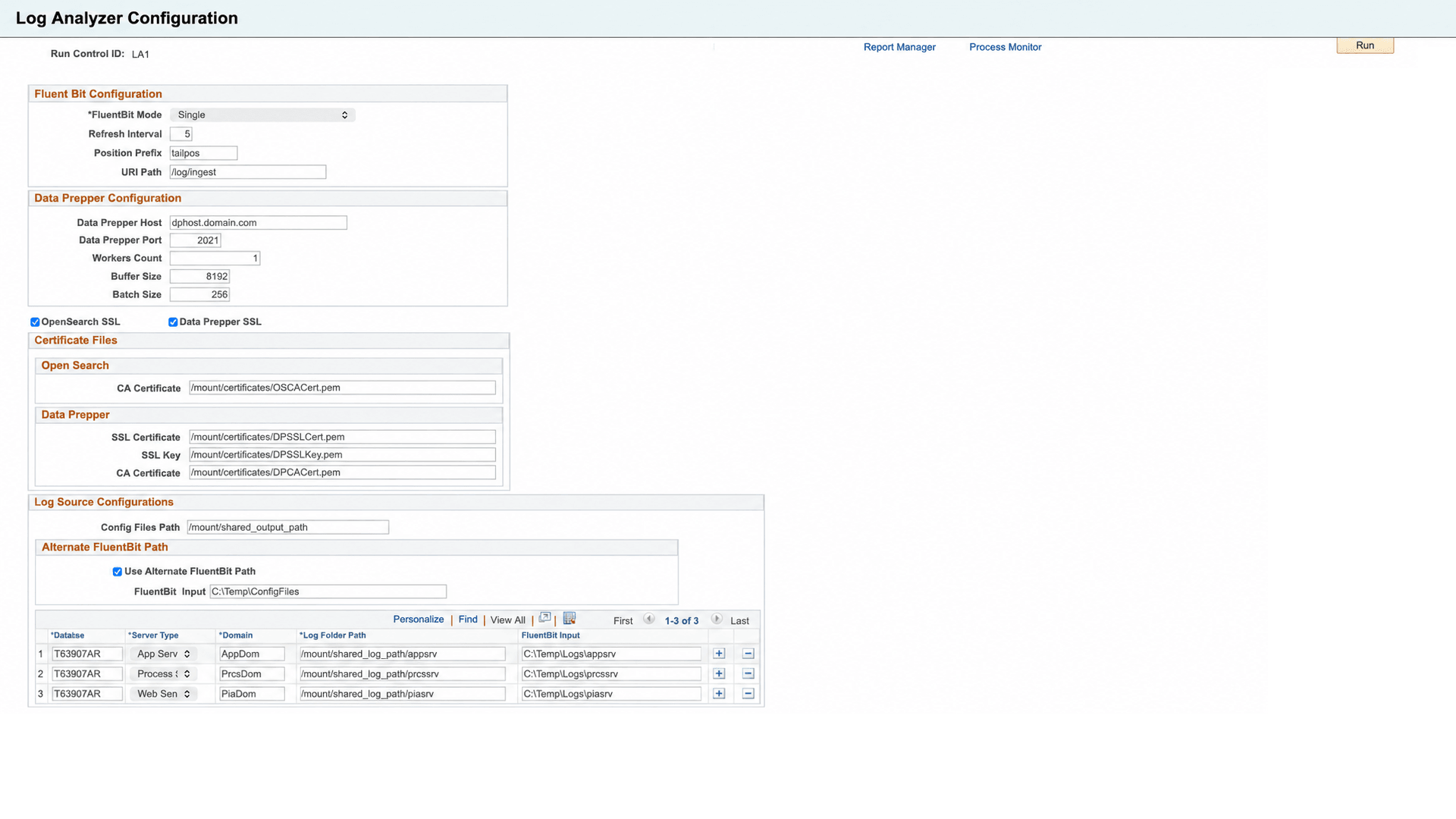
| Field or Control | Description |
|---|---|
|
Fluent Bit Mode |
Select the Fluent Bit mode. There are two options:
The default option is Single. See Understanding the Architecture and Data Flow for more details. |
|
Refresh Interval |
Displays refresh frequency in seconds for log collection. A default value of 30 seconds is populated, which can be edited if required. |
|
Position Prefix |
Prefix used for Fluent Bit position-tracking files or state identifiers that record the last-read location in log files. The default value is tailpos. |
|
URI Path |
Prefix used as part of the URI naming used by Fluent Bit when sending log data downstream. The default value is /log/ingest. |
|
Data Prepper Host |
Hostname of the Data Prepper server that receives logs from Fluent Bit. A default value is populated, which can be edited if required. |
|
Data Prepper Port |
Port on which Data Prepper listens for incoming log data from Fluent Bit. The default port value is 2021. |
|
Workers Count |
Number of Data Prepper worker threads or processors used to handle incoming log data. The default count is 1. |
|
Buffer Size |
Maximum amount of memory allocated for buffering log records before they are processed or forwarded. Increasing the buffer size can help handle higher log volumes and reduce the risk of data loss during traffic spikes. The default buffer size is 8192 bytes. |
|
Batch Size |
Number of log records grouped together and sent in a single processing or transmission request. Larger batch sizes can improve throughput and performance but may increase memory usage and processing latency. The default batch size is 256 bytes. |
|
Poll Delay |
Delay interval used by Data Prepper polling logic. |
|
OpenSearch SSL |
Select if HTTPS is used to access OpenSearch. The CA Certificate field for OpenSearch is displayed only when you select this option. |
|
CA Certificate (OpenSearch) |
The location of Certifying Authority certificate for OpenSearch. This is in the form of a .pem file and is used by Data Prepper to establish communication. |
|
Data Prepper SSL |
Select if HTTPS is used to access Data Prepper. If SSL is enabled in Data Prepper, certificates are required in Fluent Bit as well as Data Prepper to establish communication between them. The SSL Certificate, SSL Key and CA Certificate fields for Data Prepper are displayed only when you select this option. |
|
SSL Certificate (Data Prepper) |
SSL certificate to be mentioned in Data Prepper. |
|
SSL Key (Data Prepper) |
SSL key used to access Data Prepper SSL certificate. |
|
CA Certificate (Data Prepper) |
The location of Certifying Authority certificate for Data Prepper. This must be mentioned in Fluent Bit side. |
|
Config Files Path |
Shared output location where the Fluent Bit and Data Prepper configuration files are generated. |
|
Use Alternate FluentBit Path |
Select this option to specify a separate local path for Fluent Bit input files when Fluent Bit cannot directly access the original Log Folder Path. When enabled, the FluentBit Input field becomes available to define the alternate location. Note: The Alternate FluentBit Path option is available only when FluentBit Mode is set to Single. When Use Alternate FluentBit Path is selected, the FluentBit Input field is displayed to allow specification of a local path mapped to the shared path. This is typically required when FluentBit runs on a different operating system than the AE process that generates the configuration files, or when a separate local path mapping is needed. This option is not supported in Multiple mode. |
|
Database |
Logical database identifier associated with the log source entry. |
|
Server Type |
Specifies which PeopleSoft server tier the log source belongs to. The possible values are:
|
|
Domain |
Unique identifier for environment on the OpenSearch dashboards. This name need not be the same as the domain name present in PeopleSoft. |
|
Log Folder Path |
Base folder path where the source log files are located for that server type/domain entry. Fluent Bit reads the files present in this location and sends the log data to Data Prepper. |
|
Fluent Bit Input |
[Optional] A separate path that is only needed when Fluent Bit cannot access the original Log Folder Path directly. If Fluent Bit can access the original path, this extra path is not required. |