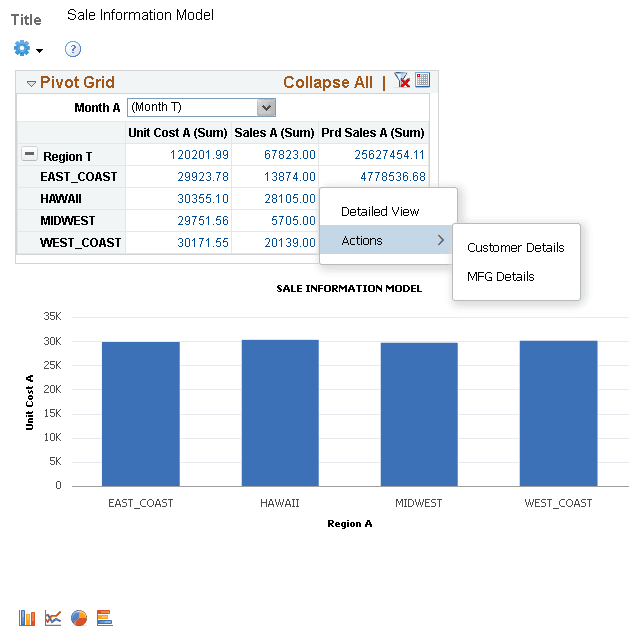
Configuring Related Actions From Pivot Grid Wizard
To configure Related Actions from Pivot Grid Wizard:
-
Select Reporting Tools, Pivot Grid, Pivot Grid Wizard.
-
Open an existing Pivot Grid model, and access Step 5 - Pivot Grid Display page.
-
Click the Configure Related Content link.
The Assign Related Content modal window appears.
-
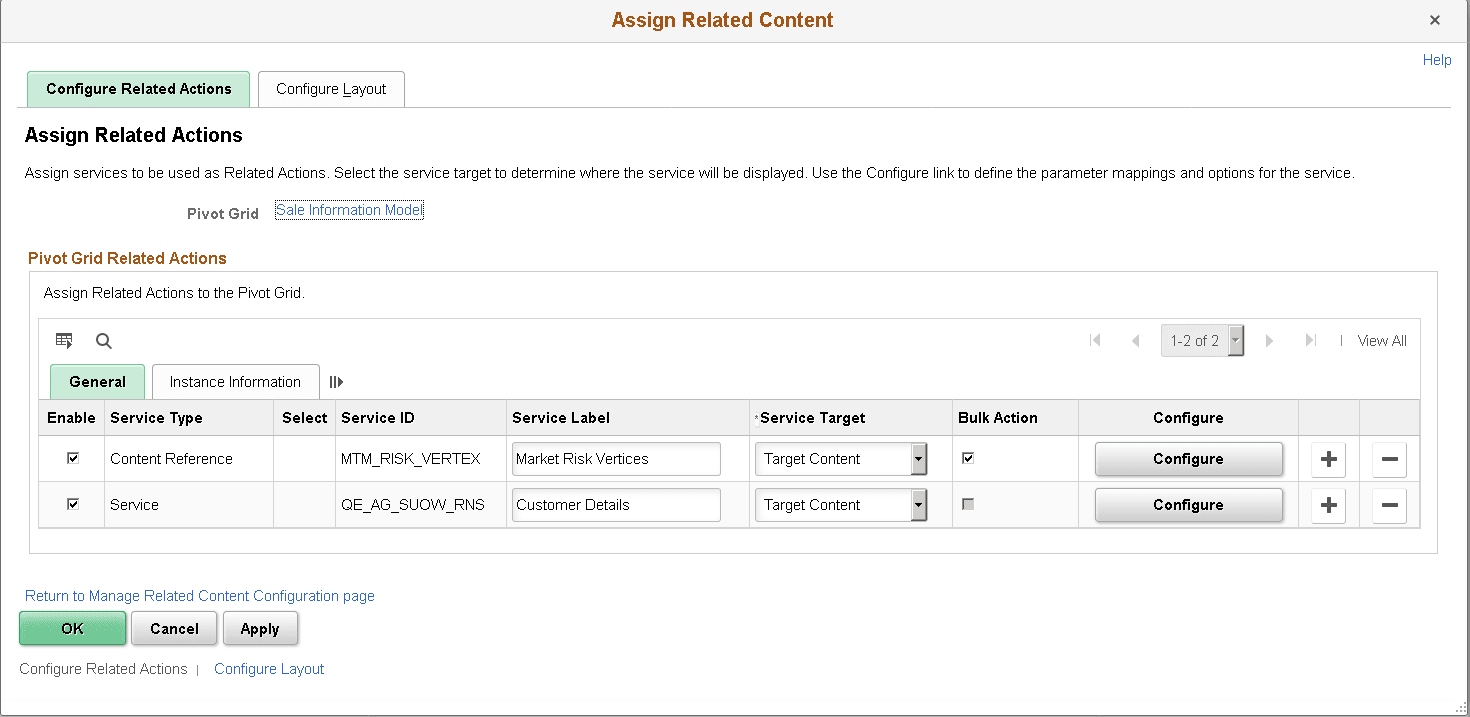
Define the values for Service ID, Service Label, and Service Target.
This example illustrates the fields and controls on the Assign Related Actions page.
-
Optionally, select the Bulk Action option.
See Bulk Related Actions for a list view in Viewing Related Actions from the Fluid View.
Click the Configure button.
-
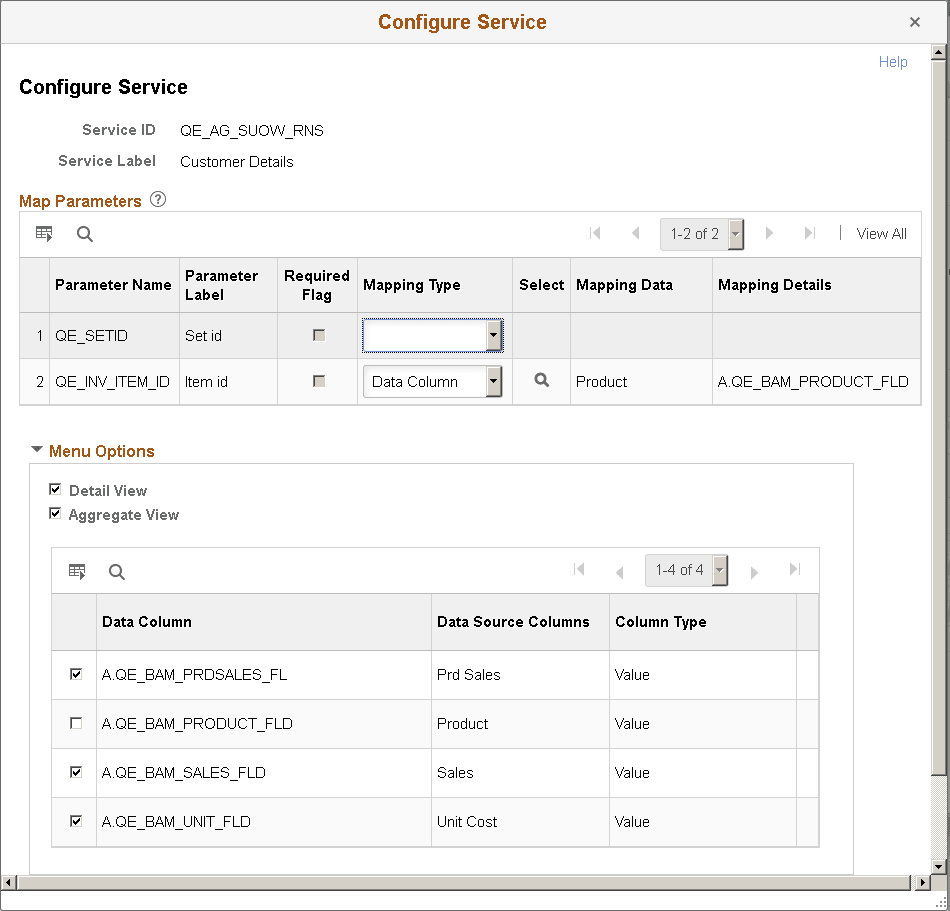
Set the Mapping Type to Data Column.
-
Click the search icon in the Select column to select an appropriate Pivot Grid data column.
-
In the Menu Options section:
-
Select the Detail View option to display the related actions menu only in the Detailed View grid.
-
Select the Aggregate View option to display the related action menu in both grid and chart.
-
Select the data columns on which you want to show the menu.
This example illustrates the Configure Service modal window.
-
-
Click the OK button to exit the Configure Service window, and click the OK button again to exit the Assign Related Content modal window.
-
Save your settings.
This example illustrates a chart-only model with the related action menu accessed on a chart. Note that, in a chart view, clicking the chart displays the related actions for the fact being plotted on the Y axis.
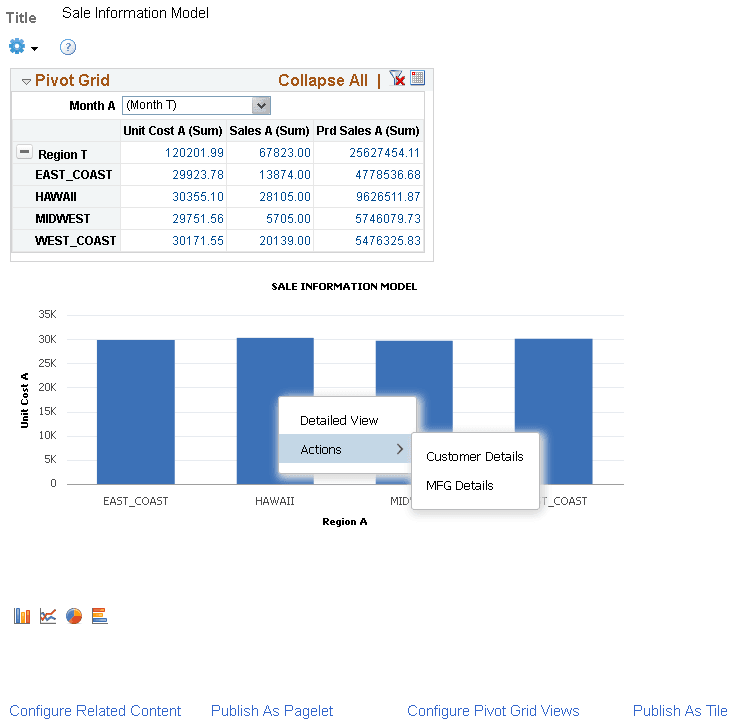
This example illustrates a Pivot Grid Only model with the related action menu accessed on the grid.