Adding and Editing Images
Use the Add/Edit Image page to add or edit an image.
Navigation:
On the Image objects page, either click the Upload Image Object link or click the Edit button for an existing image. Alternatively, on the Pagelet Branding page, click the Upload new image link.
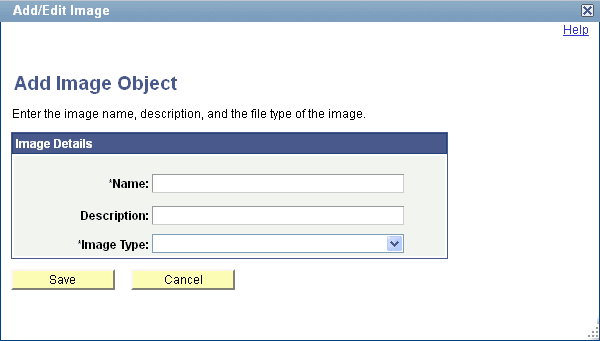
This example illustrates the fields and controls on the Add/Edit Image page. You can find definitions for the fields and controls later on this page.
| Field or Control | Description |
|---|---|
|
Name |
Enter an ID for the new image object. Important: If you specify the name of an existing image object whether it was created in portal branding or through Application Designer, you will be prompted to overwrite the existing object after you click the Save button. |
|
Description |
Enter a descriptive name for the object. |
|
Image Type |
Important: Some database platforms, such as Db2 for z/OS, limit the file size to 32 KB. Select one of the following image formats to access the File Attachment dialog box to browse and select the file to upload:
Note: The File Attachment dialog box does not filter your browsing by the selected file type. However, if you attempt to upload a file that does not match the specified format, then an error message will be generated and the upload will not occur. |