Creating Different Presentations of Tiles
PeopleTools supports creating different presentations of tiles.
You can create the following tiles:
-
Tile presented as a button.
-
Tile presented as a link.
-
Standard tile.
Tile Presented as a Button
This is a special tile that can be configured as a button instead of the default rendering as a link. You must ensure that it is the first tile in a section for tab ordering. You can use the tile to open a modeless window, which enables users to configure or personalize the section. Special styling is applied to the tile to make it appear in the upper-right corner of a section.
Special properties must be applied to a tile for the tile to behave as a button. These properties are applicable to both statically defined tiles and dynamically generated tiles.
To configure a tile as a button, complete these steps:
-
If you're using an application class to dynamically create the tile by extending the DynamicLoader class, set the following properties:
-
Use the Tile.IsButtonRole property and set it to True.
-
Use the Tile.IsNotTile property and set it to True.
-
Use the Tile.StyleClasses property and specify the psc_section-action-button attribute.
-
Use the Tile.UseAltText property and set it to True. If you are using only an image for the button, ensure that the alternate text and title are populated with the text of the tile label.
If you are creating a statically defined tile, in the tile definition, select the following check boxes on the Fluid Attributes tab:
-
Identify Tile as a Button
-
Use Alternate Text on Tile Image
-
-
Update the homepage content reference to include the psc_section-action-button value for the PS_STYLECLASSES attribute in the Section Attributes area on the Section Assignments page.
The following sample code shows the properties for the tile.
&oTile = %This.CreateTileUsingTab("", "Edit Suggested Actions");
   &oTile.RowNum = 1;
   &oTile.GltImageName = Image.MYIMAGE;
   &oTile.UseAltText = True;
   &oTile.IsButtonRole = True;
   &oTile.IsNotTile = True;
   &oTile.DisplayIn = %GroupletActionInModal;
   &oTile.StyleClasses = "psc_theme-tile-transparent;psc_section-action-button";
   &oTile.IncludeSourceInUrl = True;
   %This.SetupFluidTarget(&oTile, GenerateComponentContentURL(%This.Tab.PortalName, %This.Tab.NodeName, MenuName.MYMENU, %Market, Component.MYCOMPONENT, Page.MYPAGE, %Action_UpdateDisplay));
   %This.AddTileToSection(&oTile);
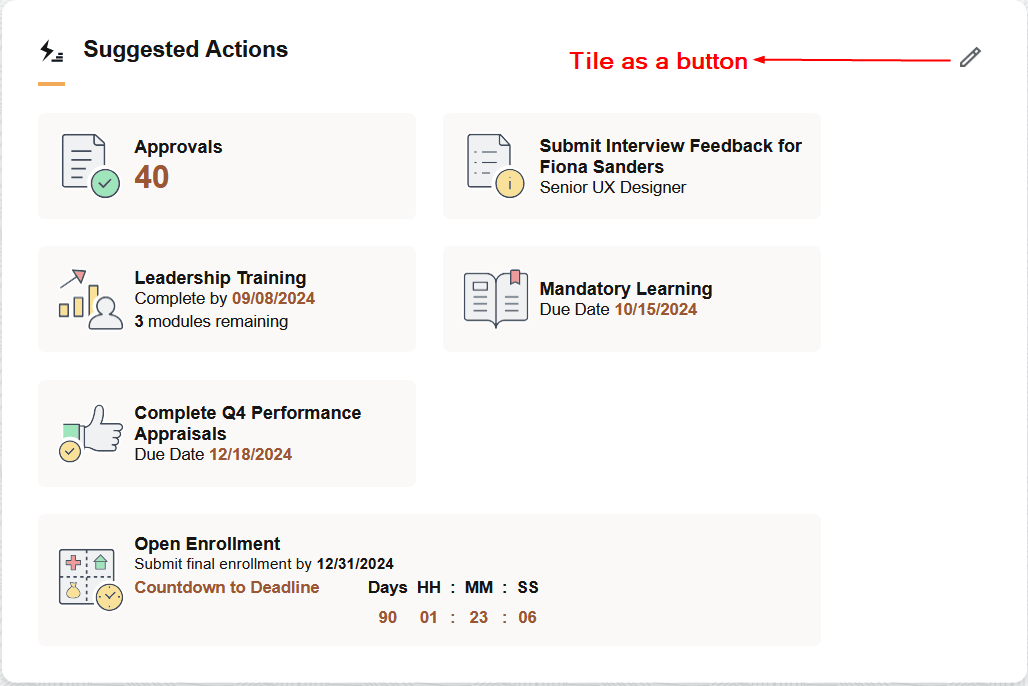
The sample PeopleCode creates a tile presented as a button:
Example of a tile displayed as a button.
See Applying Styles from Delivered Style Sheets and Styling Homepages and Dashboards Using CSS Variables for information on styles and CSS variables that can be applied to sections and tiles.
Tile Presented as a Link
You can create a tile to display as a link (hyperlink). Special properties have to be applied to the tile to behave as a link. These properties and styles are discussed in preceding topics.
-
At the tile level, use the psc_tile-simple-link style class to convert a tile to a hyperlink.
-
At the section level, use the psc_section-link-collection style class, which converts all tiles in the section into a collection of links displayed vertically.
-
Use the Tile.IsNotTile property and set it to True.
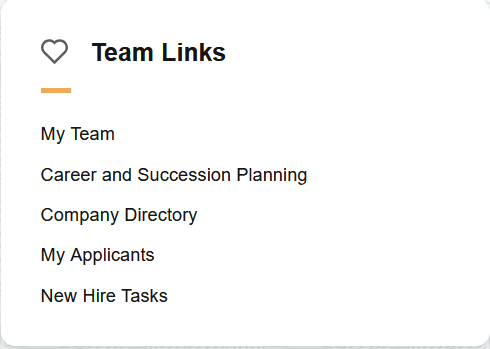
The following sample code creates a tile that is presented as a link. At the section level, the psc_section-link-collection style class is applied which presents the tiles as links.
&oTile = %This.CreateTileUsingTab("", "My Team");
   &oTile.RowNum = %This.GetNextRowNumber();
   &oTile.IsNotTile = True;
   %This.SetupFluidTarget(&oTile, GenerateComponentContentURL(%This.Tab.PortalName, %This.Tab.NodeName, MenuName.MYMENU, %Market, Component.MYCOMPONENT, Page.MYPAGE, %Action_UpdateDisplay));
   %This.AddTileToSection(&oTile);
Example of tiles displayed as links.
See Applying Styles from Delivered Style Sheets and Styling Homepages and Dashboards Using CSS Variables for information on styles and CSS variables that can be applied to sections and tiles.
Standard Tiles
Standard tiles are tiles with image and text or tiles with live data. However, the visual presentation of these tiles can be changed by applying appropriate styles. For example, tiles can be displayed as a collection with a separator line, a tile can span the width of a section; a tile can display secondary text in addition to the main text.
See Applying Styles from Delivered Style Sheets and Styling Homepages and Dashboards Using CSS Variables for information on styles and CSS variables that can be applied to sections and tiles.
Example of standard tiles.

Related Topics