(Fluid only) Publishing Personalizations as a New Fluid Homepage
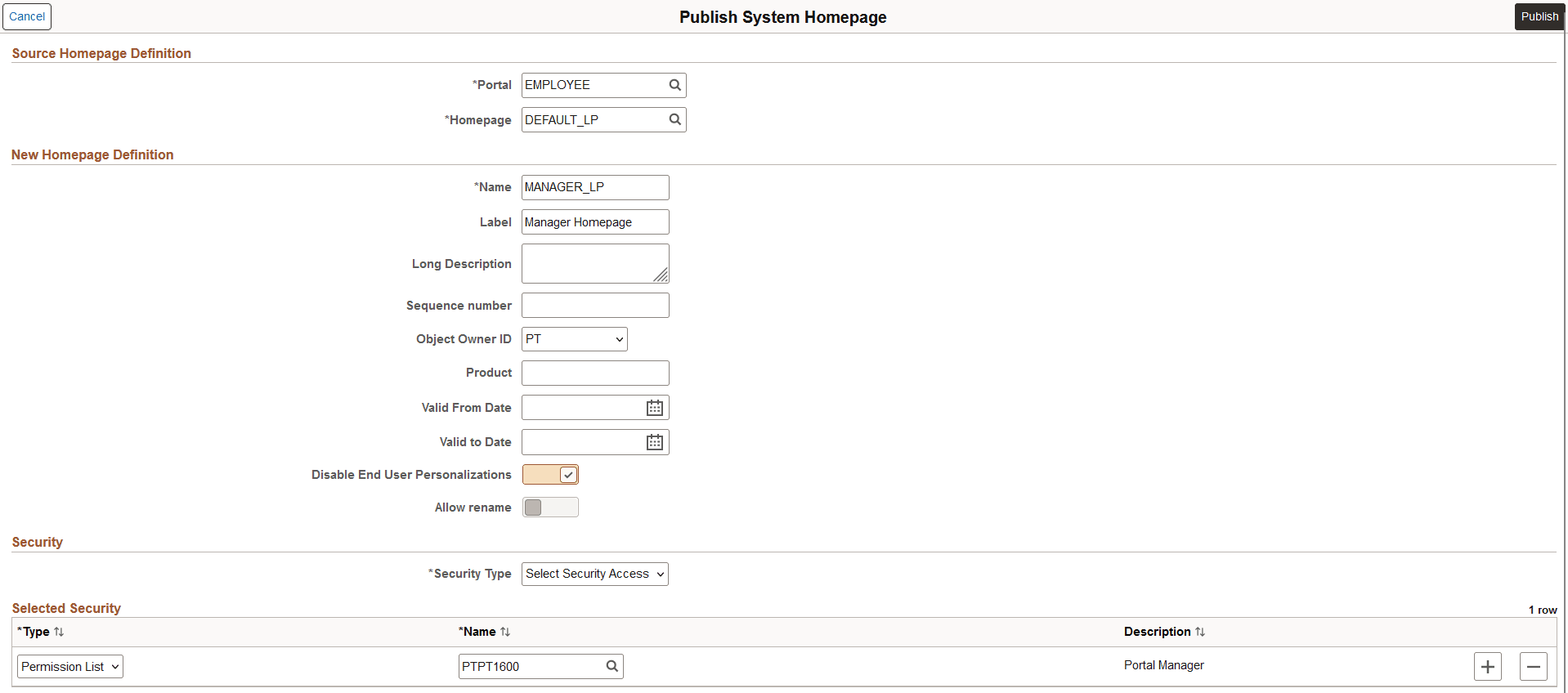
Use the Publish System Homepage page (PTPHP_PUBLISHHP) to publish an administrator created or personalized homepage as a new fluid homepage.
Note:
Only users with the PTPT1600 (Portal Manager) permission list can access this page to publish a personalized homepage.
Navigation:
-
View the personalized fluid homepage that you want to publish as a new fluid homepage.
-
From the Actions menu, select Publish Homepage.
This example illustrates the fields and controls on the Publish System Homepage page. You can find definitions for the fields and controls later on this page.
Source Homepage Definition
| Field or Control | Description |
|---|---|
|
Portal |
Select the portal registry in which this definition is stored. The current portal name is displayed by default. |
|
Homepage |
Displays the ID of the copied homepage definition. |
New Homepage Definition
| Field or Control | Description |
|---|---|
|
Name |
Enter a unique ID for the homepage definition. The value that you specify in the Name field can consist of up to 50 letters, digits, and underscores ( _ ). It cannot contain any spaces and cannot begin with a digit. |
|
Label |
Enter the label that users will see for the homepage. |
|
Long Description |
Enter a long description for the homepage definition. |
|
Sequence number |
Enter a value to designate the order of the homepage when multiple homepages are defined. The sequence number determines the order in which the homepages appear. The homepages appear with the lowest sequence number first. If any numbers are identical, then the order is alphanumeric. No value is equivalent to specifying 0. Important: Therefore, the homepage with the lowest sequence number becomes the default homepage. |
|
Object Owner ID |
Select the object owner ID. |
|
Product |
Portal-aware applications can use this field for group processing. All PeopleTools objects have the product name PT. |
|
Valid From Date |
Select or enter the date that the homepage becomes visible to users. |
|
Valid to Date |
Select or enter an optional date that the homepage is removed from use. |
|
Disable End User Personalizations |
Select to disable end-user personalizations for the homepage. When you select this check box, the Allow rename check box is automatically unavailable for entry because modifying the homepage label is an end-user personalization. For more information on using this check box, see (Fluid only) Disabling User Personalization for Homepages. |
|
Allow rename |
Select to enable the user to personalize the homepage label. Note: When a portal administrator updates the label for a fluid homepage or a fluid dashboard, the PeopleSoft system propagates the new label to homepages or dashboards that have not been personalized and to personalized homepages or dashboards that also retain the original label. If a user has personalized the label, then the user's personalization is retained. |
Security
| Field or Control | Description |
|---|---|
|
Security Type |
Select the type of security that you want to assign to the homepage definition. Options are:
|
Selected Security
| Field or Control | Description |
|---|---|
|
Type |
Select from these types:
|
|
Name |
Select the permission list or role that you want have access to this homepage. |