(Fluid only) Using the Tile Publish Page to Publish Additional Tiles
If you have the Portal Administrator role, you can use the Tile Publish page to publish tiles to already personalized homepages or dashboards. Otherwise, you can write a PeopleCode program to publish tiles to already personalized homepages or dashboards; for more information, see the following section.
Note:
On homepages that are disabled for end-user personalizations, the Tile Publish button is not enabled.
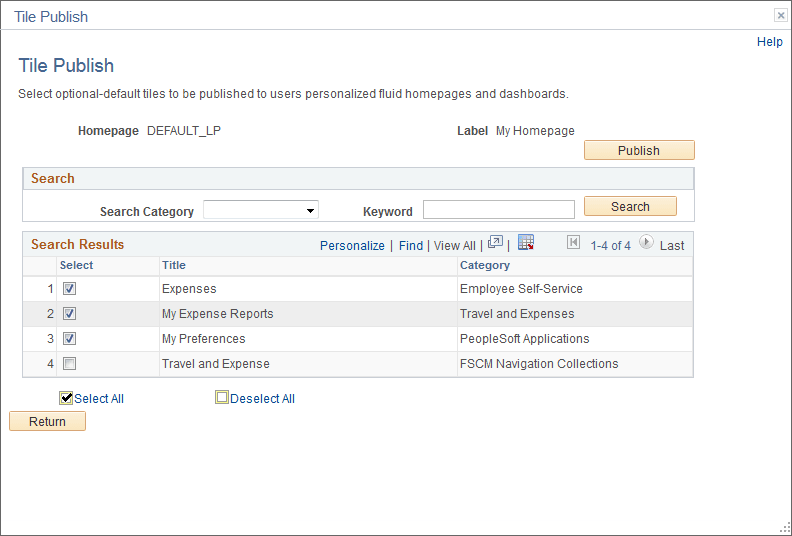
Use the Tile Publish page to publish additional tiles to users who have already personalized this homepage or dashboard.
This example illustrates the fields and controls on the Tile Publish page.
To publish additional tiles to users who have already personalized this homepage or dashboard:
-
On the Tile Content - Tab Content page, select the additional tiles for this homepage or dashboard.
-
Select Opt-Dflt for each of these tiles.
-
Save the homepage definition (or dashboard definition).
-
Click the Tile Publish button.
The Tile Publish page is displayed listing all new and existing tiles that have been marked as Opt-Dflt.
-
Select which tiles are to be published to users who have already personalized this homepage or dashboard.
Note:
Tiles that are not selected and tiles that have been previously published for this homepage or dashboard are not removed by this process.
-
Click the Publish button.
A confirmation message indicates how many tiles have been published.
-
Click OK.
-
Make note of the process ID in case you need to use Process Monitor to review the status of this PT_TILE_PUB process.
Note:
Process Scheduler must be running on your system to complete this process. After the process successfully completes, the updates will be visible to users when they sign in next or after they refresh the homepage or dashboard.
-
Click the Return button to return to the Tile Content - Tab Content page.