Migrating Activity Guide Data
For example, to migrate an activity guide template definition and its associated action item definitions:
-
Select .
-
Click the Add a New Value link.
-
Enter a project name and description.
-
On the Project Definition page, select Activity Guide List as the Data Set Name.
-
Go to the Data Set Content page.
-
Click the Insert Content button.
-
Search for the activity guide template that you want to migrate.
Note:
Search results can display both templates and instances depending on your search criteria. If you don’t know the ID for the activity guide template or instance, select the All operator.
-
Select the activity guide template that you want to migrate.
-
Click the Insert and Return button to insert the selected items.
-
Return to the Project Definition page.
-
Add a row to the Project Content grid and select Activity Guide Item as the Data Set Name.
-
Return to the Data Set Content page.
-
Ensure that ACTIVITY_GUIDE_ITEM is selected and click the Insert Content button.
-
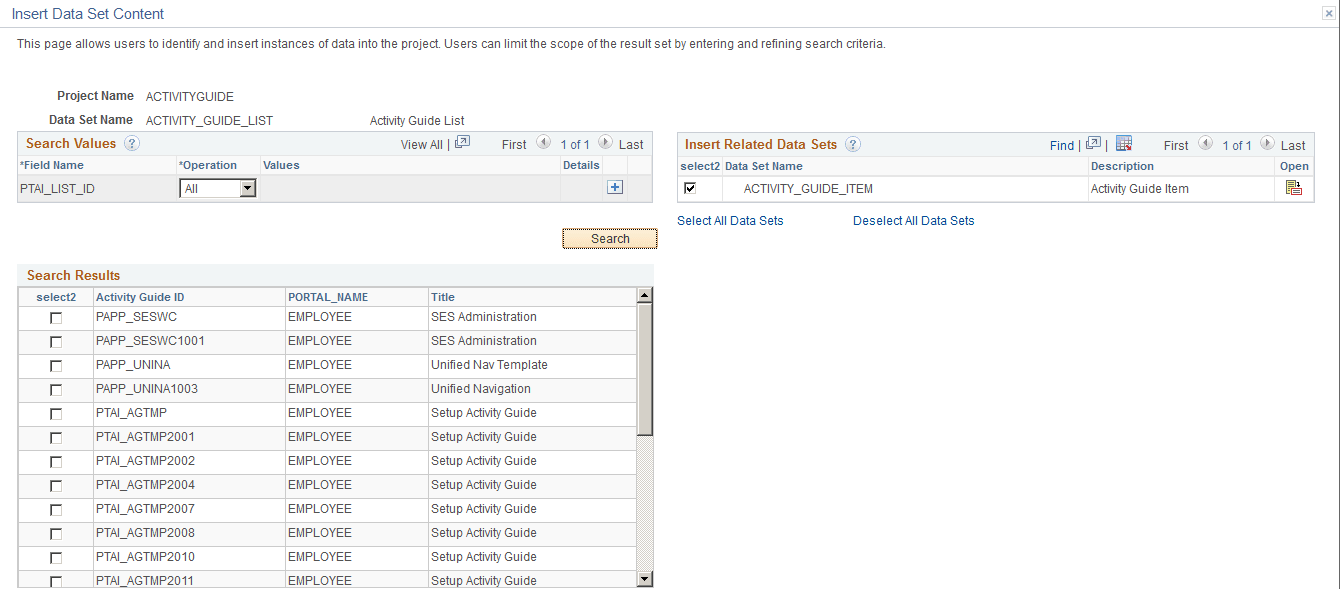
Search for only the action items that correspond to the template that you want to migrate:
Note:
Search results will display action items from both templates and instances depending on your search criteria.
-
For the PTAI_ITEM_ID field, select the All operator.
-
Add a row to the search values and select PTAI_LIST_ID as the field name.
-
Select the = and specify the template ID.
The follow example illustrates search values on the Insert Data Set Content page.
-
-
Select the appropriate actions items or click the Select All button.
-
Click the Insert and Return button to insert the selected items.
-
Click the Save button to save the data set.
-
Click the Copy To File button to copy the data set to a file.
-
Select the location for the file.
-
Click Run.
-
On the Process Scheduler Request page, click OK to start the copy process.
-
Once the project has been copied to a file, use Data Migration Workbench on the target database to compare the project data and copy it into the database. See Lifecycle Management Guide: Copy Compare Overview.
Managed objects associated with the activity guide template, action items, or instances migrated must be migrated separately via an Application Designer project. Search for and migrate objects identified by each action item’s related content service definition—for example, component definitions. In addition, search for and migrate application class PeopleCode that can be associated with:
-
Instance creation.
-
Image context data.
-
Custom activity guide actions at the instance level.
-
Custom activity guide actions at the action item level.
-
Dynamically returning a content URL to display additional information.
-
Action item post processing.
-
Approval Workflow Engine (AWE) approval handlers
Resetting the Last Instance ID After Migration
When you migrate activity guide instances from one database to another, the last list ID may not be synchronized in the two tables where it is used: the PS_PTAI_LIST table and the PS_PTAI_OPTIONS table. When the values are not synchronized, new instances may be created using invalid instance IDs.
Use the following SQL to synchronize the last list ID. Find the maximum list ID in the PS_PTAI_LIST table:
SELECT MAX((SUBSTR(PTAI_LIST_ID, 11, LENGTH(PTAI_LIST_ID)))) FROM PS_PTAI_LIST;
Then, use this value to update the PS_PTAI_OPTIONS table:
UPDATE PS_PTAI_OPTIONS SET PTAI_LAST_LIST_ID=last_ID_from_PS_PTAI_LIST WHERE PTAI_LAST_ITEM_ID=2000