Moving Folders and Content References
Access the Select New Parent Folder page ( Click the New Parent Folder button).
The following example illustrates moving folders and content references on the Select New Parent Folder page.
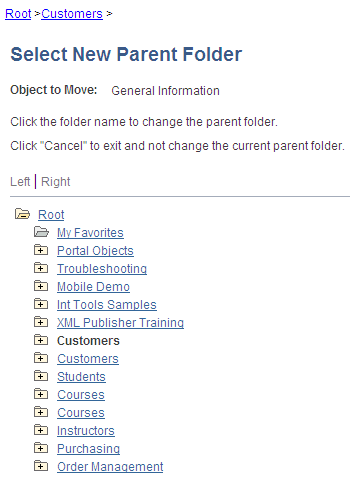
The current parent folder is shown in bold type, and the folder tree is expanded just enough to show the location of the current parent folder. All other folders are shown collapsed. You can expand the tree to show content references, which are displayed as tree leaves and appear in normal text.
To move a folder or content reference to a new parent folder:
-
Navigate to the new parent folder by clicking the appropriate folder icons with plus signs.
Note:
When navigating, do not click the folder name unless it’s the name of the new parent folder that you want to select. Once you click a folder name, as opposed to the icon, the folder name that you selected becomes the new parent folder.
-
Select the new parent folder by clicking the folder name.
-
Click Save.
Note:
When you move a content reference that points to a component or script at the default local node, its security settings are cascaded up to its new parents all the way up to the root folder. In addition, when you move a folder, its security settings (not including security inherited from a subordinate object) are cascaded up to its new parent, all the way up to the root folder. This ensures that the folder or content reference is accessible in its new location.